
Tutorials · 3ds Max Workflow
How to copy/paste 3d models in 3ds Max
By Marcin Sroka · Studio3D · 6 min read · Updated for 2026
There’s a workflow problem that every 3ds Max user has run into, usually at the worst possible moment. You’ve built a perfect sofa – clean geometry, good UVs, a complex multi-layered Corona material with a dozen bitmap textures. You need it in another scene. You merge it in. You render. And there they are: the dreaded pink override materials, the missing texture warnings, the broken paths.
Now you spend the next 20 minutes hunting down bitmaps across three different network drives, manually relinking paths one by one, wondering why this is still a problem. It is a problem because 3ds Max was never designed with a proper asset transfer system. The native Merge function moves geometry. It does not move textures, it does not update paths, and it has no concept of a persistent library. You are on your own.
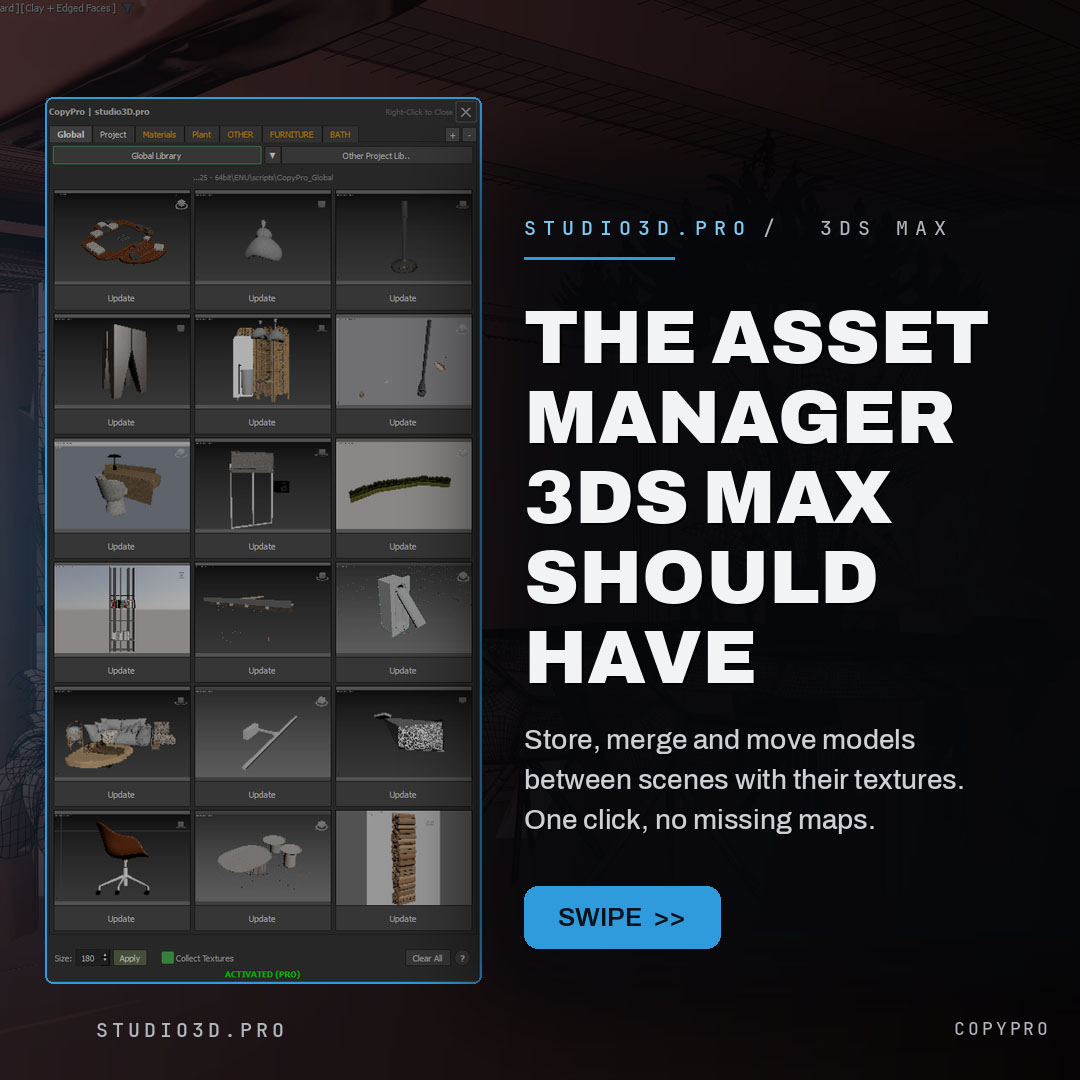
This article is about that specific pain, why it happens, and how to remove it for good. It also covers what CopyPro actually does – a tab-based asset library that copies models between open scenes and between computers, textures and all, and merges them back into any scene with one click.
The problem with 3ds Max’s native Merge
3ds Max has shipped a Merge command for years. On paper it sounds ideal: pull an object from one file into another and keep working. In practice it plays out very differently.
Texture paths break the moment you change machine or project. 3ds Max stores texture paths as absolute paths. When you merge an object into a new scene – especially on a different machine, or even just a different project folder – those paths no longer point to anything. The bitmaps are still somewhere on disk, but Max doesn’t know where. The result is always the same: missing maps, broken materials, time lost relinking.
There is no quick clipboard between open scenes. The standard workaround is to open both files, copy from one viewport, switch scenes, and paste. It works for simple geometry, but materials, instances, and nested hierarchies frequently cause problems. And there’s no memory to it – close the file and the “clipboard” is gone.
There is no persistent asset library. ArchViz artists maintain collections of hero assets: furniture, plants, lighting rigs, material presets. There’s no native way to organize these. Most artists resort to a folder of .max files on a shared drive, manually browsing and merging each time – a system that doesn’t scale and doesn’t show thumbnails.
4K monitors break the UI. On modern high-DPI displays, 3ds Max’s built-in dialogs and most older scripts render at the wrong scale. What should be a quick tool becomes something you fight with on every click.
Add it up and native asset transfer costs far more time than it saves. Multiply a single 20-minute relink by every project and every revision round, and you are looking at hours of non-billable, non-creative work every month.
What asset transfer should actually look like
The fix is not a workaround. It is a different way of moving assets in 3ds Max. Here is the workflow that should exist.
- Select the object you want to reuse.
- Store it to a slot with one click – its textures are collected automatically.
- Switch to any open scene, on this machine or another.
- Left-click the slot thumbnail.
- The object merges in, selected and ready to render, with every texture intact.
No file dialogs. No path hunting. No pink materials. This is exactly what CopyPro does.

How CopyPro solves each problem
A tab system built around real workflows
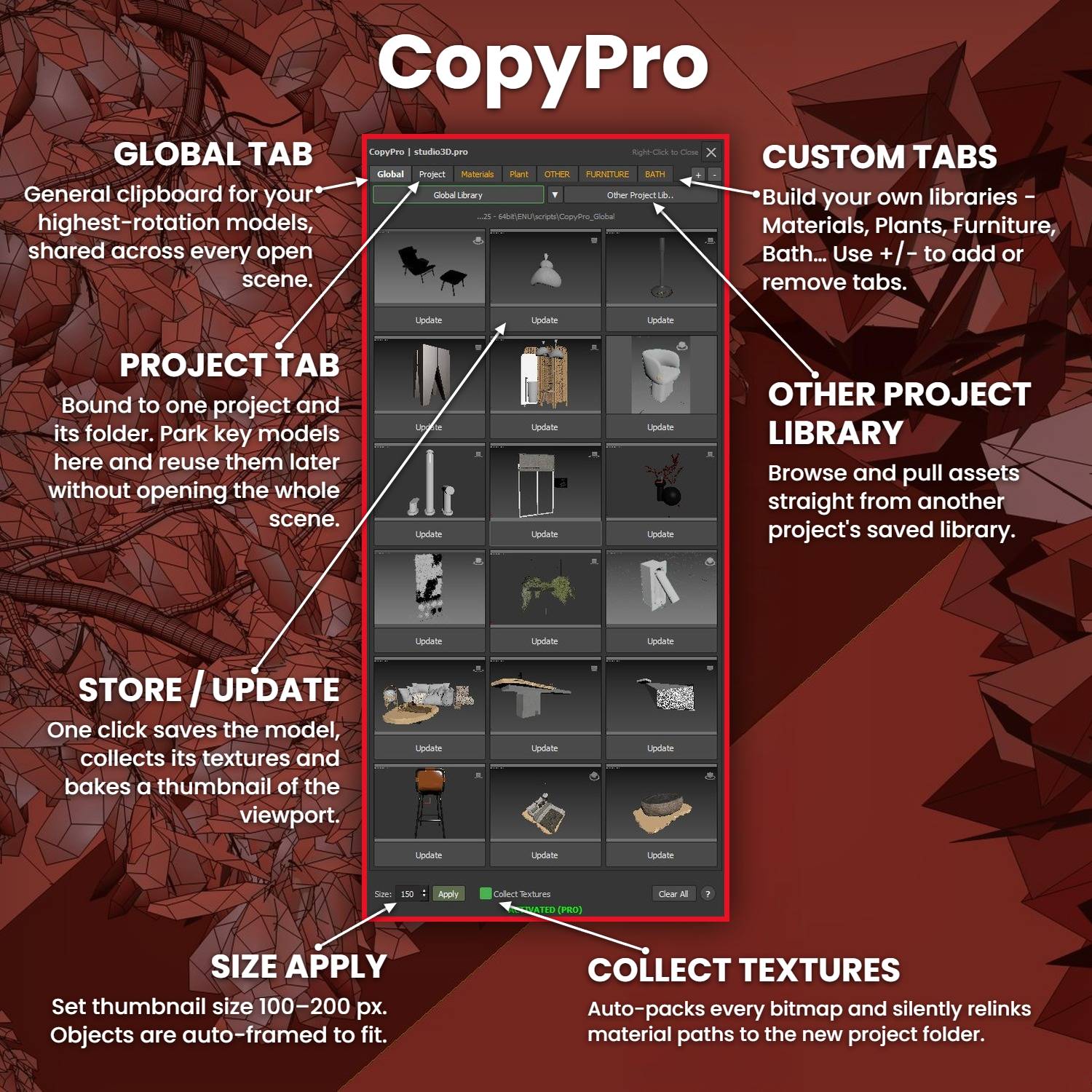
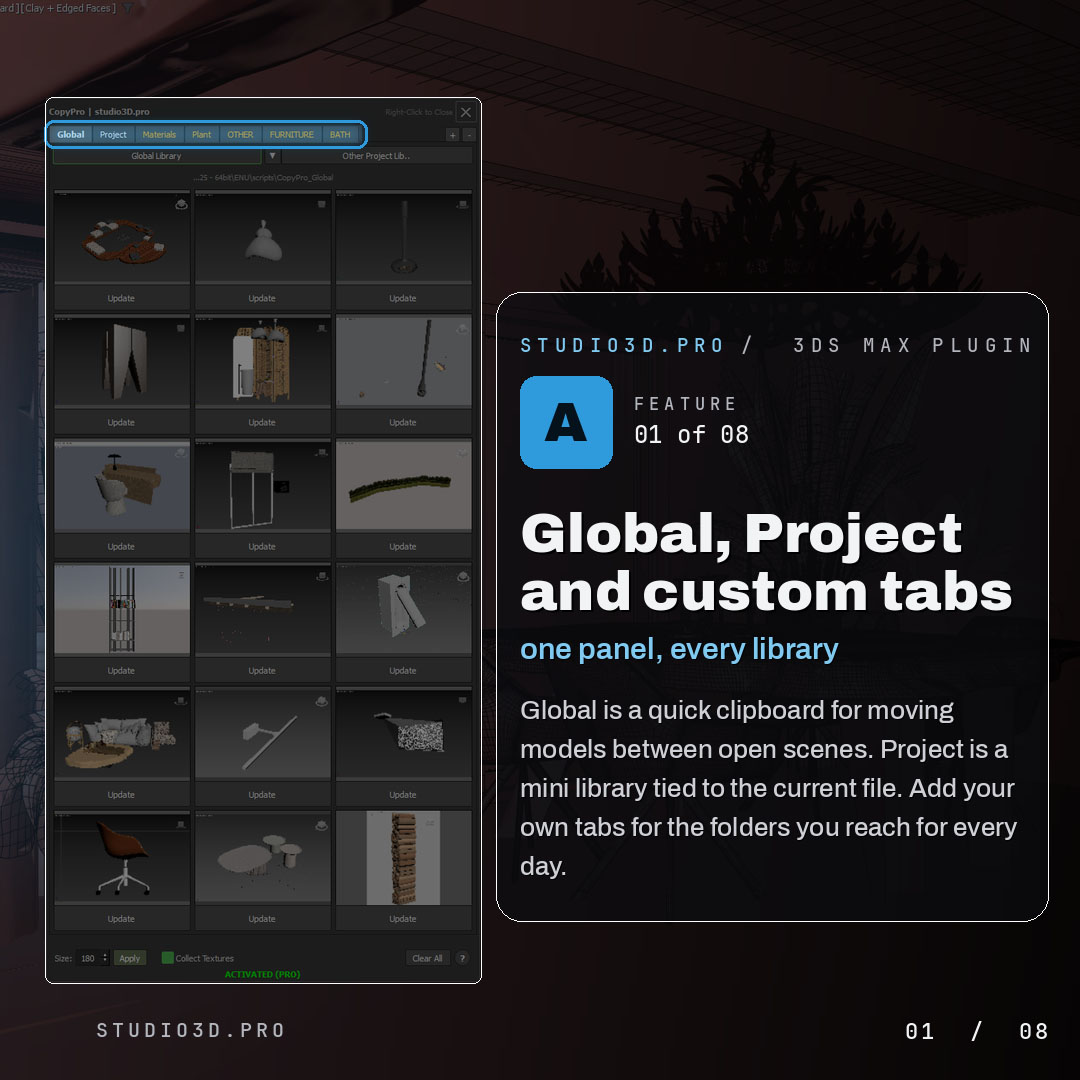
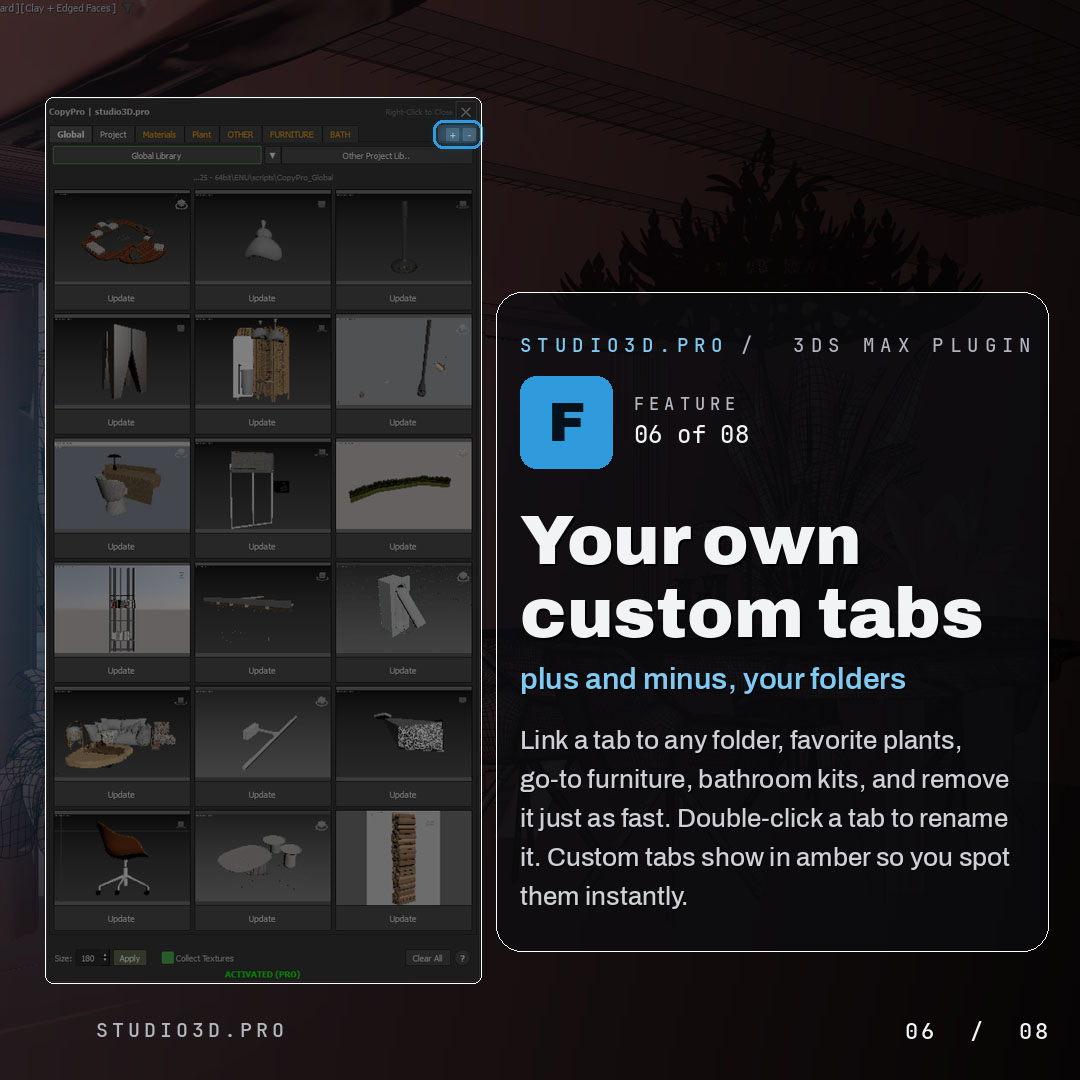
CopyPro organizes assets across three types of tabs, each for a different use case. The Global tab is a quick clipboard for moving models between open 3ds Max instances – store an object, switch to another open scene, click the slot, and the model merges in with textures intact. The Project tab is a mini library tied to the current file, so stored assets stay with the project permanently. Custom tabs are fully user-defined – add as many as you need for the folders you reach for every day, each one a visual, thumbnail-based browser for that folder.
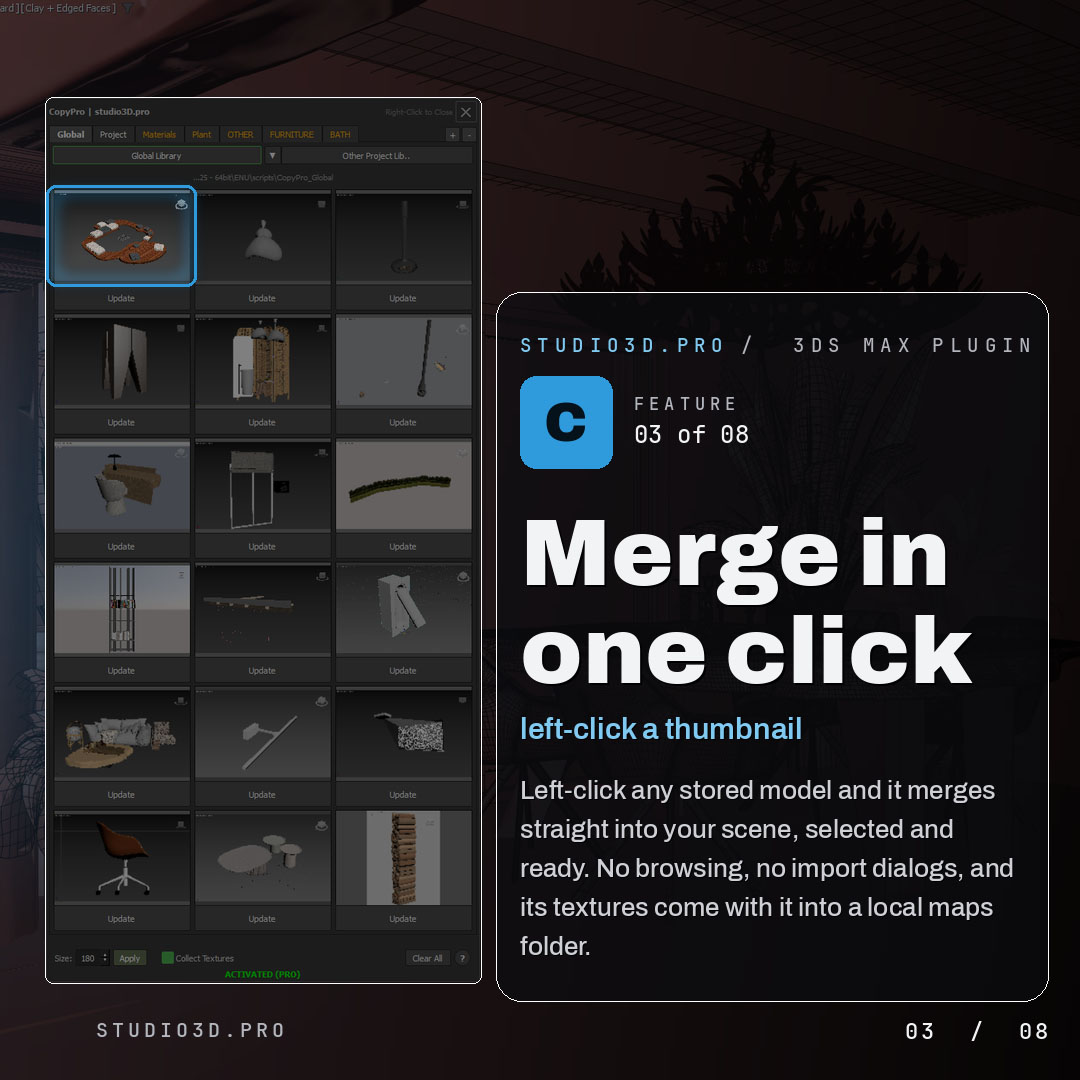
Merge in one click
Left-click any stored model and it merges straight into your scene, selected and ready. No browsing, no import dialogs, no navigating to a .max file. Its textures come with it into a local maps folder automatically.
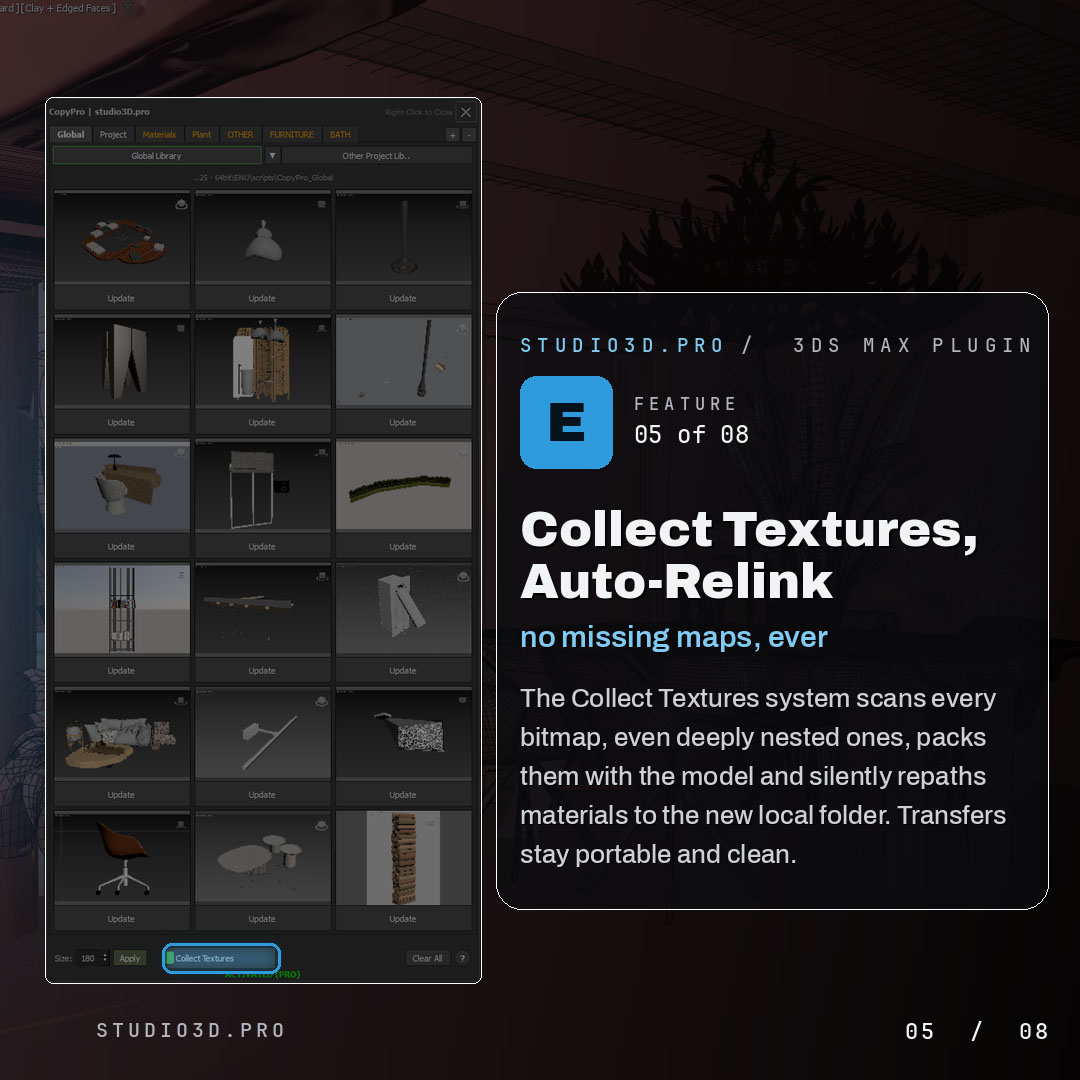
The texture collection system - where the real magic happens
The most powerful feature in CopyPro is Collect Textures. When you store an object with it enabled, CopyPro scans the object’s entire material tree – including deeply nested maps inside complex multi-sub materials – and packs every bitmap with the model, handling naming conflicts automatically. When you later merge that object into a different scene, CopyPro physically moves those textures into a local maps folder in the target project and silently repaths every material to point there. The result is a fully portable object with all textures correctly linked, requiring zero manual relinking. No broken paths. No missing bitmaps.
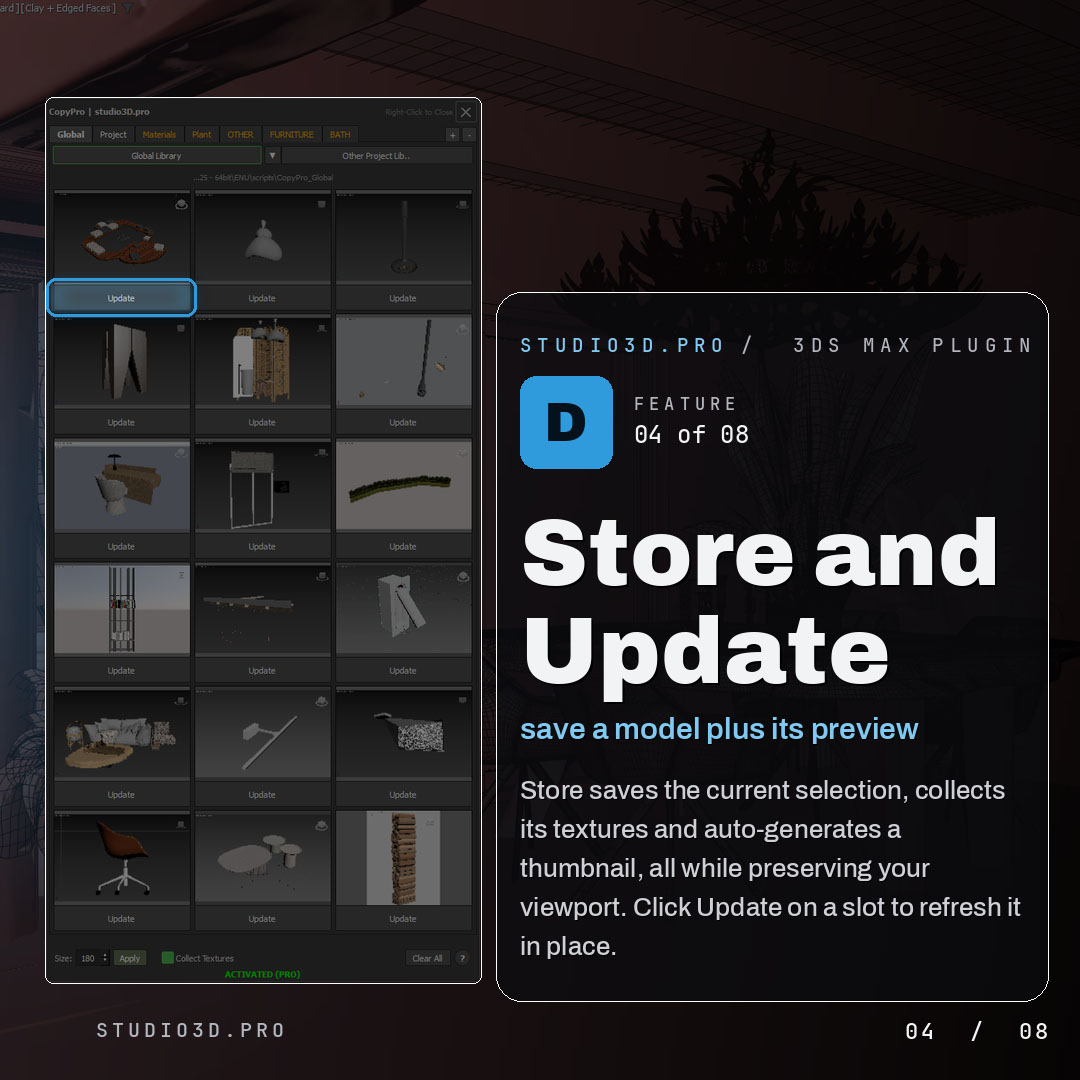
Store and Update
Store saves the current selection, collects its textures, and auto-generates a thumbnail – all while your viewport is preserved exactly as it was. Update refreshes a slot in place when the asset changes, so your library never drifts out of date.
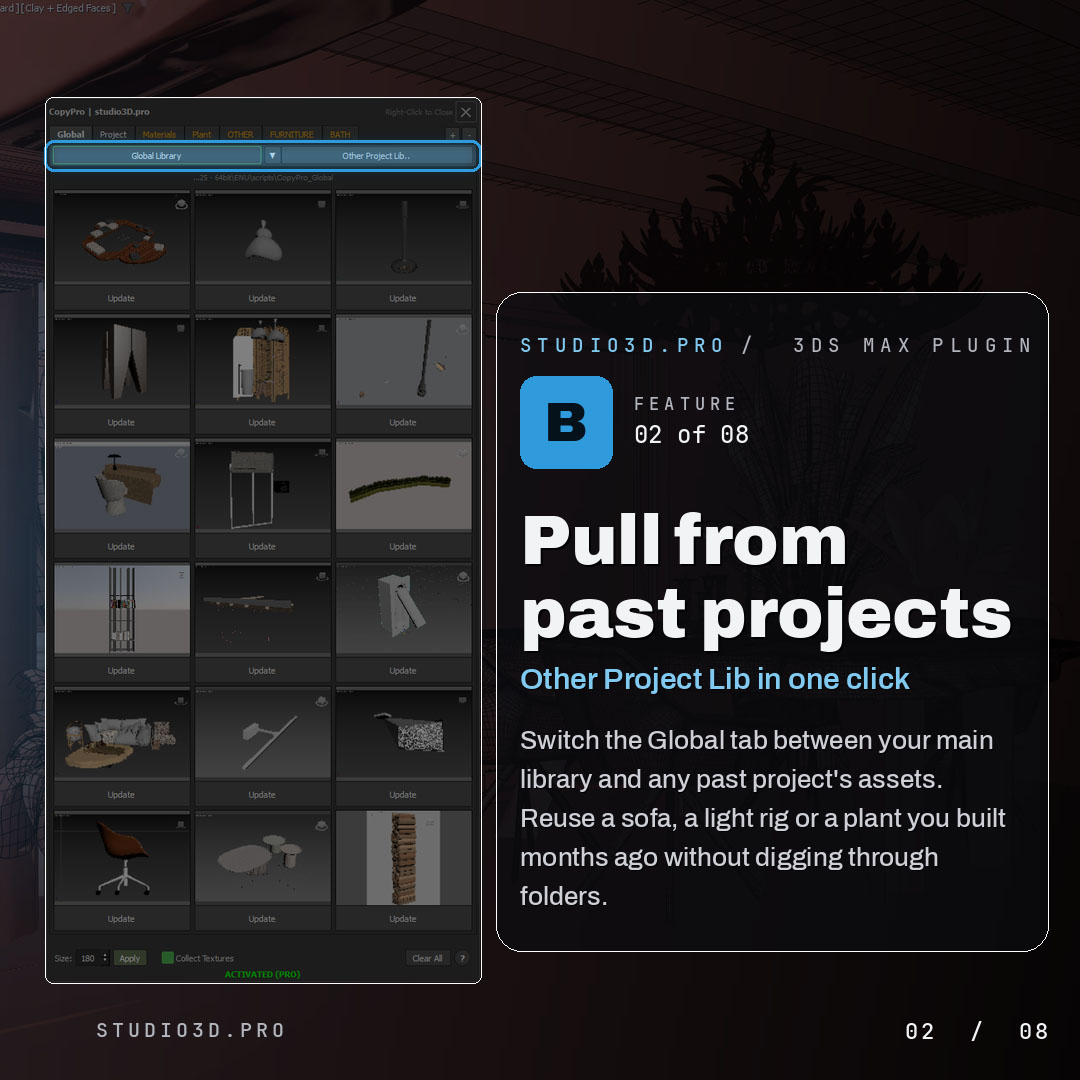
Pull from past projects
Switch the Global tab between your main library and any past project’s assets. That sofa, light rig, or plant you built months ago is accessible in a couple of clicks – no digging through folders, no reopening old files just to grab one object.
Custom tabs you define yourself
Link a tab to any folder on disk: favorite plants, go-to furniture, bathroom kits, a shared server library. Add and remove tabs with plus and minus, and double-click a tab to rename it. Custom tabs show in amber, so you spot them instantly against the standard ones.
Smart thumbnails that show what you have
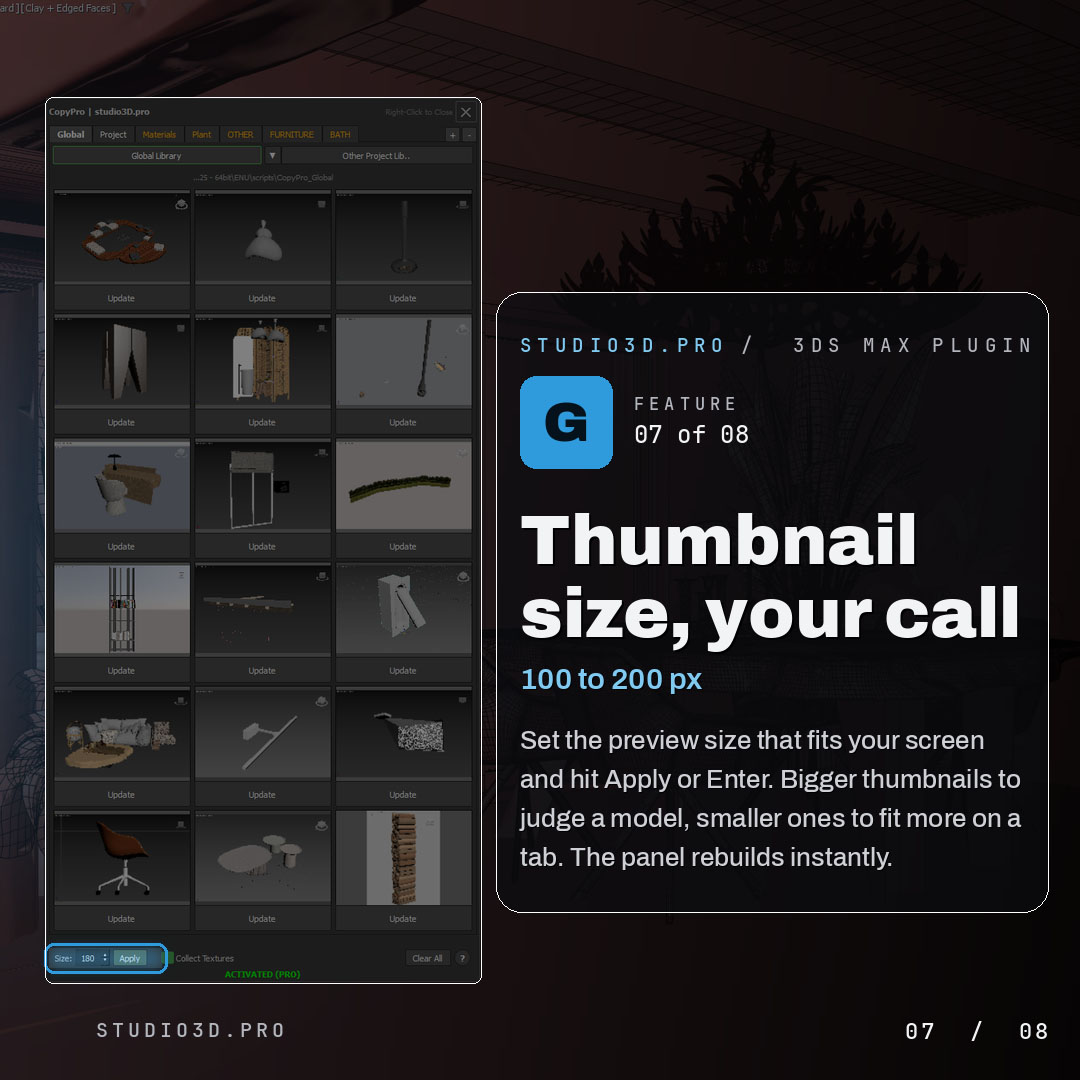
Each tab is a grid of interactive slots with auto-generated previews, so you see exactly what each slot contains without opening anything. Thumbnail size is adjustable from 100 to 200 px – larger to judge a model, smaller to fit more on a tab. Apply with the button or Enter and the panel rebuilds instantly.
Built for modern monitors
CopyPro scales its interface correctly on high-DPI and 4K displays, where most older 3ds Max plugins become frustrating to use. The interface is frameless and matches the dark 3ds Max UI, can be dragged from any point, and closes with right-click or ESC, reappearing exactly where you left it. Under the hood it supports both PySide2 (3ds Max 2024 and earlier) and PySide6 (3ds Max 2025+), so it stays compatible across versions without separate installs.
Clear All and About
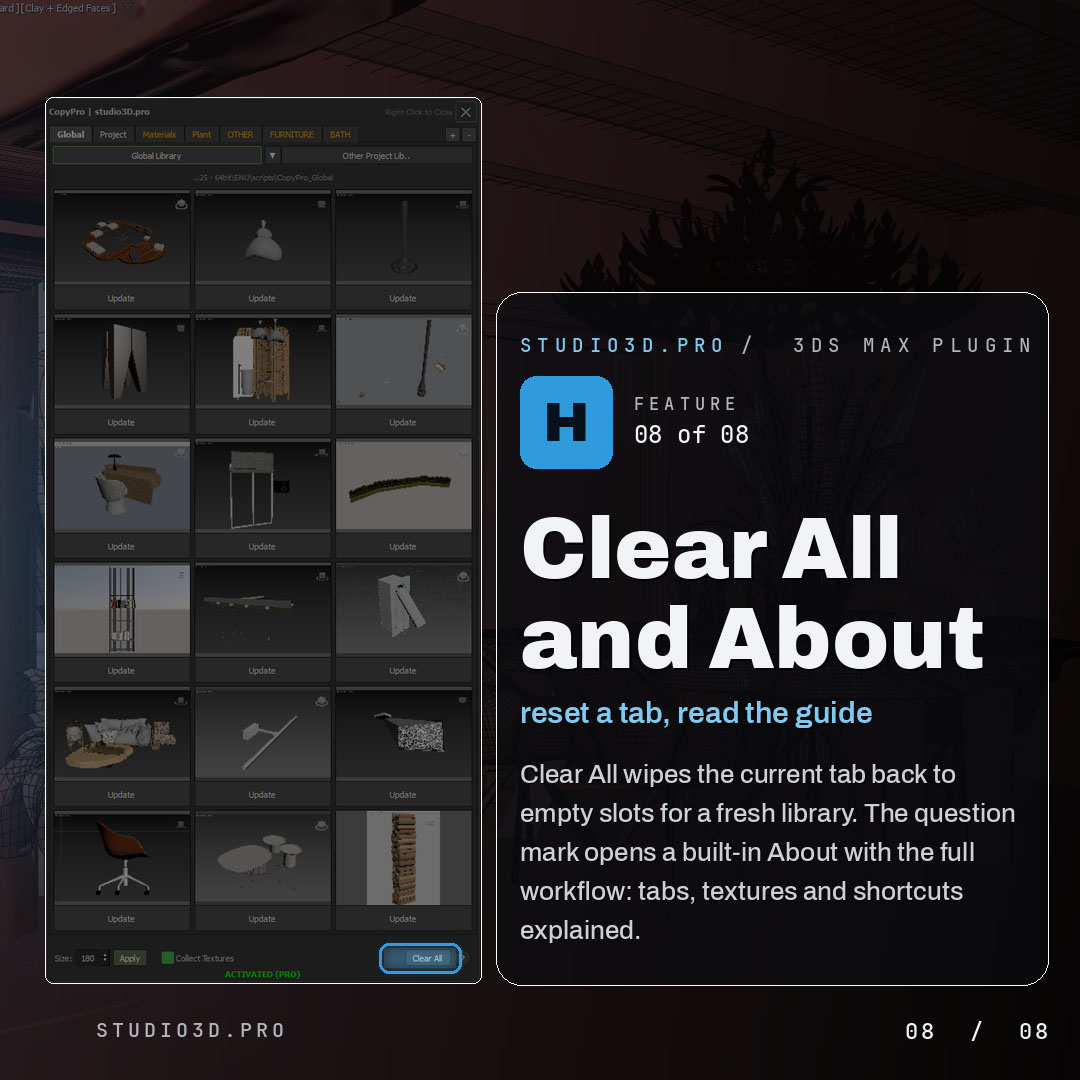
Clear All wipes the current tab back to empty slots for a fresh library. The question-mark button opens a built-in About with the full workflow explained, so the whole tool documents itself.
What changes in your daily workflow
Before CopyPro, a typical asset transfer in an ArchViz workflow looks like this:
- Open source scene
- Locate the
.maxfile for the target asset - File → Merge → navigate to the file → select objects
- Discover broken texture paths
- Open Asset Tracking (Shift+T)
- Hunt down missing bitmaps on disk
- Manually relink each one
- Repeat for every asset
After CopyPro:
- Store the asset to a slot (one click)
- Switch scene, click the slot thumbnail
That’s it. Textures move automatically. Paths update silently. The object lands in the new scene ready to render. For an artist who moves assets between scenes several times a day – which describes most ArchViz professionals – this is not a minor convenience. It is the removal of a recurring, low-skill task that interrupts creative work every single time it happens.
Who this plugin is built for
CopyPro is made for ArchViz professionals: interior designers, exterior visualization artists, and anyone who reuses models across multiple 3ds Max scenes on a regular basis.
If you build every scene from scratch and never move assets between files, the native Merge command is probably enough. But if you maintain a library of hero assets, work across several open scenes at once, or move projects between machines, the time CopyPro saves adds up fast – and it pays for itself the first time you reuse a model instead of rebuilding it.
Compatibility and pricing
CopyPro is fully compatible with 3ds Max 2022 to 2027 on Windows. It works with all render engines, including V-Ray, Corona, and Arnold, because texture collection and relinking operate on the material tree itself, not on any single engine.
New to Studio3D plugins? Download the free ArchViz Toolkit to get a feel for the workflow philosophy behind all the tools here. CopyPro is also included in the ArchViz Toolkit Pro Pack for €49.
The bottom line
The native Merge workflow in 3ds Max has been broken in the same ways for years. CopyPro doesn’t patch around it – it replaces it entirely with a tab-based library system, automatic texture portability, and a visual asset browser that works the way a modern ArchViz pipeline should.
If you’ve ever spent 20 minutes relinking textures after a merge, you already know exactly what this plugin is worth.
Also from Studio3D: Batch Render Pro, render all scene cameras with one click. It works together with CopyPro as part of a complete ArchViz asset and render pipeline.
Tags: 3ds max · copy objects between scenes · merge textures · asset library · archviz workflow · missing textures · 3ds max plugins · texture relinking · 3ds max 2027 · copy paste 3d model