

Tutorials · 3ds Max Workflow
By Marcin Sroka · Studio3D · 6 min read · Updated for 9.0
How to automatically set up Batch Render in 3ds Max
If you work in architectural visualization, you know the routine. A client asks for a dozen views. You open the 3ds Max Batch Render dialog, and the real work starts. Not the creative part, the repetitive setup that nobody warns you about.
This article is about that specific pain, why it happens, and how to remove it for good. It also covers what changed in Batch Render Pro 9.0, the largest update to the plugin so far, including format control, batch stop limits, and one-click export to every render engine.
The problem with 3ds Max's native Batch Render
3ds Max has shipped a Batch Render tool for years. On paper it sounds ideal. Set up several camera views, press render, walk away. In practice it plays out very differently.
Here is what actually happens on a scene with 10 to 15 cameras.
You configure each camera by hand. Every view needs a new row, an assigned camera, an output path, a filename, a resolution, and a render preset. There is no select-all-and-render. There is no automatic naming. There is no real automation.
For a scene with 12 cameras that means 12 repetitive setup cycles, each one a chance for a typo, a wrong path, a mismatched resolution, or a camera you simply forgot.
Resolution changes hurt. If a client moves from 3840 x 2160 to 4096 x 2160 halfway through, you reopen every row and edit it manually. Miss one and the delivered set is inconsistent.
There is no preview step. Before a full-quality pass most artists want a quick look at the composition from every camera. The native tool has nothing for this. You either render everything at full quality or you rig up an awkward manual workaround.
Filenames are your problem too. The native tool will not name files after the camera they came from. Tracking which render belongs to which camera across revisions becomes its own chore.
Add it up and you get a tool that exists but costs more time than it saves. On a typical project with a dozen views you can spend 30 to 45 minutes just building the queue. Multiply that by revision rounds and you are looking at hours of non-billable, non-creative work every week.
What batch render automation should actually look like
The fix is not a workaround. It is a different way of handling multi-camera rendering in 3ds Max. Here is the workflow that should exist.
- Open your scene with every camera placed and named.
- Open the batch tool.
- See all cameras listed for you, with no manual adding.
- Press one button.
- Come back to finished renders, named correctly, saved in the right folder.
No per-camera setup. No manual naming. No resolution juggling. This is exactly what Batch Render Pro does.


How Batch Render Pro solves each problem
One-click rendering for all cameras
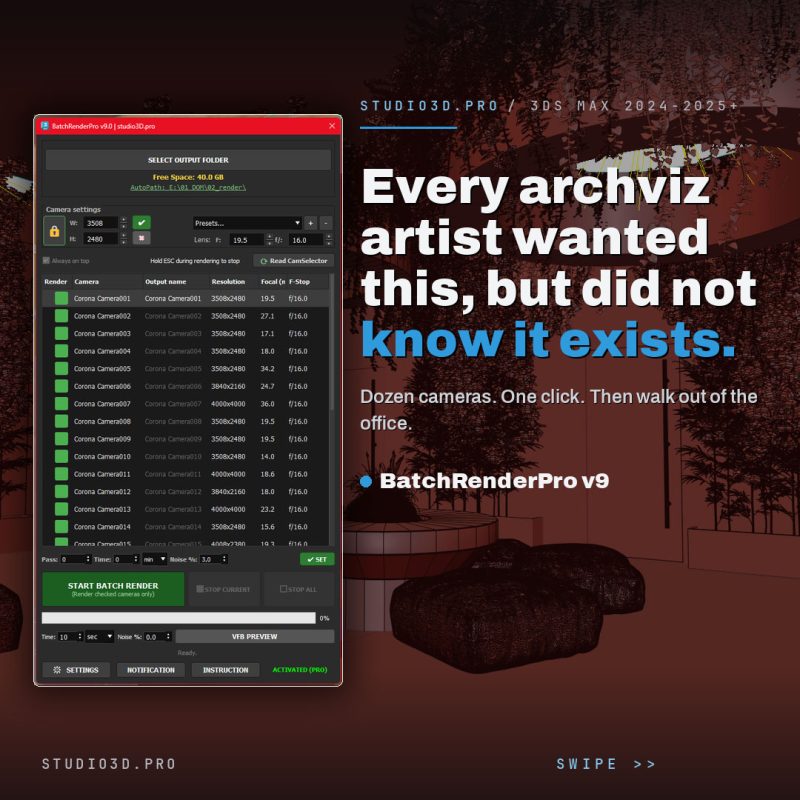
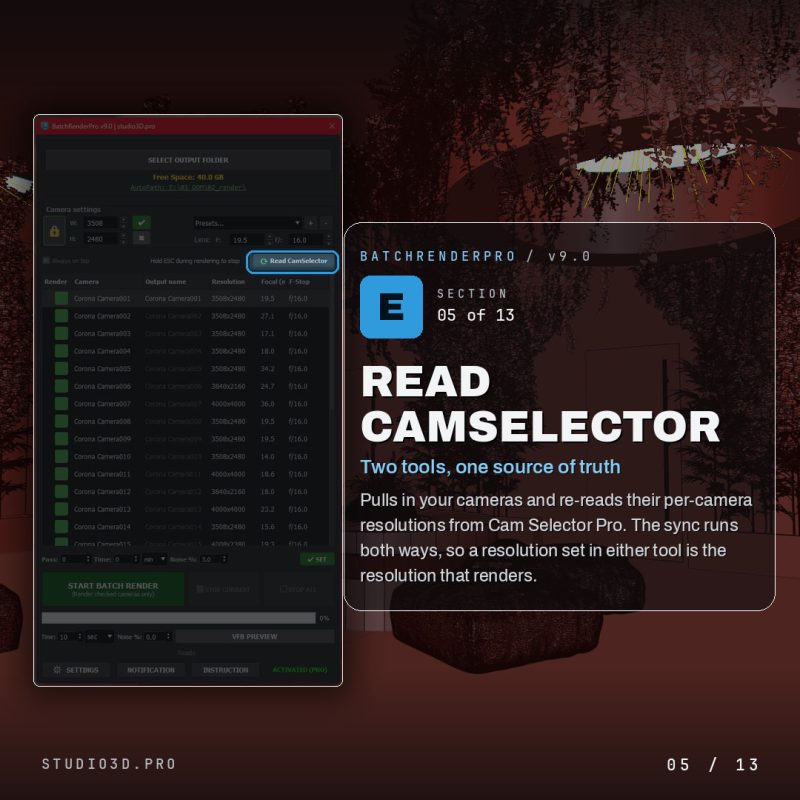
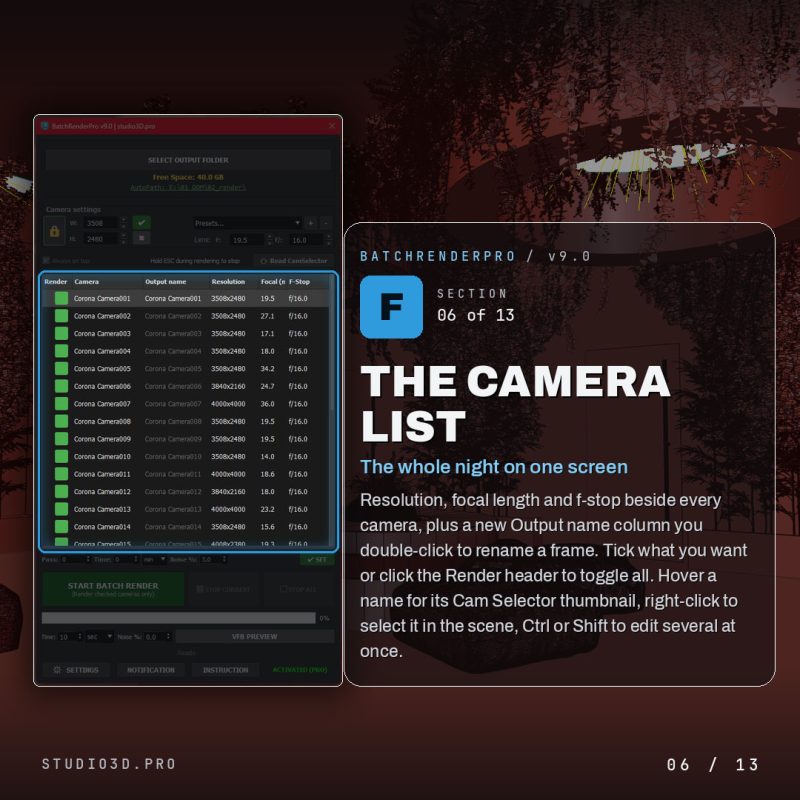
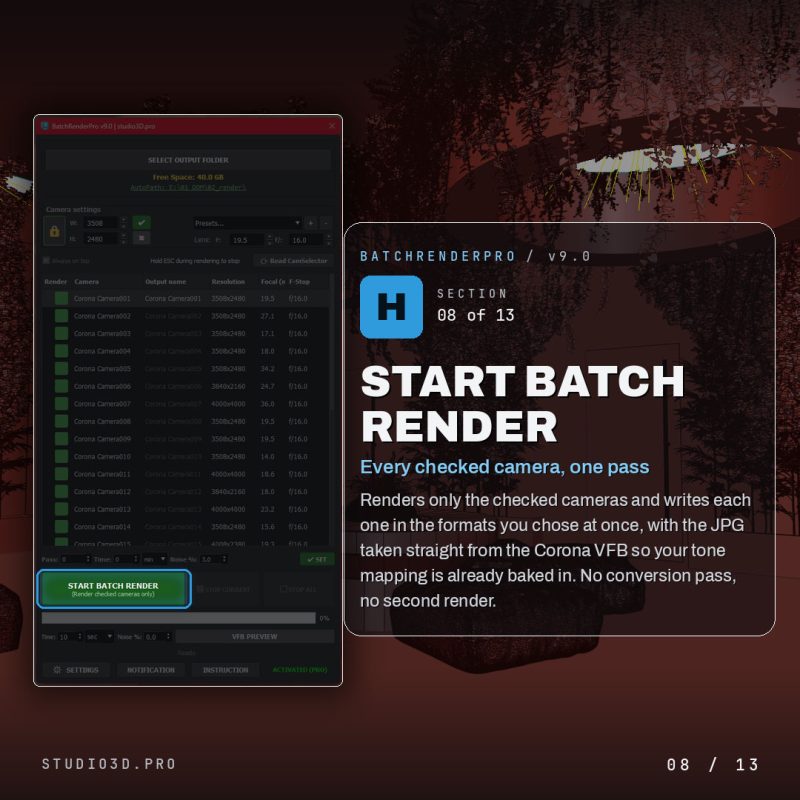
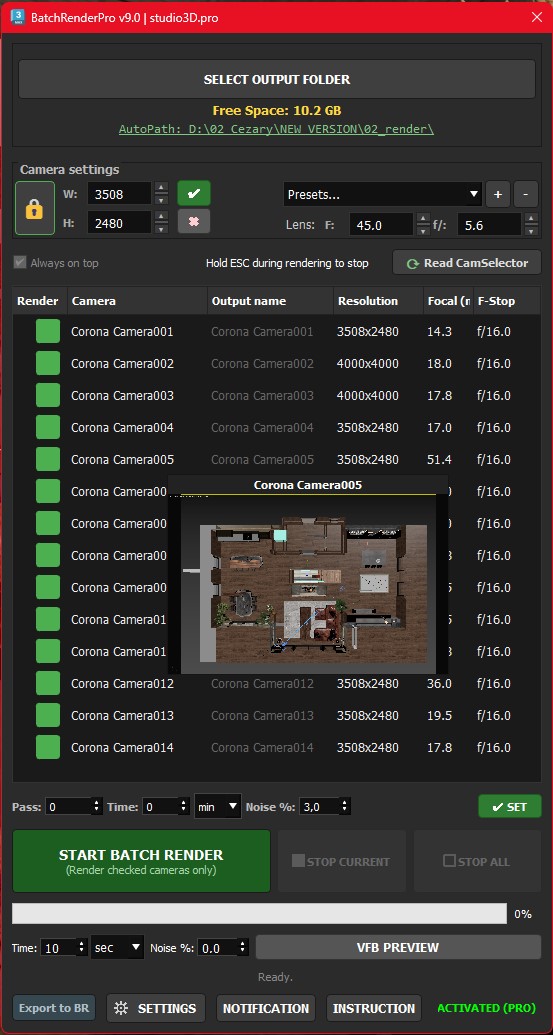
When you launch Batch Render Pro it reads every camera in the current scene and lists them in the interface. You do not add them by hand, they are already there. Select all, press render, done. For a scene with 15 cameras the setup drops from 30 to 40 minutes down to under 30 seconds.
Automatic file naming and folder creation
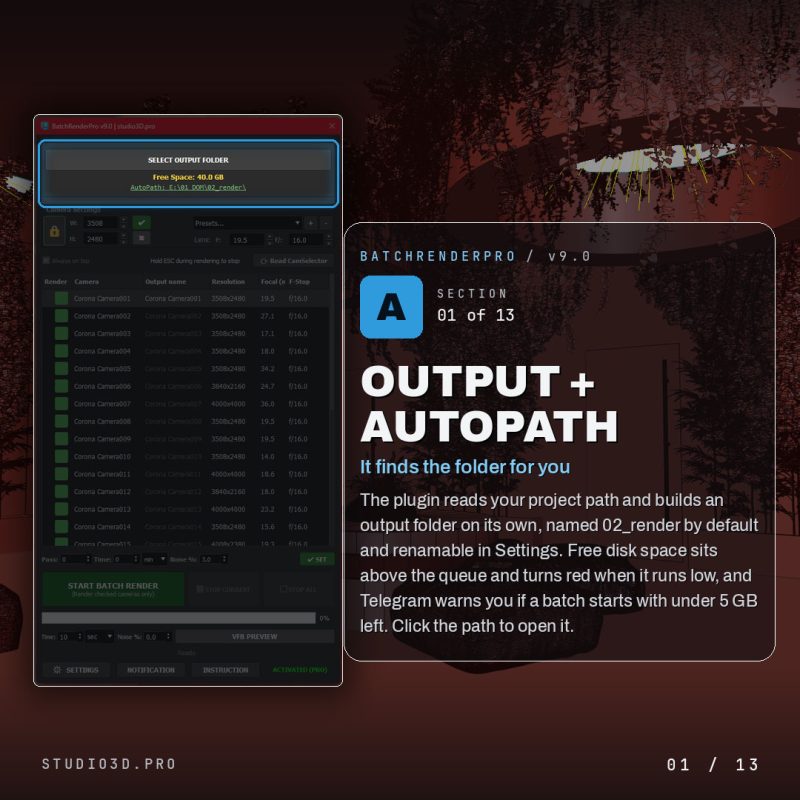
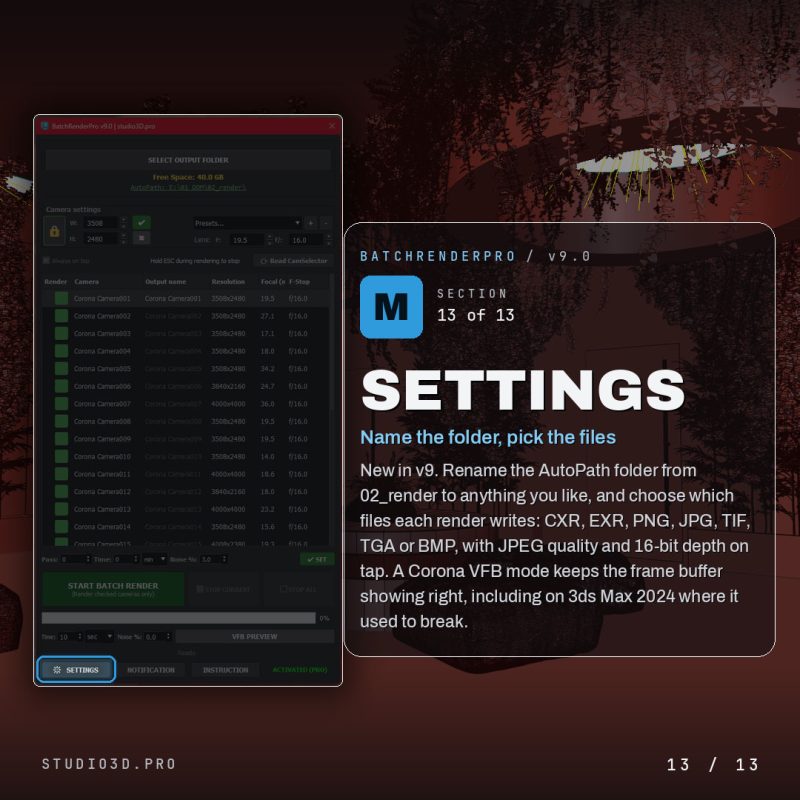
Batch Render Pro creates an 02_render subfolder inside your project directory (the name is configurable in Settings) and names each output file after the camera it came from. You can also type a custom output name per camera. In version 9.0 that name is stored inside the camera itself, so it survives a Max restart and travels with the scene.
Resolution overrides that actually work
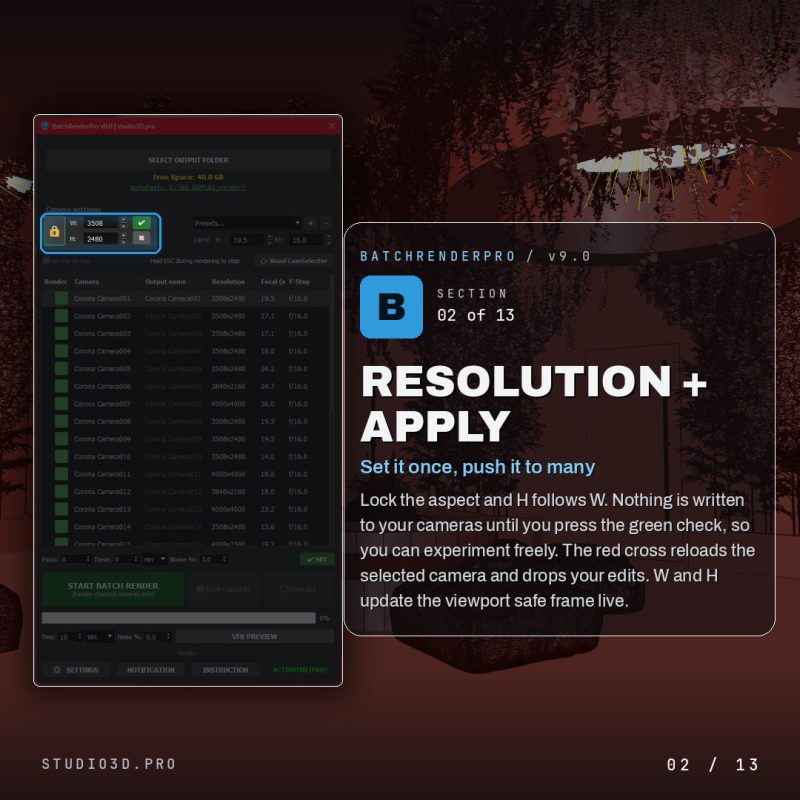
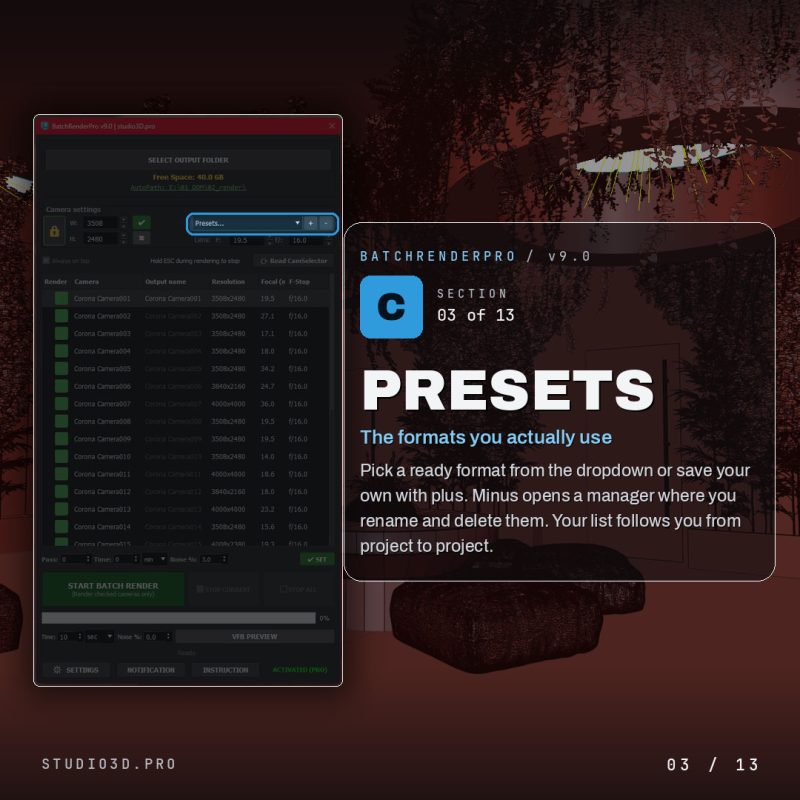
Change width, height, and aspect ratio for any selection of cameras at the same time. Set the values, select the cameras, confirm, and they apply to the whole selection, with an aspect lock so nothing gets stretched. Save your own resolution presets and switch between them instantly, which is handy when one client wants 4K stills and another needs web-optimized exports.
Format control (New in 9.0)
Choose your output formats up front: CXR, EXR, PNG, JPG, TIF, TGA, or BMP, with JPEG quality and PNG or TIF bit depth set once in Settings. Overwrite protection keeps you from clobbering an earlier pass. On Corona scenes the plugin writes the native CXR and a tone-mapped JPG at the same time, both pulled from the Corona VFB.
Batch stop limits (New in 9.0)
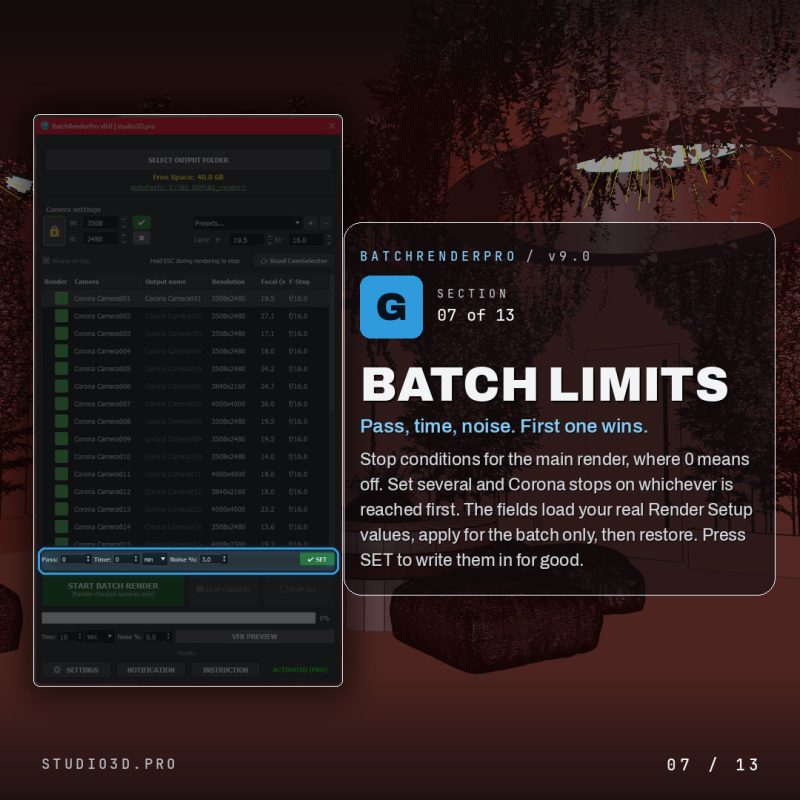
Set a Pass, Time, or Noise target for the main render right above the Start button. Zero disables a limit, and if you set more than one the render stops on whichever is reached first. The plugin applies your limits for the batch and restores your scene afterwards, or writes them into Render Setup permanently with a single click.
Built-in preview rendering
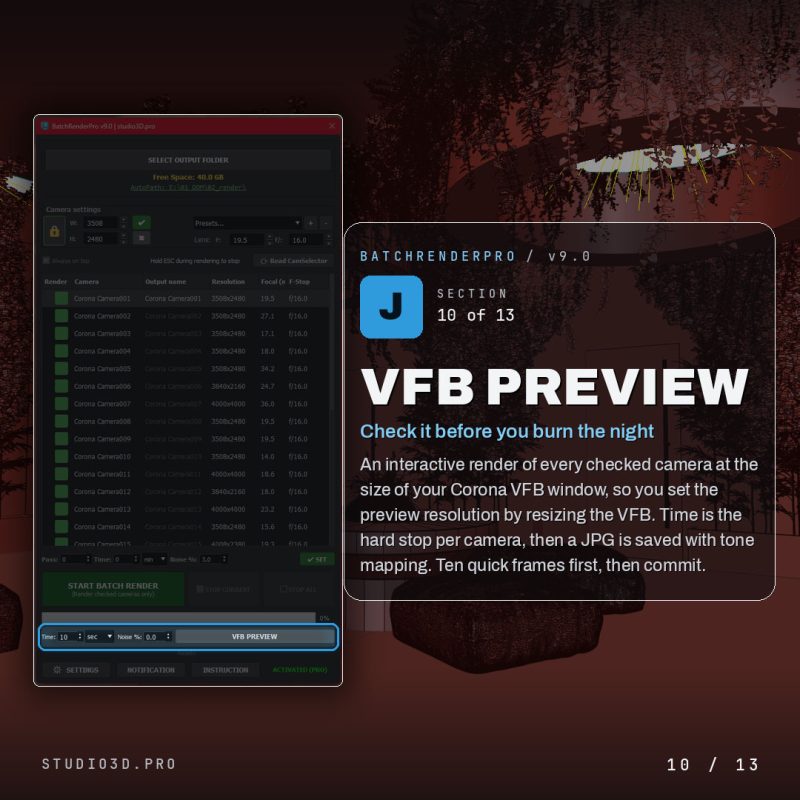
Before committing to a full pass, run the VFB preview. On Corona it renders interactively at the current size of the VFB window and stops on a time limit or a noise target, then saves a tone-mapped JPG. Check your composition from every angle in minutes instead of burning a full render just to see the framing.
Lens overrides on the fly
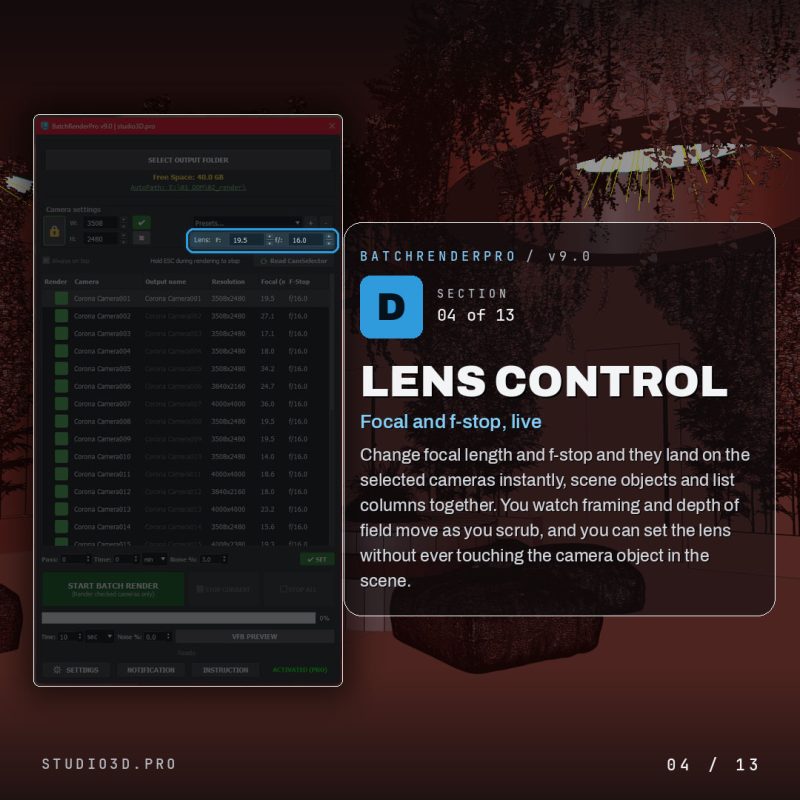
Want to compare 24mm against 35mm? Override focal length and F-Stop directly in the interface and render. The change writes to the selected cameras so you can see it in the list and in the scene, without rebuilding your setup by hand.
Stop controls (New in 9.0)
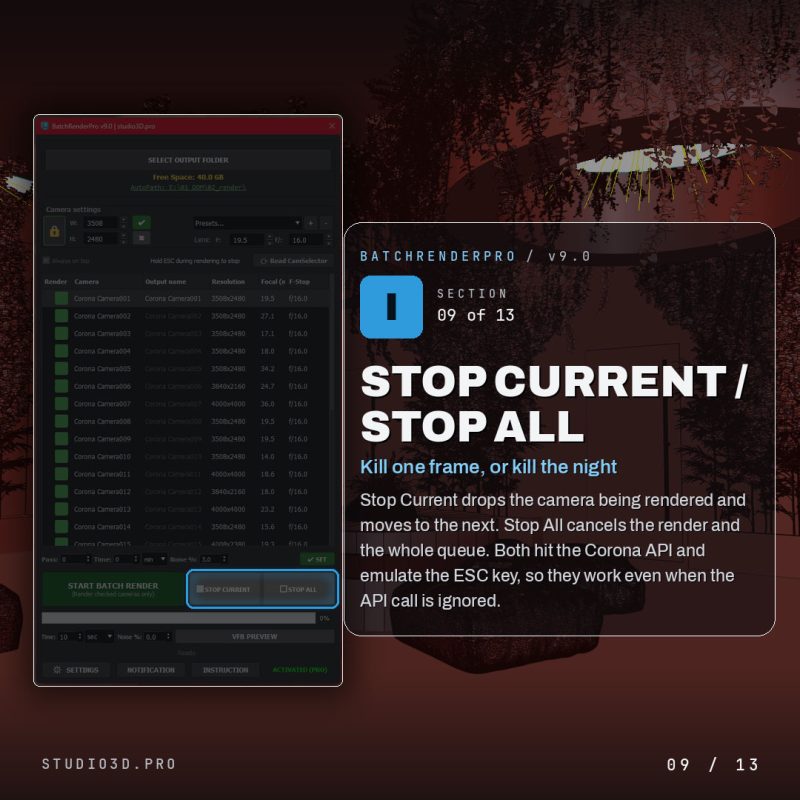
Two stop buttons give you real control over a long queue. Stop Current cancels only the frame rendering right now and moves to the next camera. Stop All cancels the current render and ends the whole batch. Both call the renderer API and fall back to an ESC key emulation, so they work across Corona versions.
Telegram notifications
For sessions running overnight or while you are away, Batch Render Pro sends a Telegram message with a JPG preview after each frame and a final message when the queue is finished. Version 9.0 adds alerts for cancelled renders, per-camera errors, missing output files, and low disk space at the start of a batch.
Now it works with every render engine
Earlier versions leaned on Corona for the full pipeline. Version 9.0 opens the same fast setup to every render engine in 3ds Max.
Corona users still get the complete native pipeline inside Batch Render Pro: simultaneous CXR and JPG output, tone-mapped previews, the interactive VFB preview, and the batch stop limits.
For V-Ray, Arnold, Redshift, FStorm, or the built-in scanline renderer, Batch Render Pro exports your entire configured queue straight into the 3ds Max native Batch Render manager. Cameras, per-camera resolution, output names, and the output folder all transfer in one click. You keep the quick part inside Batch Render Pro, reading every camera automatically, setting resolutions and presets, and naming outputs, then hand the actual rendering to the native queue that every engine already supports.
In plain terms
You get the one-click camera setup no matter which engine you use, and you never touch the native Batch Render list by hand again. Do the setup once in Batch Render Pro, press export, and the native queue is filled in and ready to render in any other renderer or render farm.
Who this plugin is built for
Batch Render Pro is made for ArchViz professionals: interior designers, exterior visualization artists, and anyone working with multi-camera 3ds Max scenes on a regular basis.
If you render one or two cameras per project, the native Batch Render tool is probably enough. But if your typical scene has five or more views, and you deliver several revision rounds to clients, the time you save with Batch Render Pro adds up fast.
A conservative estimate: save 30 minutes of setup per project across four projects a month and you recover two hours every month. That is time for creative work, for extra projects, or simply for stepping away from the desk.
Compatibility and pricing
Batch Render Pro is fully compatible with 3ds Max 2021 to 2027. It works alongside any render engine: V-Ray, Corona, Arnold, Redshift, FStorm, or the native scanline renderer. Corona gets the extra native features (CXR plus JPG output, tone-mapped previews, and the interactive VFB preview), while every other engine is driven through the native Batch Render export.
25€
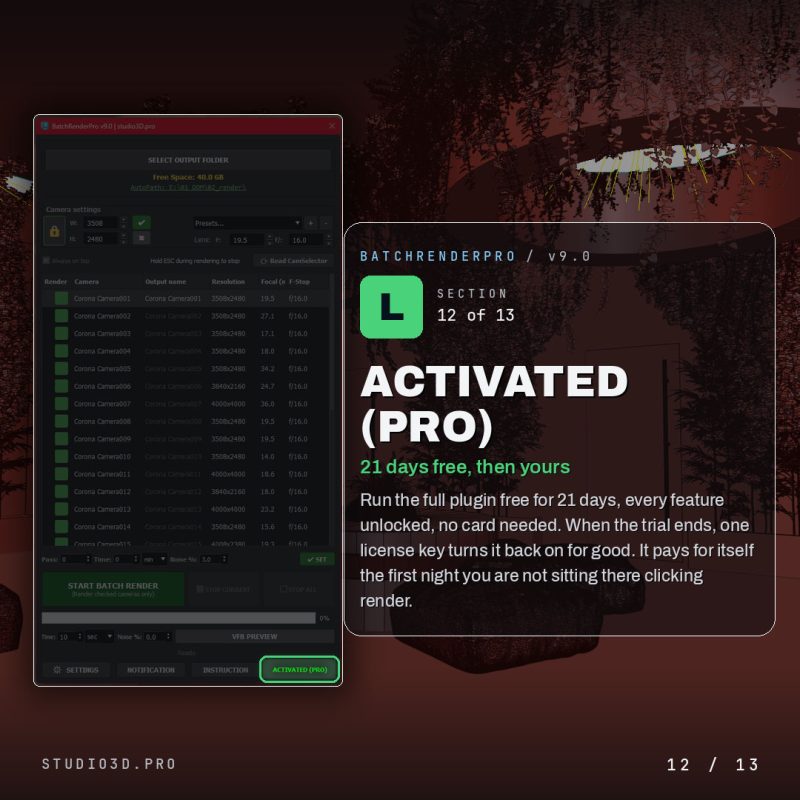
One-time purchase. Version 9.0 included. Lifetime license, no subscription.
New to Studio3D plugins? Download the free ArchViz Toolkit to get a feel for the workflow philosophy behind all the tools here.
The bottom line
3ds Max’s native Batch Render tool was built for a simpler time. It handles the basic job of queuing renders, but it does almost nothing about the repetitive setup that modern ArchViz projects demand.
Batch Render Pro does not change how rendering works. It removes the part of the process that was never worth your time. With version 9.0 that now applies to every render engine, not just Corona.
Also from Studio3D: Cam Selector Pro, visual camera management for complex 3ds Max scenes. It works together with Batch Render Pro as part of a complete ArchViz render workflow.
Tags: 3ds max · batch render · archviz · rendering · automation · v-ray · corona · arnold · plugins · camera management · 3ds max 2027 · workflow