
Tutorials · 3ds Max Workflow
The Everyday 3ds Max Actions That Should Take One Click - And the Free Panel That Keeps Them All in Front of You
By Marcin Sroka · Studio3D · 6 min read · 3ds Max 2024-26 · Free plugin
Think about the small things you do a hundred times a day in 3ds Max. Check the size of an object. Nudge it to an exact dimension. Drop it onto the floor. Reset its pivot. Rotate it a clean ninety degrees. Move a selection to a layer. None of these are hard. What eats your day is where they live: each one is behind a different panel, a different tab, a different drag of the gizmo.
You leave your viewport, switch to the Modify panel to read a dimension, switch to Hierarchy to move a pivot, grab the rotate gizmo and fight it for a clean angle, open the layer explorer, then find your way back. Every one of those switches is small. Together, all day, every project, they are the quiet tax on your time. The free ArchViz Toolkit exists to remove that tax: one dockable panel where the everyday essentials are either always visible or one or two clicks away, and where a single button often does the work of two.
The real cost is not the action, it is the switching
Stock 3ds Max spreads the basics across the whole interface. That is fine when you touch each tool once. It is not fine when you touch them constantly, which is exactly what archviz work is: place, size, align, pivot, rotate, sort, repeat.
Reading a dimension means leaving what you are doing. To see the width or height of a selection you open the Modify panel or a dialog. You look, you note it, you switch back. A tiny detour, taken dozens of times a day.
Resizing to an exact value is fiddly. Type in a field, or scale by eye and check, or reach for a utility. There is no single spot that shows the live size and lets you type the number you want.
Rotating a clean angle means fighting the gizmo. You grab a rotation ring, drag, overshoot, hold Angle Snap, drag again. For a plain 90 or 180 degree turn, that is a lot of hand movement for a value you already know.
Pivots, floors, layers and cameras each live somewhere else. Moving a pivot is the Hierarchy panel. Dropping an object on the floor is manual alignment. Sorting to a layer is the explorer. Selecting the active camera is a hunt through the scene. All routine, all in different corners.
The tools work. The problem is that doing simple things keeps pulling you out of your flow and across the screen. What you want is for the essentials to sit in one place, in reach, without a single tab change.
One panel, essentials in reach
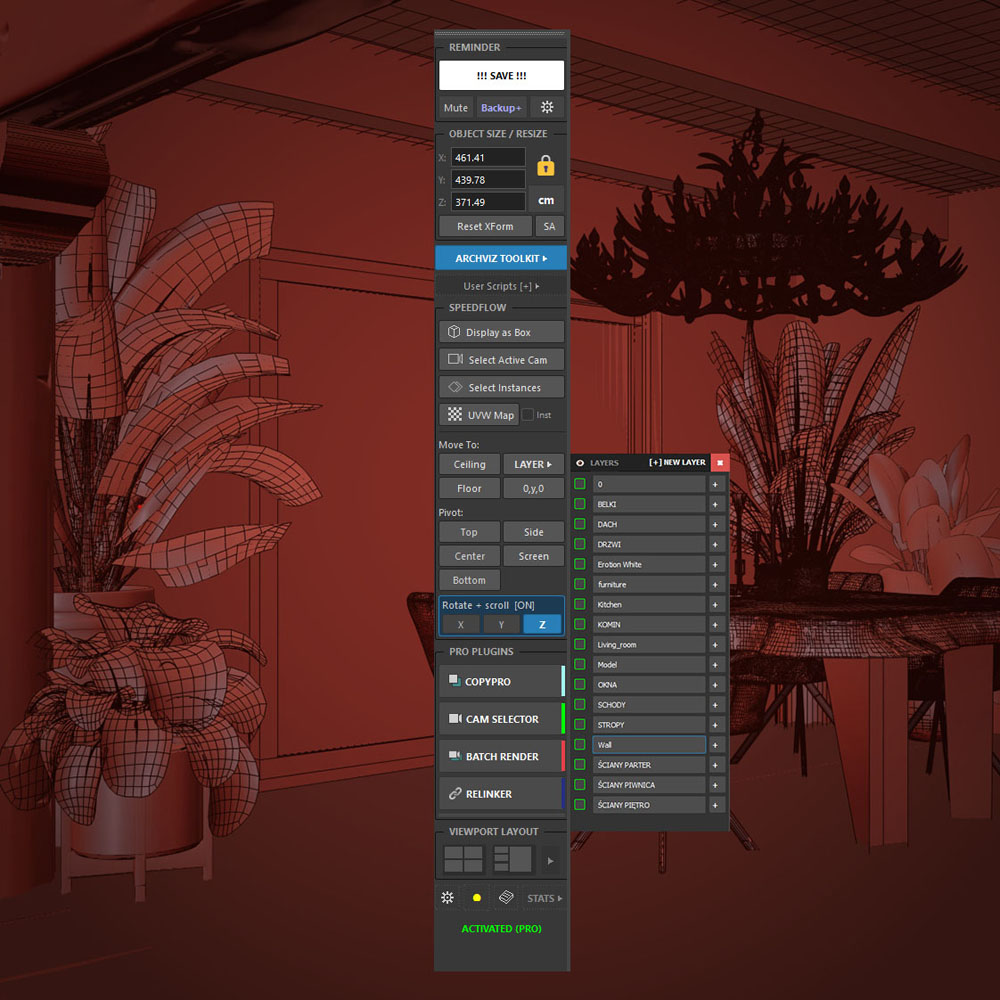
The ArchViz Toolkit is a narrow, dockable panel you park on the side of 3ds Max and leave open. The idea is simple: the things you reach for constantly should never be more than a click or two away, and some should never be hidden at all.
- The live size of your selection sits at the very top of the panel, on screen at all times.
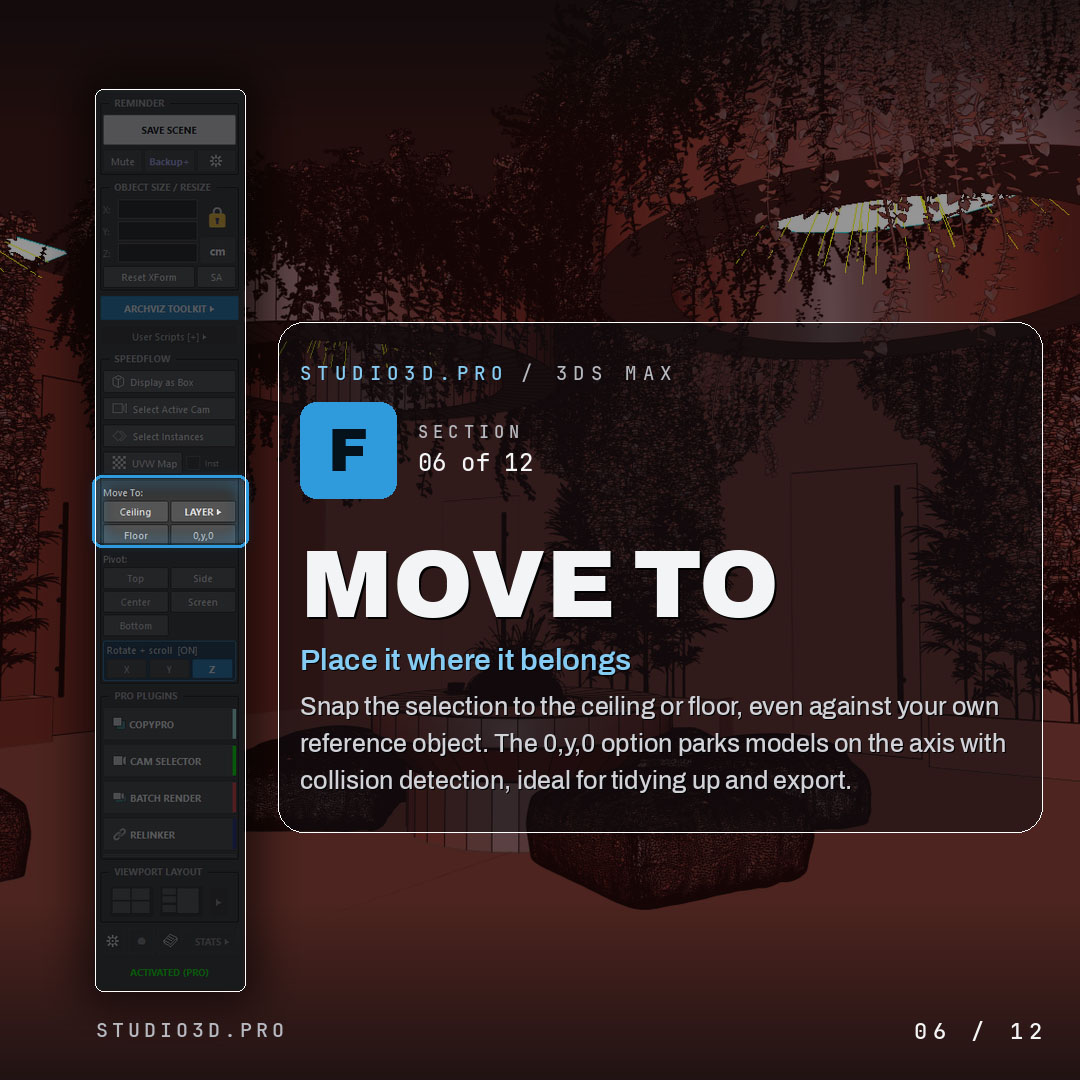
- Resize, pivot, floor and ceiling snapping, box display and camera selection are each one click, right there.
- Every button pulls double duty: left-click does one thing, right-click does its natural partner.
- Modifiers stretch it further: Shift, Ctrl and Alt change what a click or a scroll does.
- Rotation happens on the scroll wheel, so you never touch the gizmo for a clean turn.
The result is that a big share of your daily clicking collapses into this one strip, and your eyes and hands stop leaving the viewport. Below is what that looks like in practice.
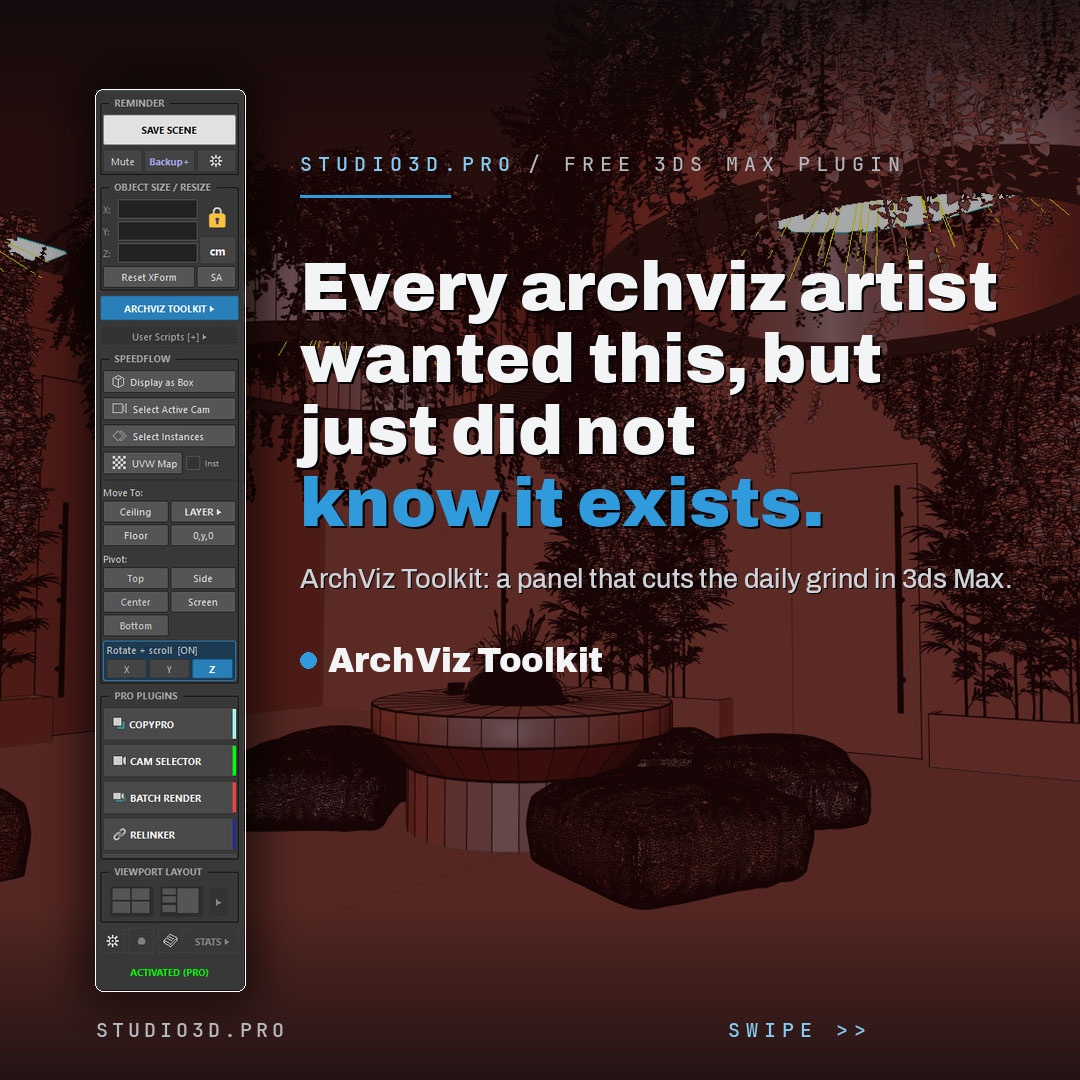
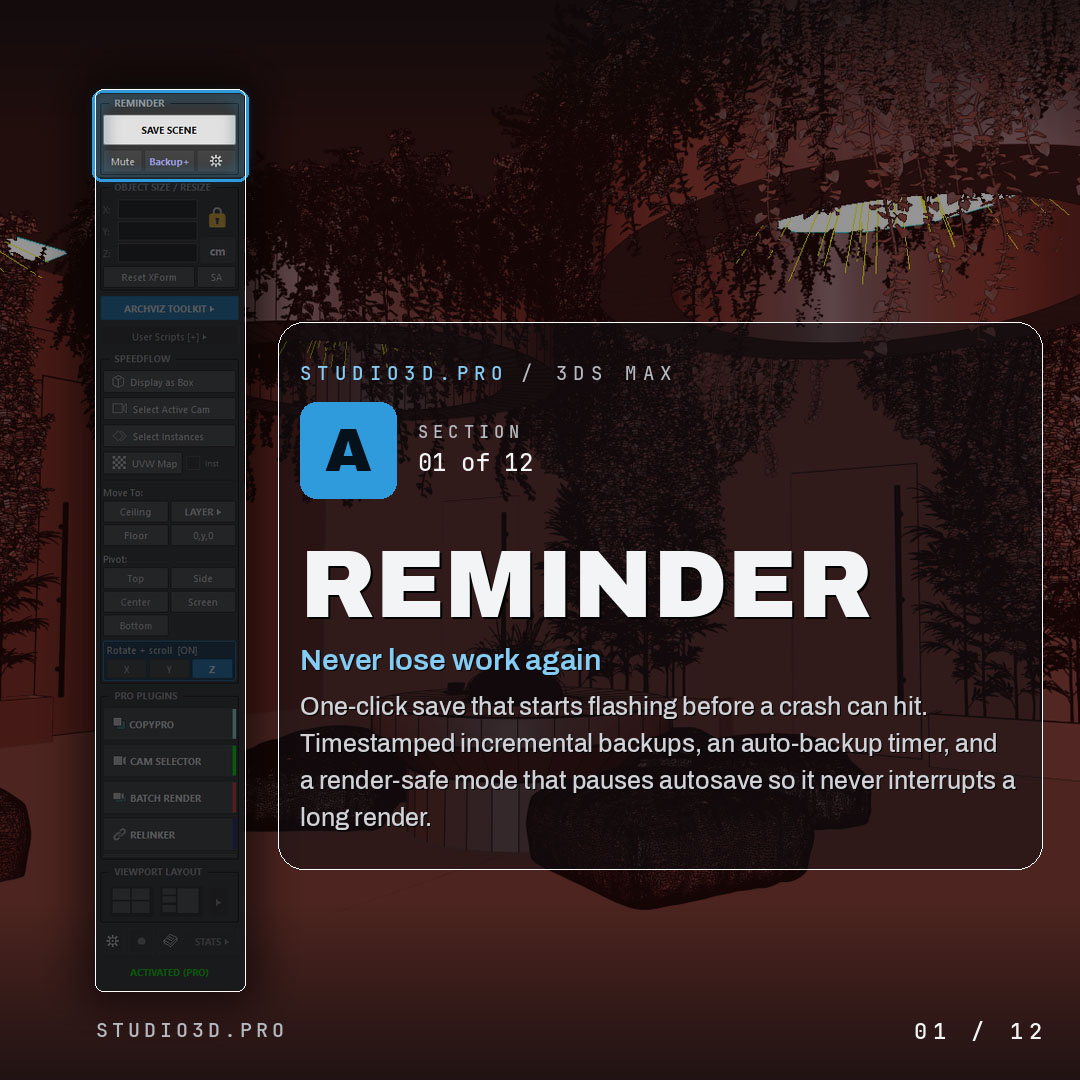
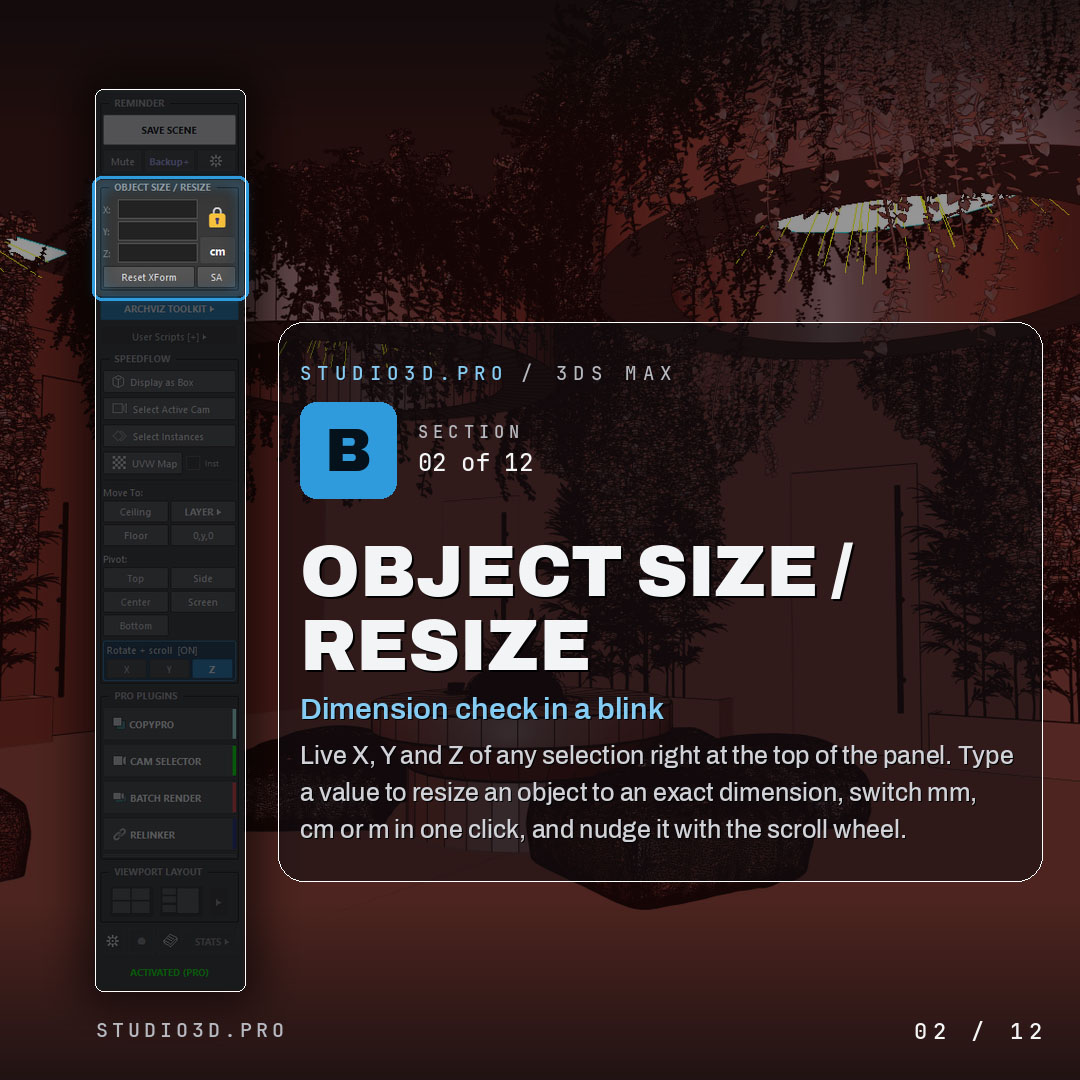
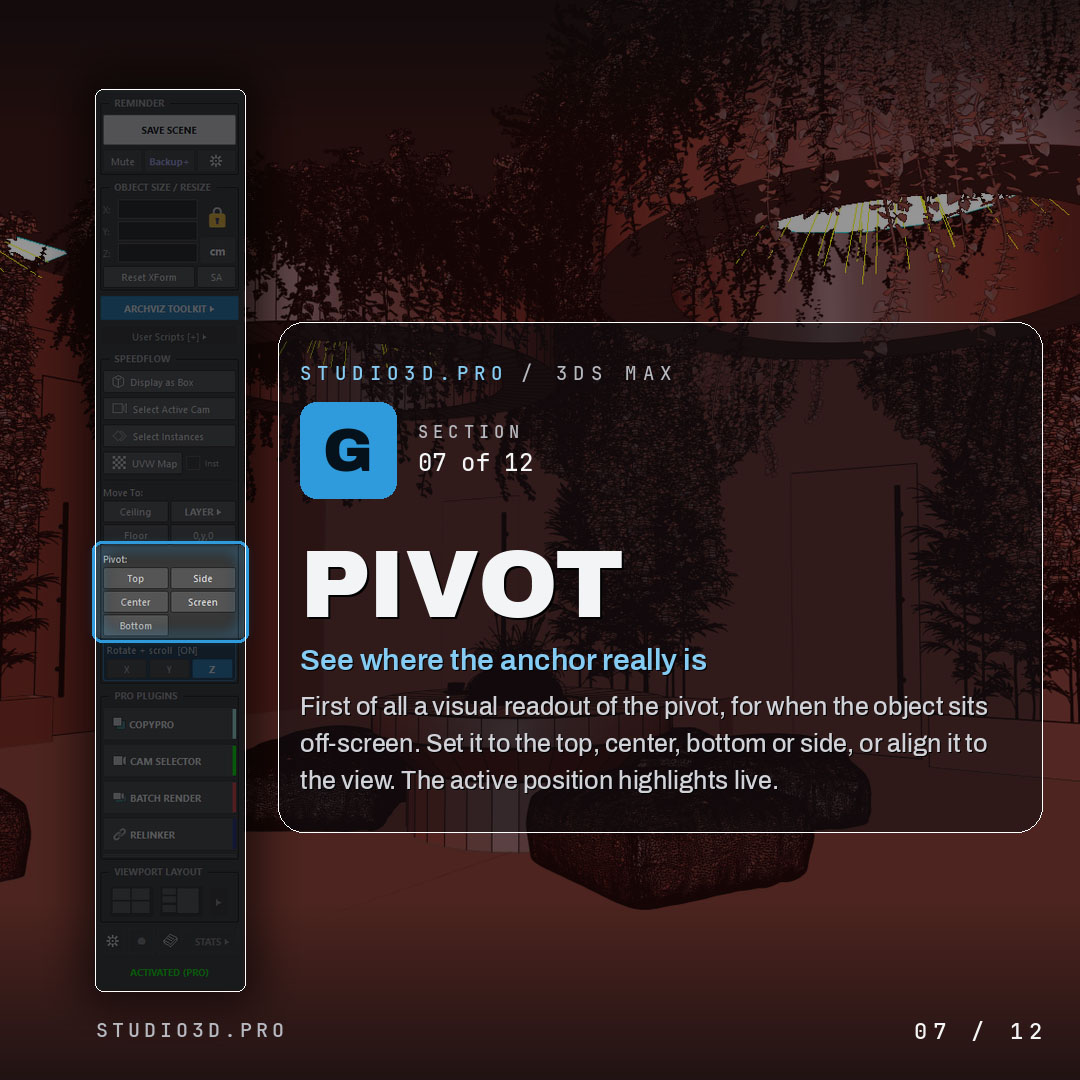
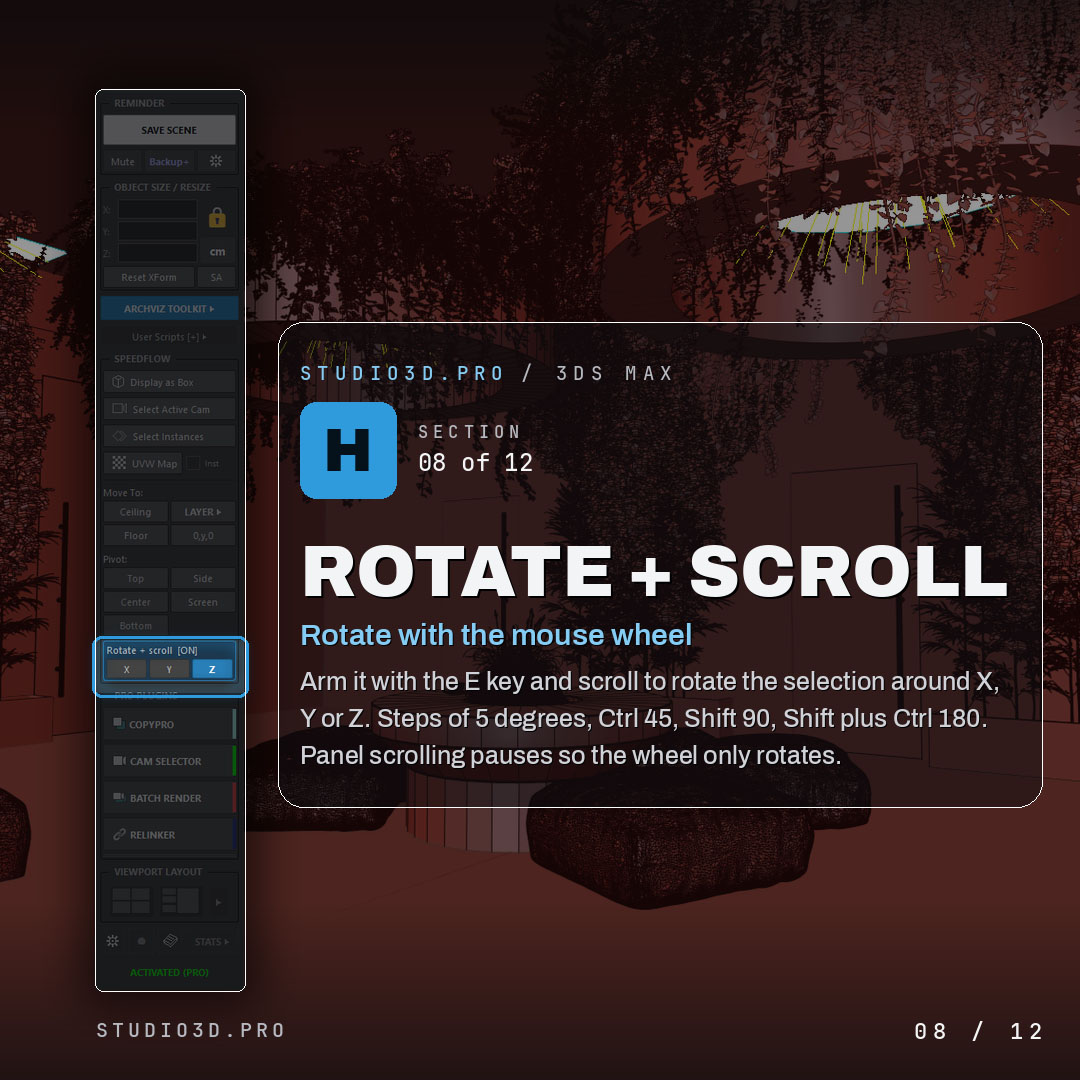
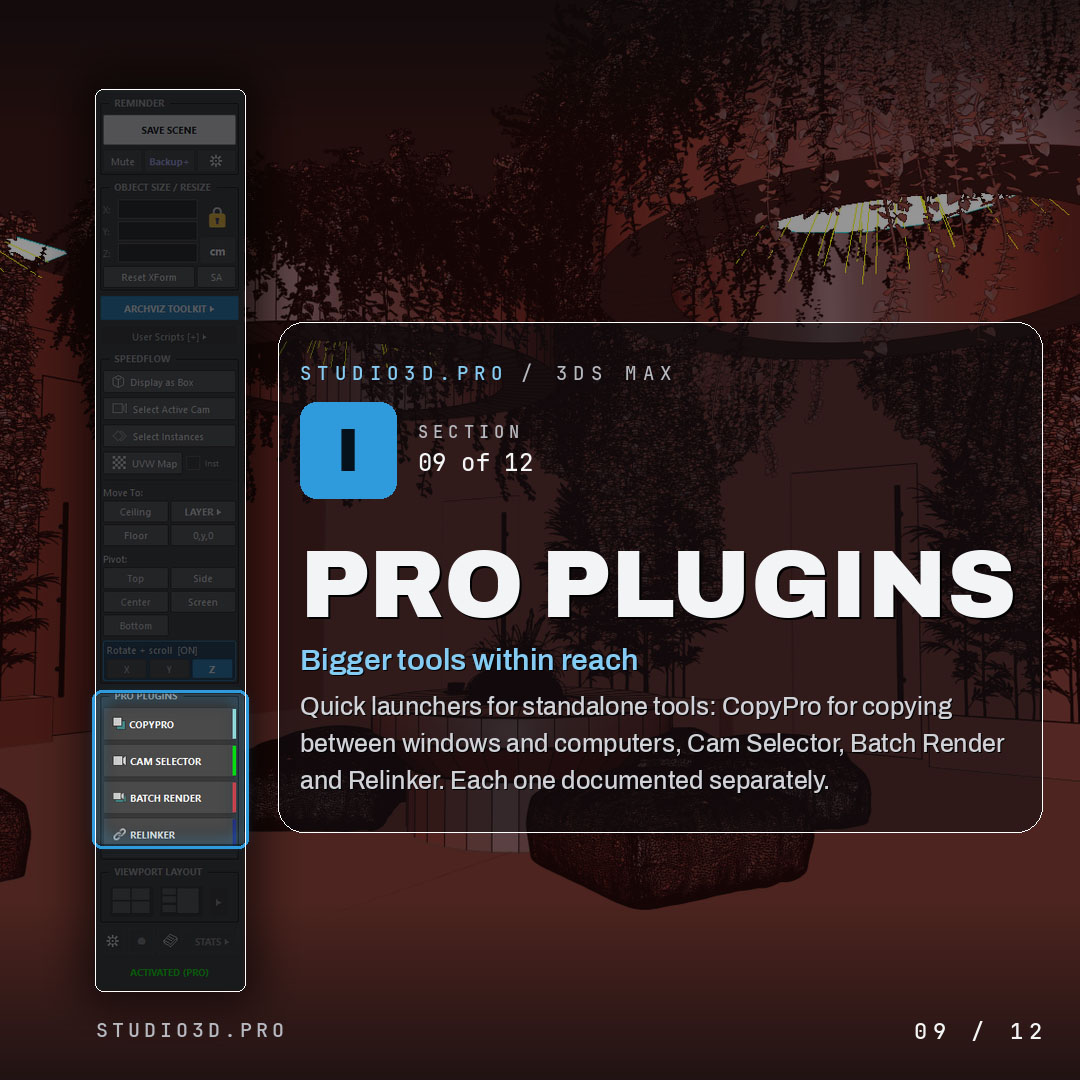
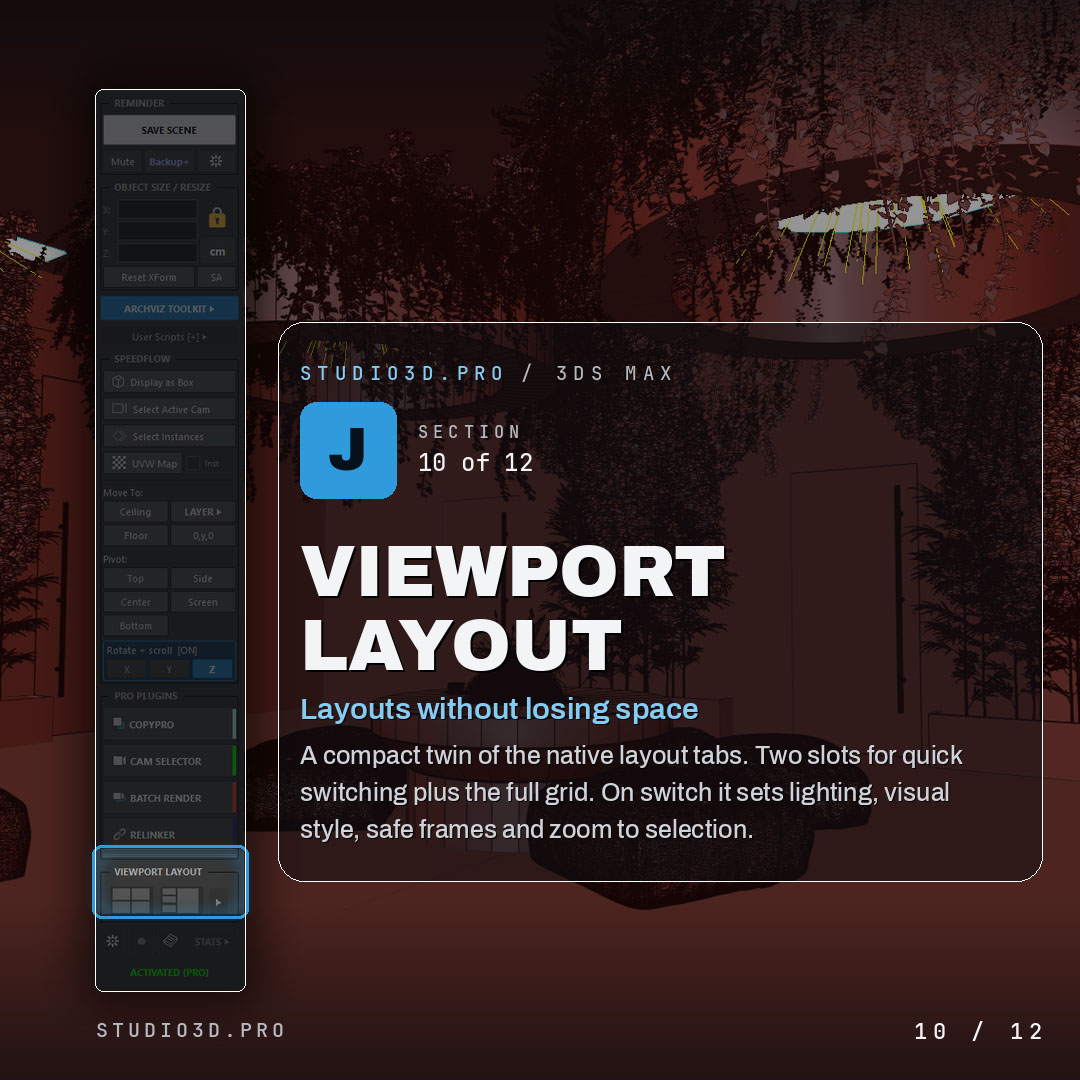
Carousel 1 (the everyday panel): add your square ArchViz Toolkit screenshots here (panel overview, live X/Y/Z dimensions, resize with scroll + Shift/Ctrl, a SPEEDFLOW L/R button, Move To floor/ceiling, pivot readout, save + Backup+).
Left-click, right-click: one button, two jobs
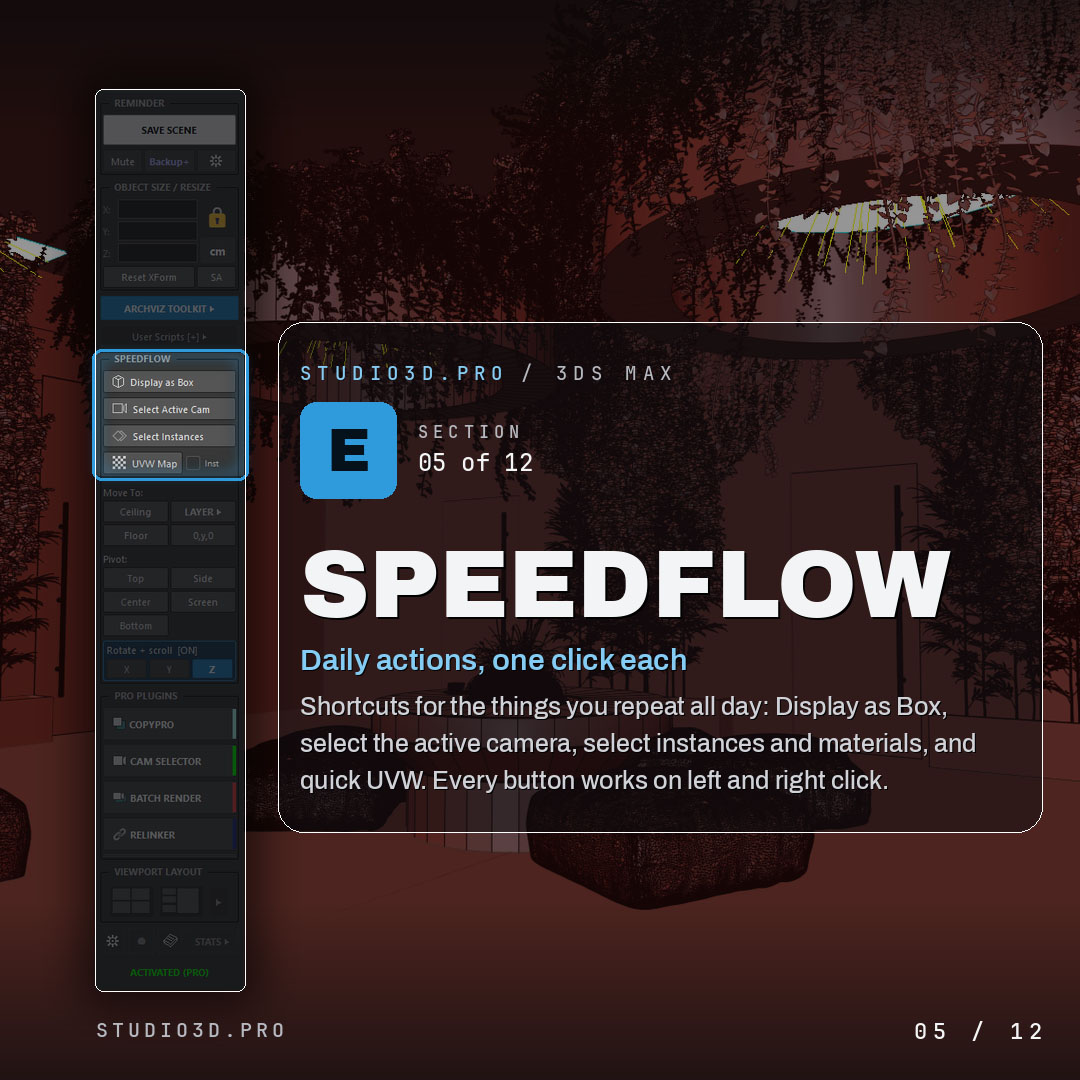
This is the idea that makes the panel feel small on screen but big in reach. Almost every button in the SPEEDFLOW and Move To sections responds to both mouse buttons, and the two actions are always natural partners. Left-click is the thing you do most, right-click is its sibling. You learn one button and get two tools.
Here is the everyday set, exactly as the buttons behave.
The same thinking runs into the layer list, where a single row of each layer carries three actions: L-Click moves your selection onto that layer, Ctrl + L-Click makes it the active layer, and R-Click selects every object sitting on it. Three everyday layer jobs, one row, no explorer.
Modifiers stretch the resize field even further
The size field at the top is a good example of how much one control can hold once you add Shift, Ctrl and Alt. It is the live readout, the type-in resize, and a scrollable nudge, all in the same spot.
One click on the unit stack next to it switches the whole readout between millimeters, centimeters and meters, so you read and resize in whatever unit the job needs.
Rotate with the scroll wheel, never touch the gizmo
This is the feature that changes how a plain rotation feels. For a clean turn, most of the work with the gizmo is aiming: find the right ring, drag it, watch the number, correct the overshoot. But you almost always know the angle you want before you start. So the panel lets you skip the gizmo entirely and rotate on the mouse wheel.
You arm it once, pick an axis, and scroll. The angle you get depends on the modifier you hold, and the steps are the ones archviz artists actually use.
- Press E to arm rotate mode, or click the "Rotate + scroll" header in the panel. It lights up so you know it is on.
- Pick the axis with the X, Y or Z buttons. The active axis is highlighted.
- Scroll the wheel over the panel to rotate the selection. Up is one way, down is the other.
- Hold a modifier to set the step: plain is 5 degrees, Ctrl is 45, Shift is 90, Shift + Ctrl is 180.
- Press W, R, Q or Esc to disarm and go straight back to move, scale or select.
It mirrors how 3ds Max rotates internally, so the axis and coordinate behavior feel native. The difference is that a common, known-angle rotation stops being a gizmo drag and becomes a wheel flick you can do without your cursor ever leaving the panel.
Everything else that lives in the same strip
The daily one-click actions are the heart of it, but the panel folds in a few more things you would otherwise chase around the interface.
A lightweight layer manager
A pop-open layer list that keeps heavy scenes organized without docking the native explorer that lags big files. Left-click to move a selection to a layer, Ctrl plus left-click to set the active layer, right-click to select its objects, plus visibility toggles and one-step new layers.
The ArchViz menu
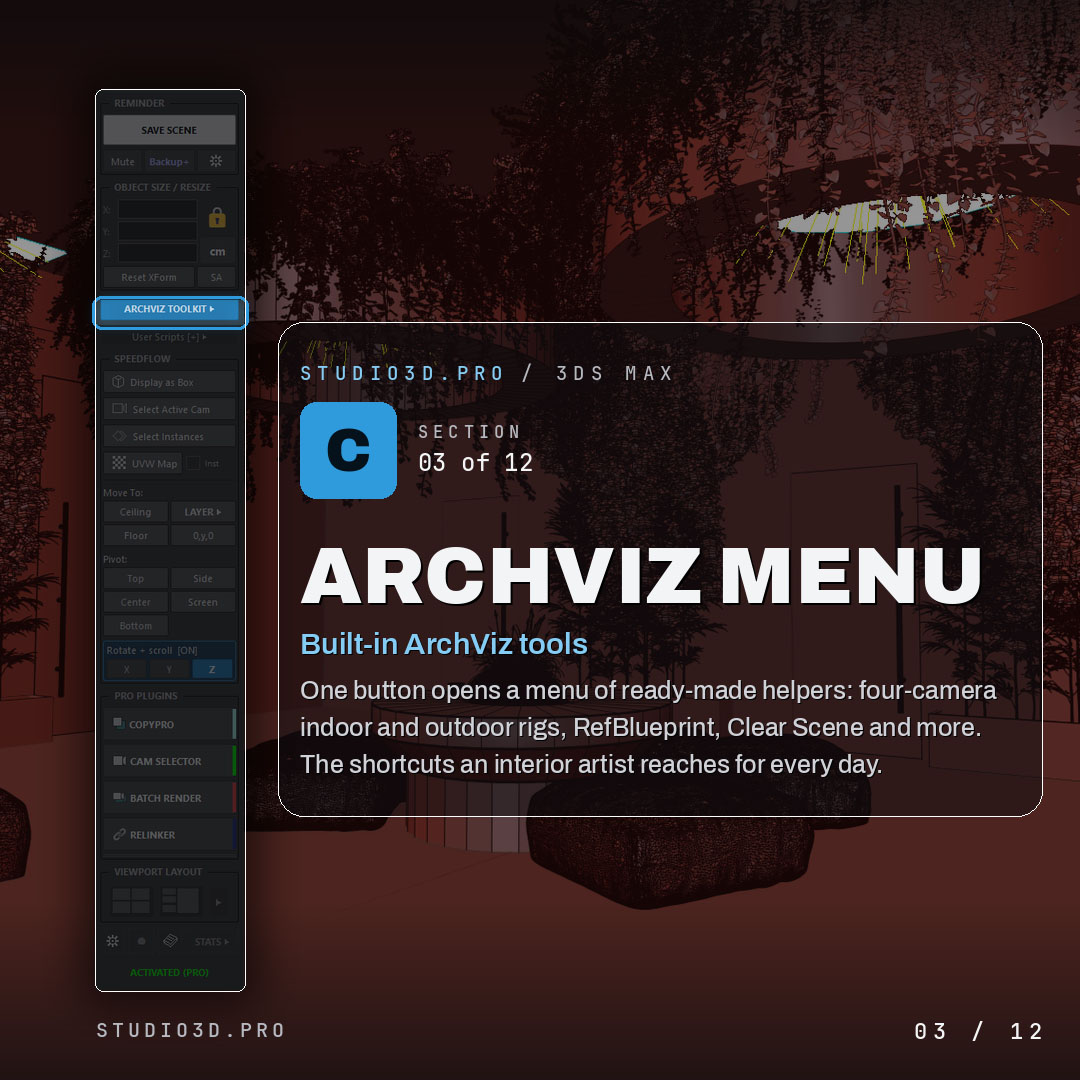
Ready-made helpers behind one button: four-camera indoor and outdoor rigs, RefBlueprint, Clear Scene and the shortcuts an interior artist reaches for every day, without hunting through menus.
Your own scripts, one click away
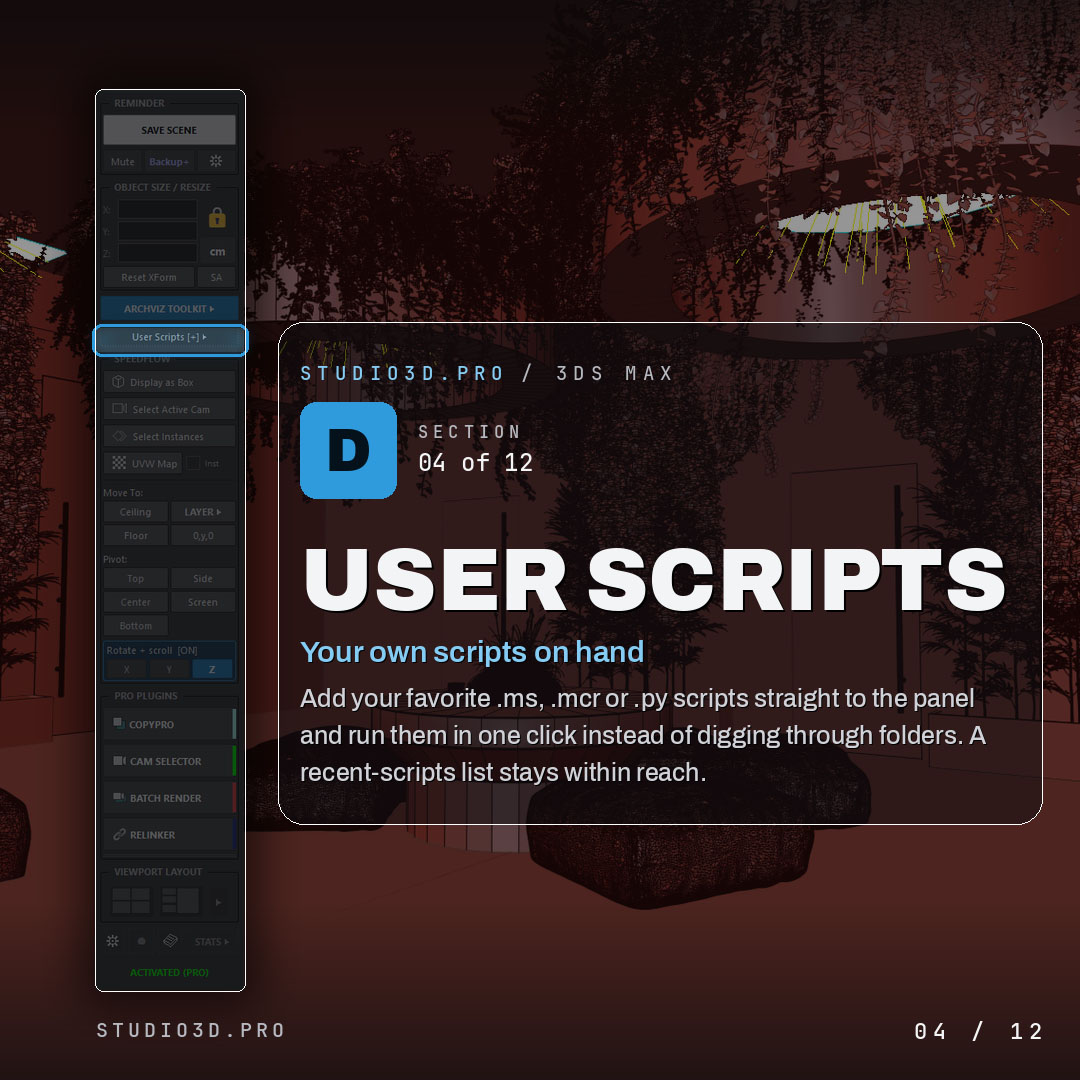
Add your favorite .ms, .mcr or .py scripts straight into the panel and run them in a single click instead of digging through folders. A recent-scripts list keeps them within reach.
Viewport layout in a compact tab
A small twin of the native layout tabs, with two quick-switch slots and the full grid. On switch it sets lighting, visual style, safe frames and zoom to selection in one move.
Pro plugin launchers
Quick launchers for the standalone Studio3D tools, Copy Pro, Cam Selector Pro, Batch Render Pro and Relinker Pro, ready right where you work when a job calls for them.
Stats, status and safety
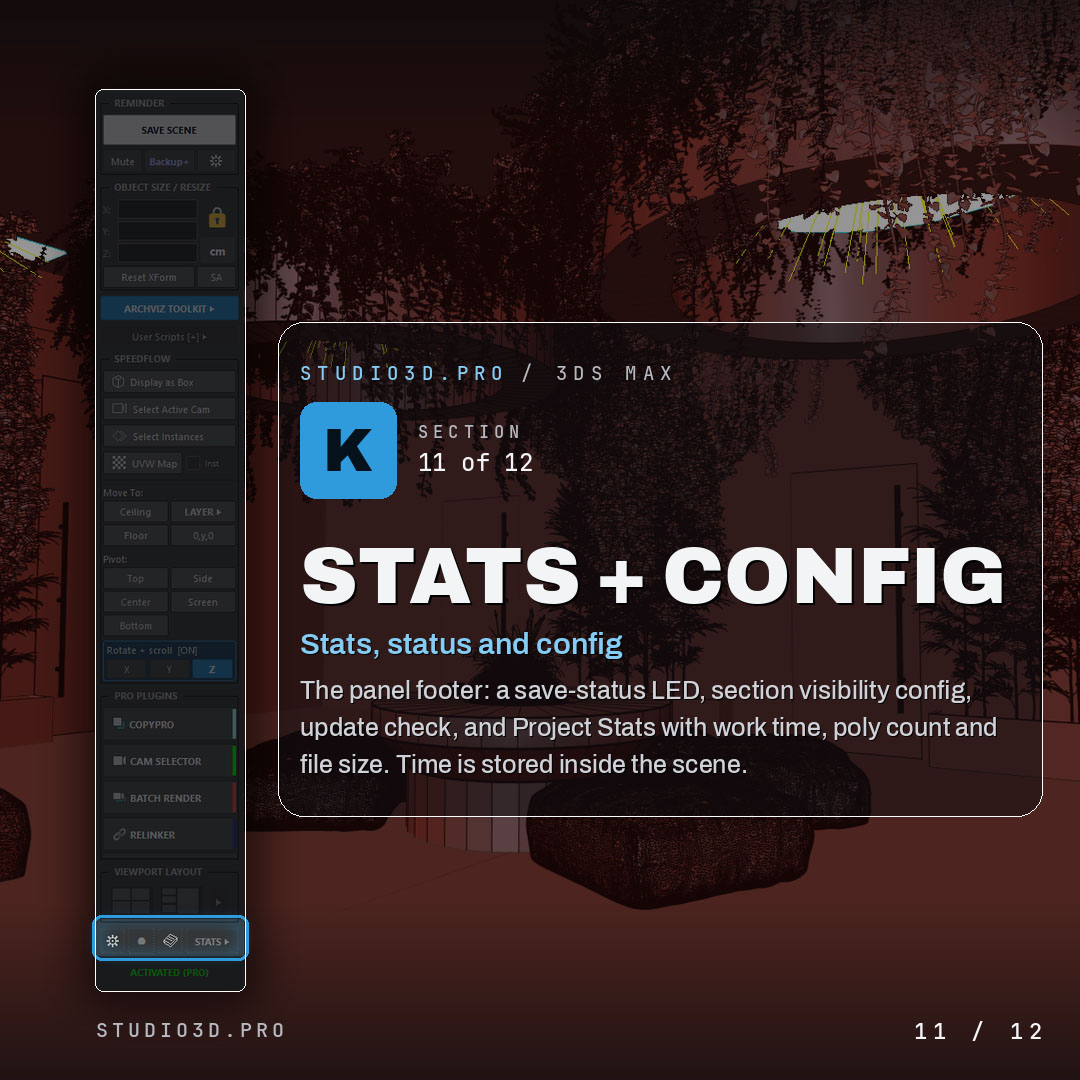
A save-status indicator, an update check, and Project Stats with work time, poly count and file size stored inside the scene, so the panel quietly watches your back while you work.
Who this is for
The ArchViz Toolkit is built for artists who live in 3ds Max all day and feel the friction of the small stuff: sizing furniture, dropping props on floors, resetting pivots, turning objects to clean angles, sorting scenes into layers. If those actions currently mean a lap around the interface each time, this panel puts them back under your cursor.
It works with Corona and other renderers, and because it is free with a lifetime activation code, there is no reason not to keep it docked and see how much of your daily clicking it quietly absorbs.
Compatibility and price
The ArchViz Toolkit is a dockable panel compatible with 3ds Max 2024 to 2027 on Windows, working with Corona and other render engines. The whole toolkit is free with a lifetime activation code, and it runs on a trial until you activate, so you can test every button first.
0$
Free, lifetime activation. No subscription, register once and keep it forever.
Rendering and managing multi-camera scenes too? The panel launches the paid Studio3D tools from the same strip: Cam Selector Pro for finding cameras on a visual grid, Batch Render Pro for rendering them in one click, and Relinker Pro for reconnecting missing files. All of it is bundled in the ArchViz Toolkit Pro Pack.
The bottom line
Stock 3ds Max makes the everyday actions easy but scattered, and the switching between them is the real drain on your day. The ArchViz Toolkit gathers those essentials into one panel: the live size of your selection always on screen, resize and pivot and floor snapping one click away, every button doubled on left and right click, modifiers stretching each control further, and rotation handed to the scroll wheel so you never fight the gizmo for a clean turn.
It is a small strip on the side of your interface that soaks up a large share of your daily clicking, keeps your eyes in the viewport, and costs nothing. Dock it once and let it save you the hundred small detours you did not notice you were taking.
Also from Studio3D: Batch Render Pro, Cam Selector Pro and Relinker Pro, all launched straight from the same free panel. Together they cover organizing, framing, rendering and relinking a complete ArchViz scene.
Tags: 3ds max · archviz toolkit · free plugin · archviz · workflow · scroll wheel rotate · pivot tools · resize · speedflow · layer manager · corona · 3ds max 2026