

Batch Render Pro
$25.00
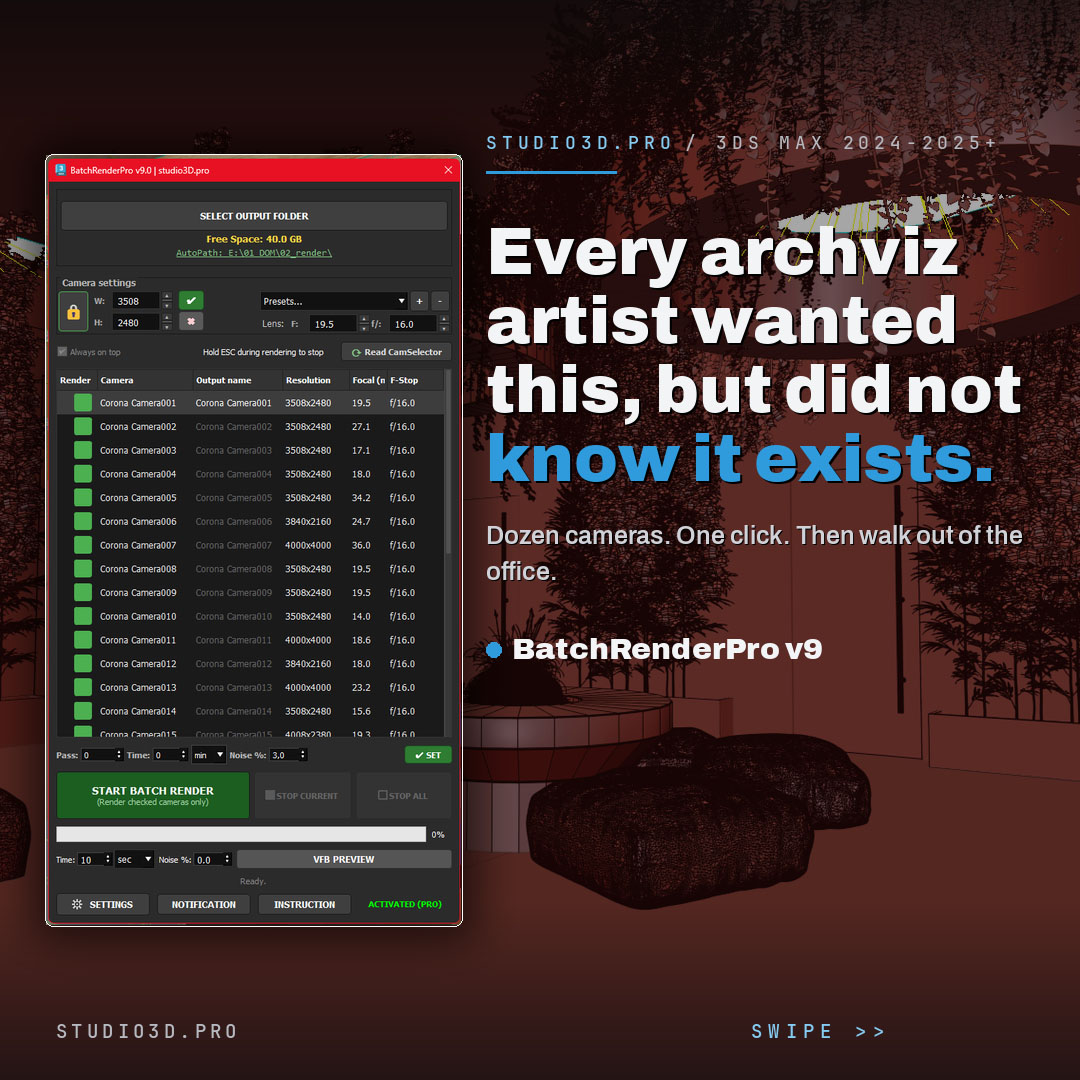
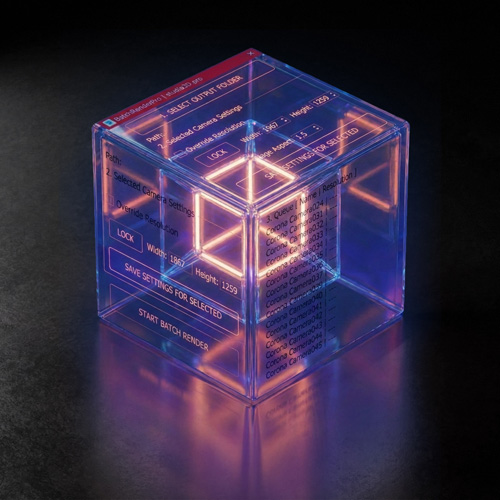
Batch Render Pro is a 3ds Max batch render plugin that queues every camera in your scene automatically. Set per-camera resolution and lens, control stop conditions by pass, time or noise, save CXR, EXR, PNG, JPG and more at once, preview framing before you commit, and get a Telegram message with a JPG as each frame lands. Built for Corona and other renderers by a 3D artist for 3D artists.
Description
Batch Render Pro: batch rendering for 3ds Max, done right
BatchRenderPro is a 3ds Max batch render plugin that queues every camera in your scene automatically. Messages your phone when each frame is done. Set up a night of rendering in minutes, walk away, and let it handle the output, the formats and the alerts. Built for Corona and other renderers, by a working 3D artist for 3D artists.

What you get
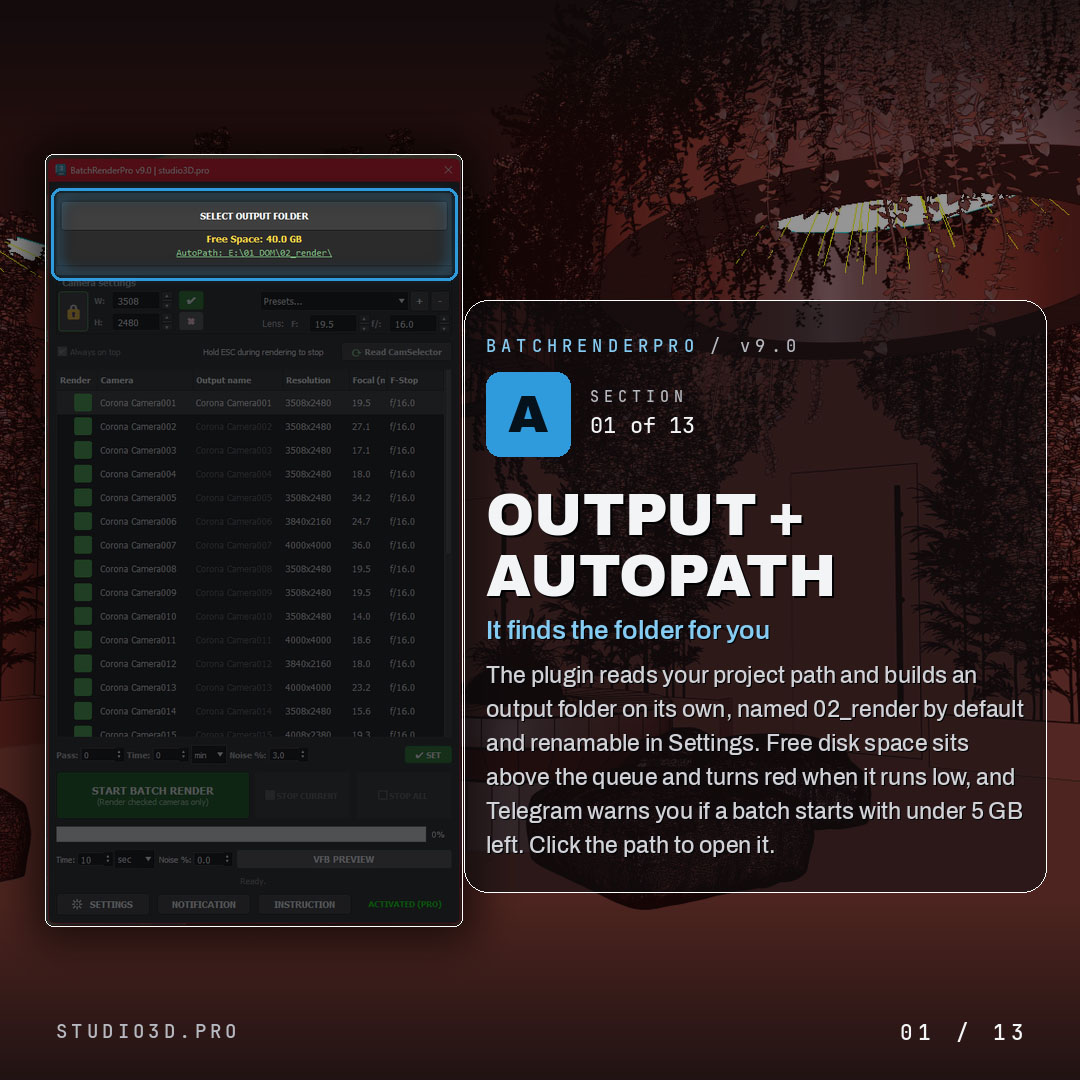
Output and AutoPath
- Reads your project path and builds an output folder on its own, named 02_render by default and renamable in Settings
- Live free disk space above the queue that turns red when it runs low
- Telegram warning if a batch starts with under 5 GB free
- Click the path to open it in your file browser

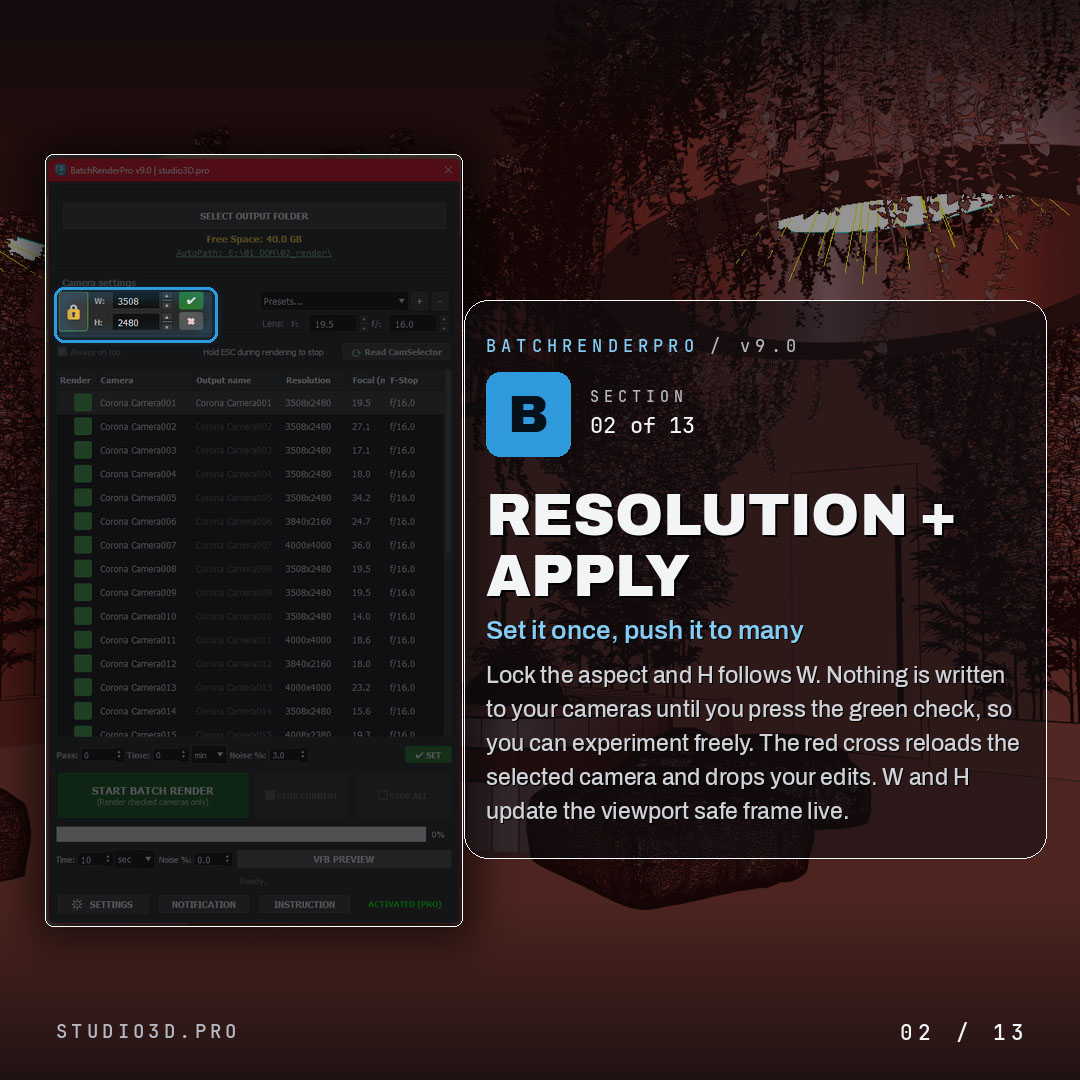
Resolution and apply
- Set width and height once and push it to many cameras
- Aspect lock so height follows width
- Green check writes to the selected cameras, red cross reloads and drops unapplied edits
- Live safe frame in the viewport as you type

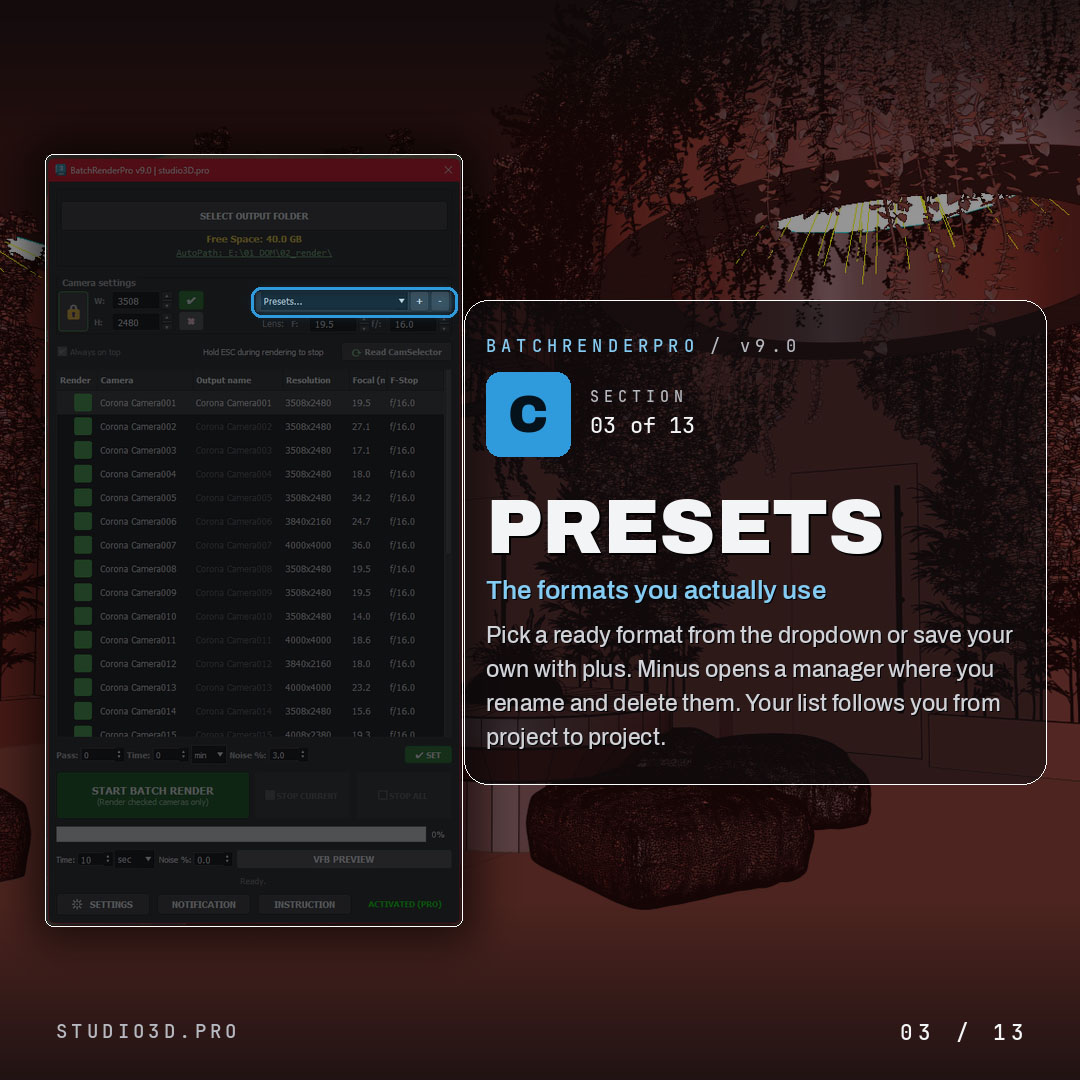
Presets
- Save the formats you actually use and recall them from the dropdown
- Plus adds a preset, minus removes it
- Your list follows you from project to project

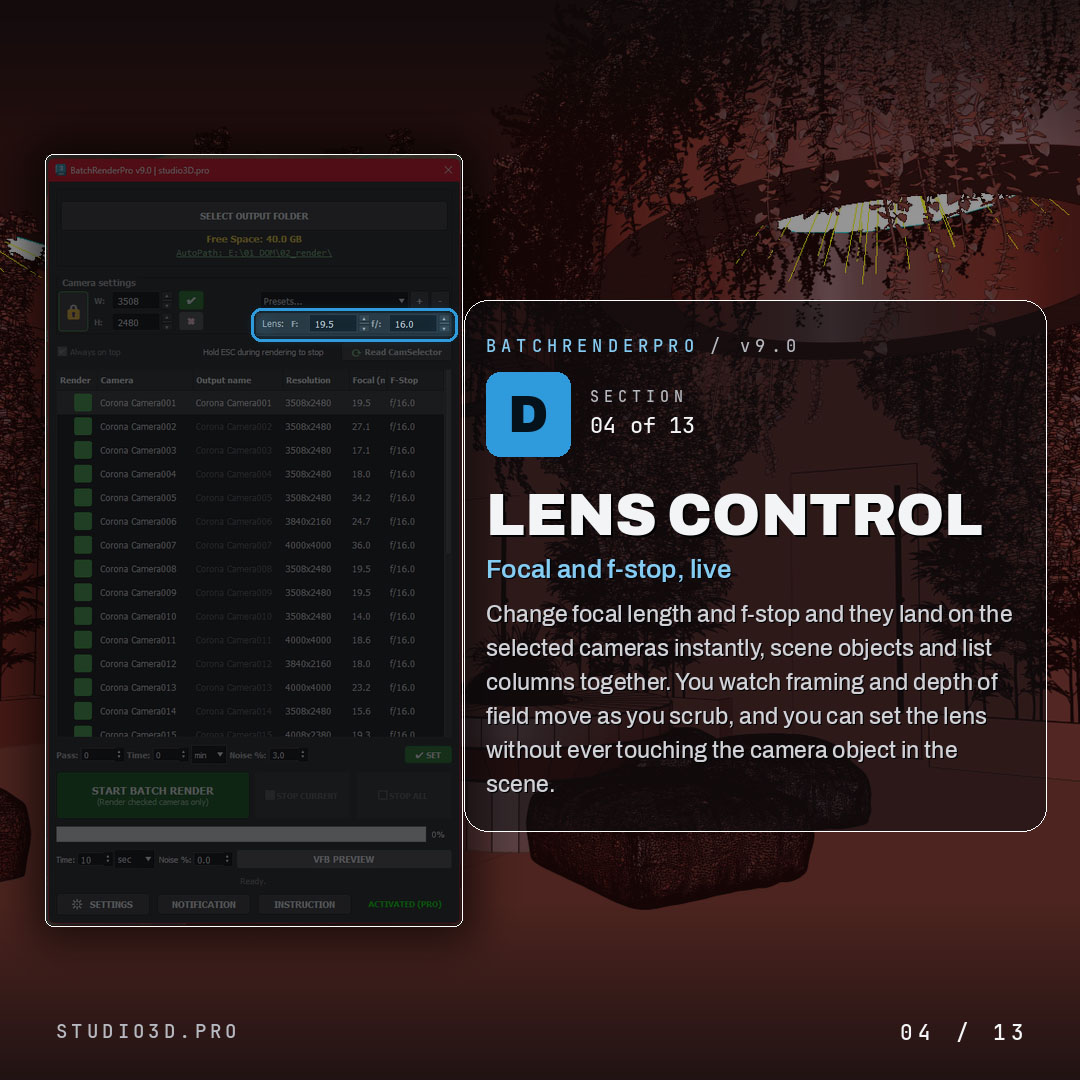
Lens control, live
- Set focal length and f-stop on the selected cameras instantly
- Watch framing and depth of field change as you scrub
- Set the lens without ever touching the camera object in the scene

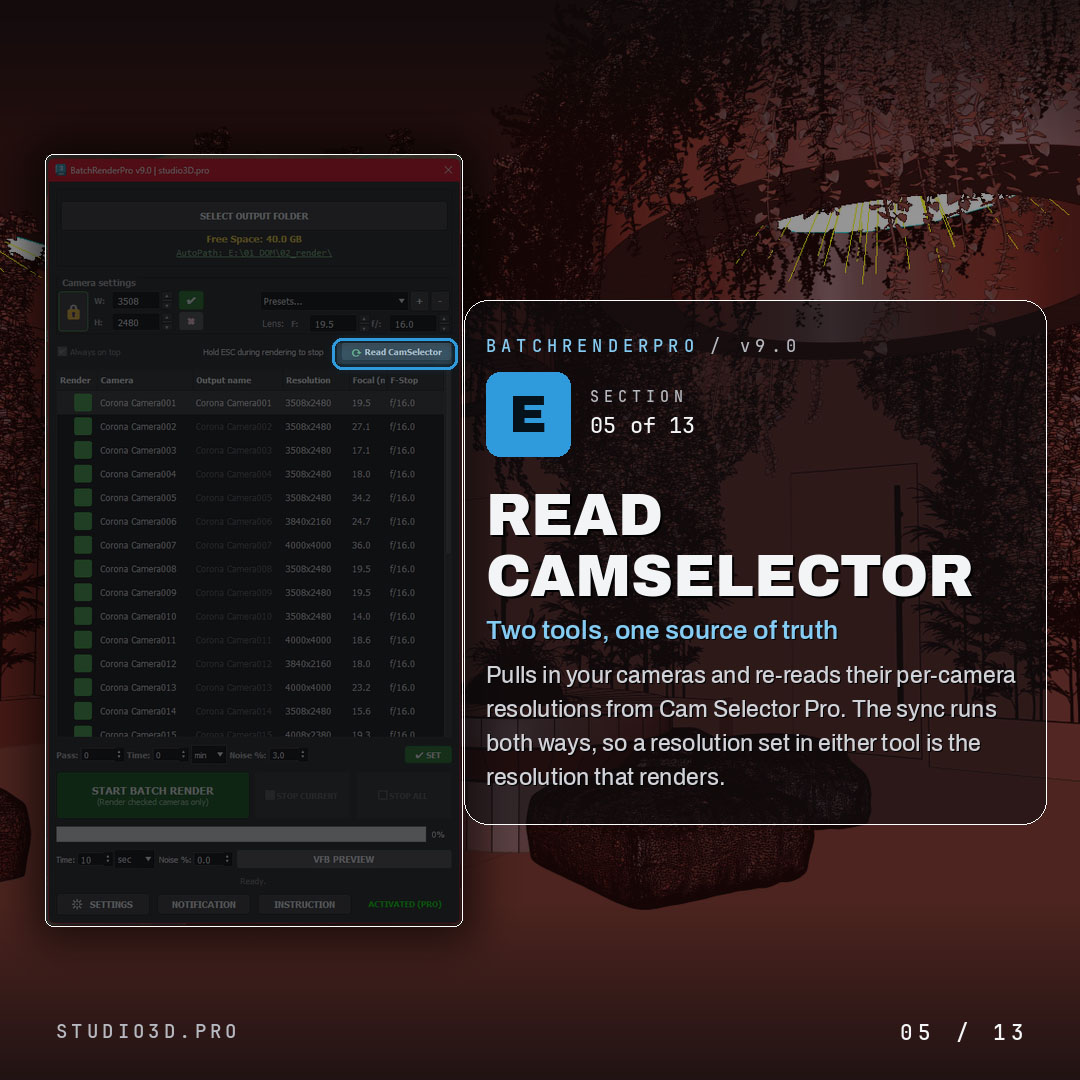
Read CamSelector
- Pull your cameras straight from Cam Selector Pro
- Per-camera resolutions sync both ways, so the value set in either tool is the one that renders

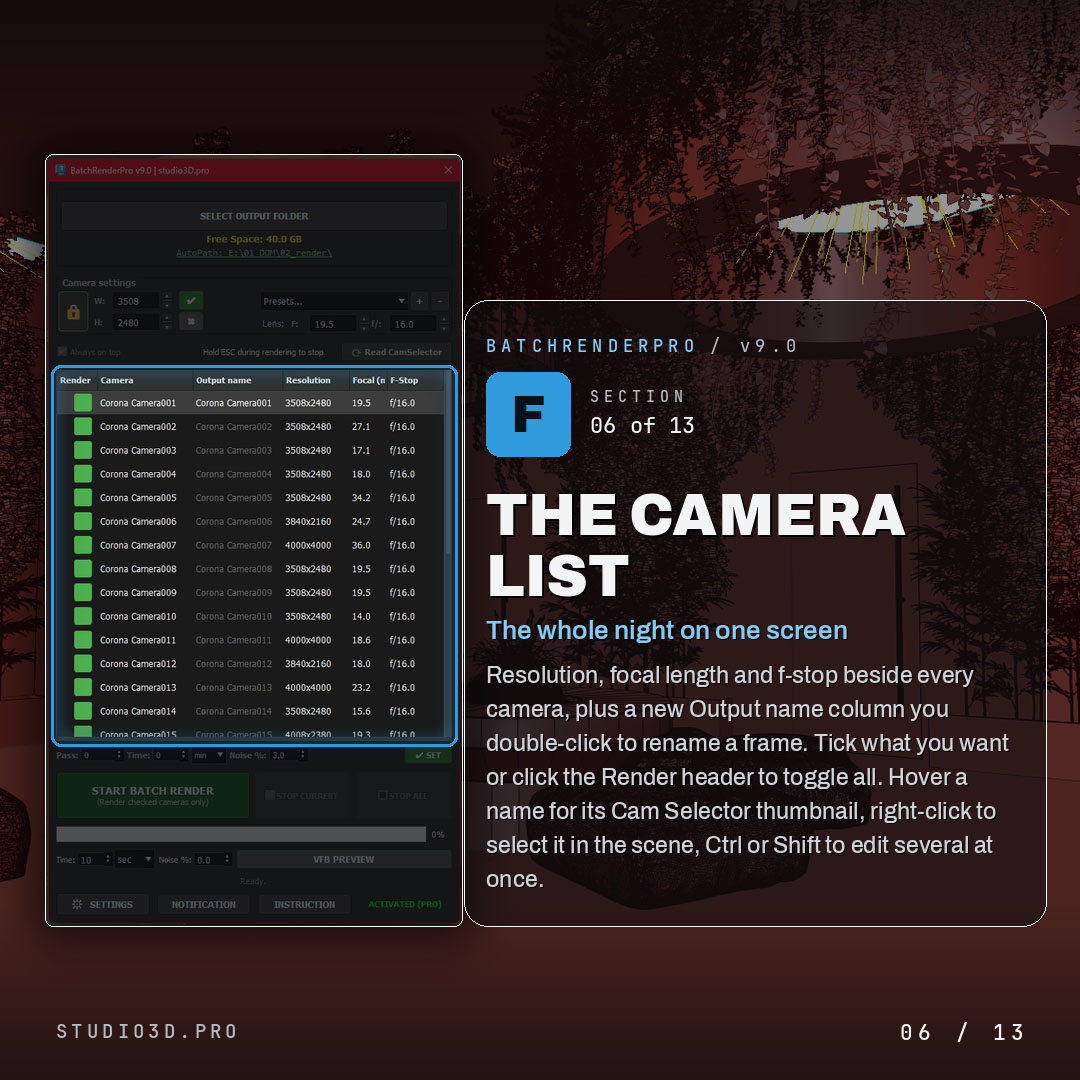
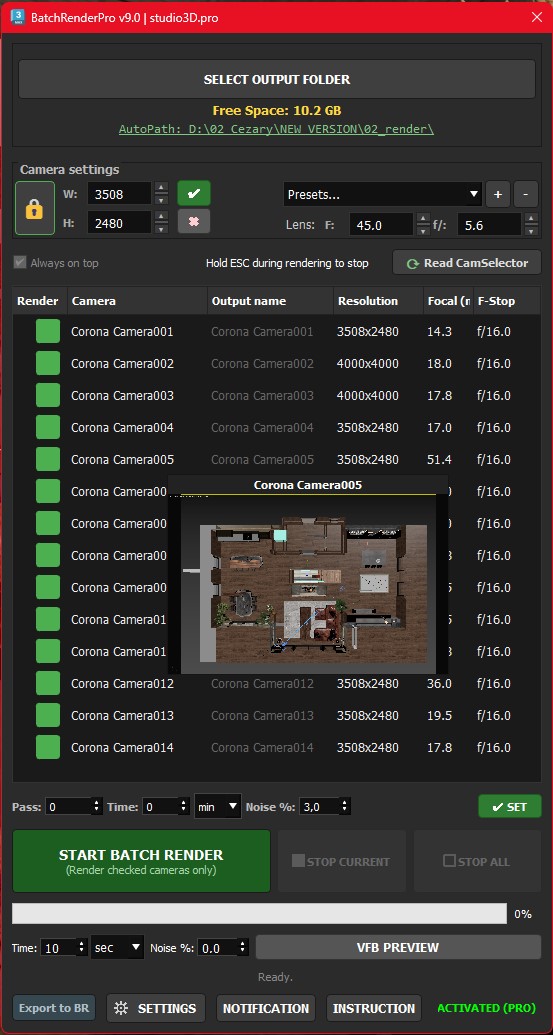
The camera list
- Resolution, focal length and f-stop beside every camera
- Output name column, double-click to rename any frame
- Tick what you want, or click the Render header to toggle all
- Hover a name for its Cam Selector thumbnail, right-click to select it in the scene, Ctrl or Shift to edit several at once

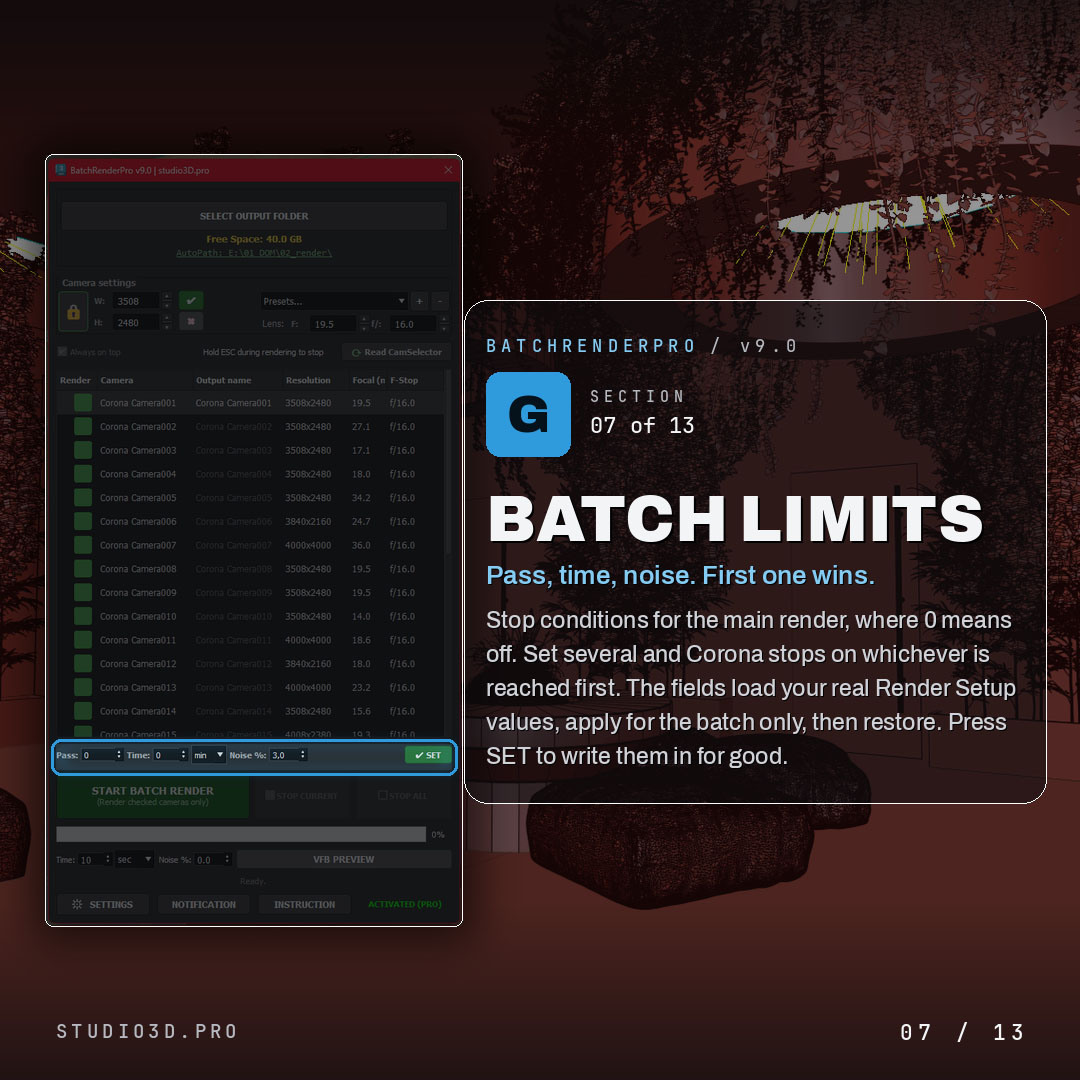
Batch limits
- Stop conditions for the main render by pass, time or noise, with 0 meaning off
- Set several and Corona stops on whichever is reached first
- Loads your real Render Setup values, applies for the batch only, then restores
- SET writes the limits into Render Setup for good

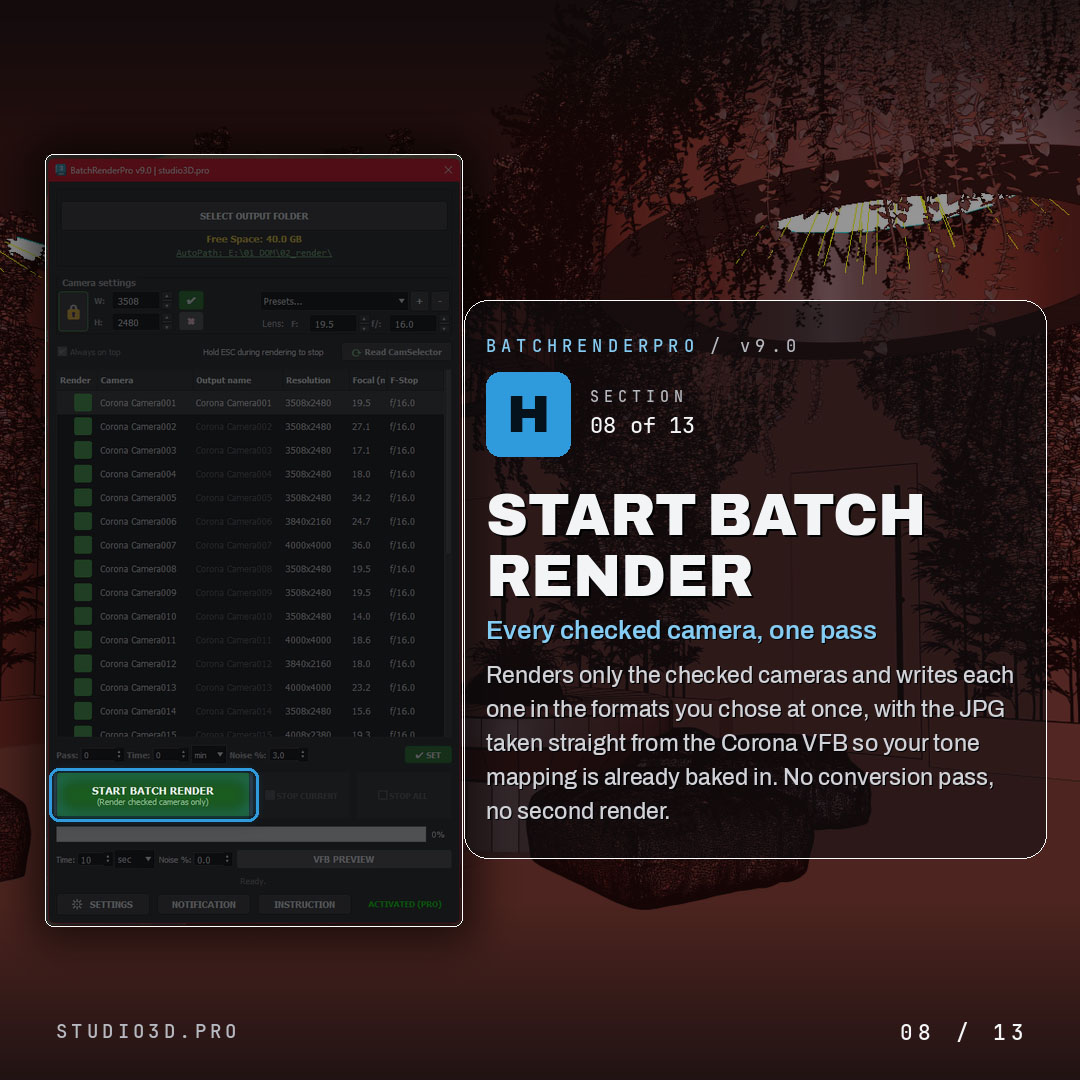
Start batch render
- Renders only the checked cameras
- Writes the formats you chose in one pass, with the JPG taken straight from the Corona VFB so your tone mapping is already baked in
- No conversion pass, no second render

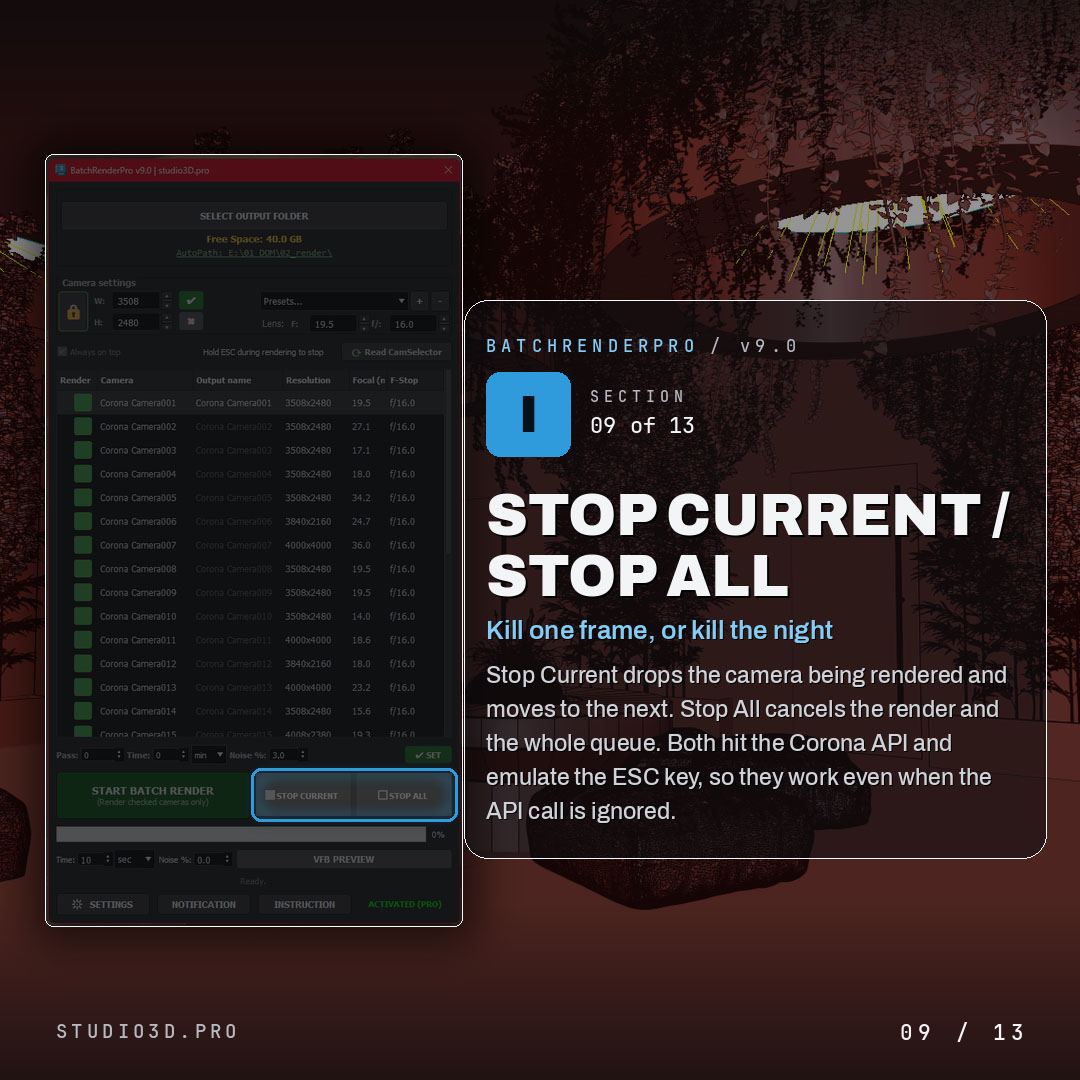
Stop current and stop all
- Stop Current drops the camera being rendered and moves to the next
- Stop All cancels the render and the whole queue
- Both hit the Corona API and emulate the ESC key, so they work even when the API call is ignored

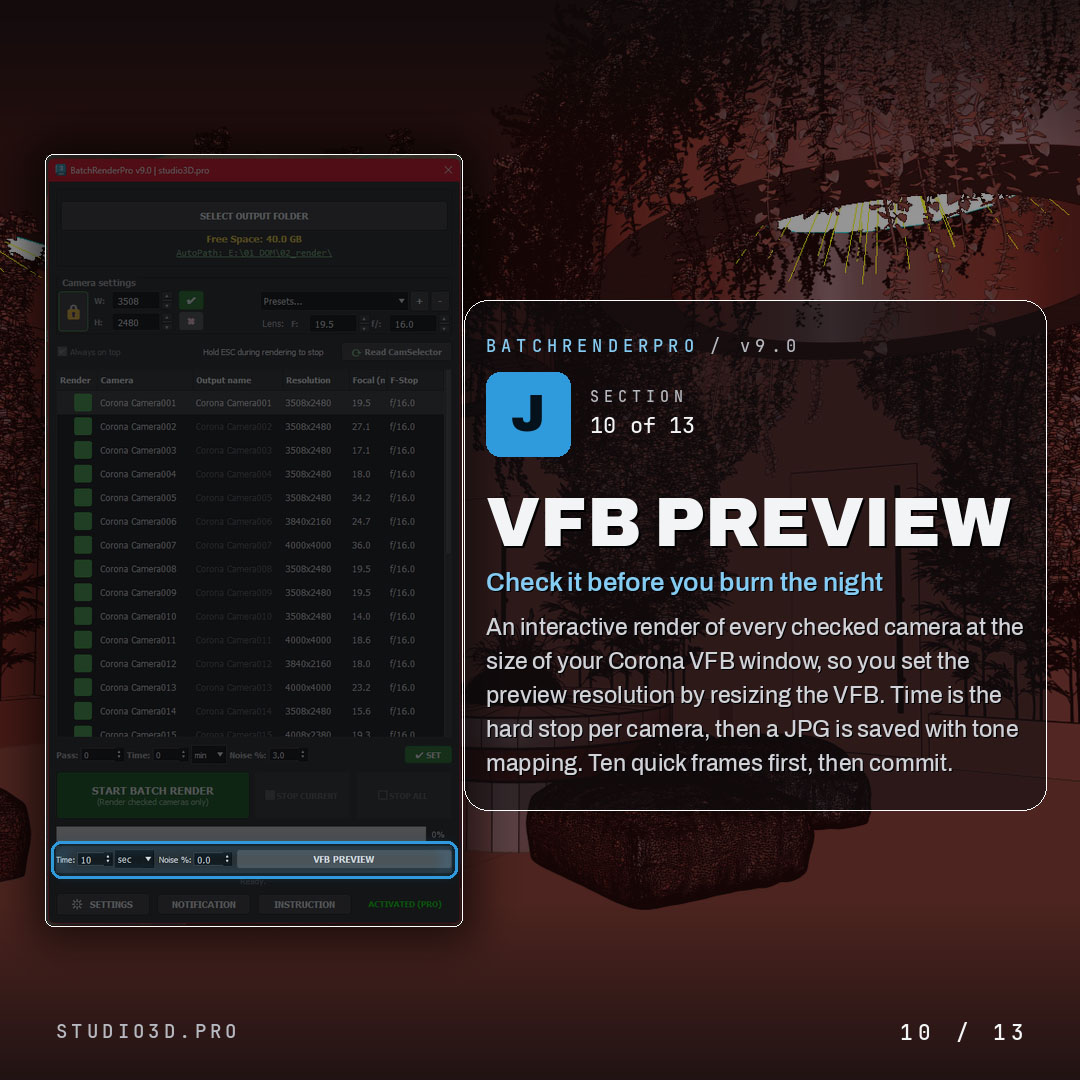
VFB Preview
- Interactive render of every checked camera at the size of your Corona VFB window
- Time is the hard stop per camera, then a JPG is saved with tone mapping
- Check ten quick frames first, then commit to the real render

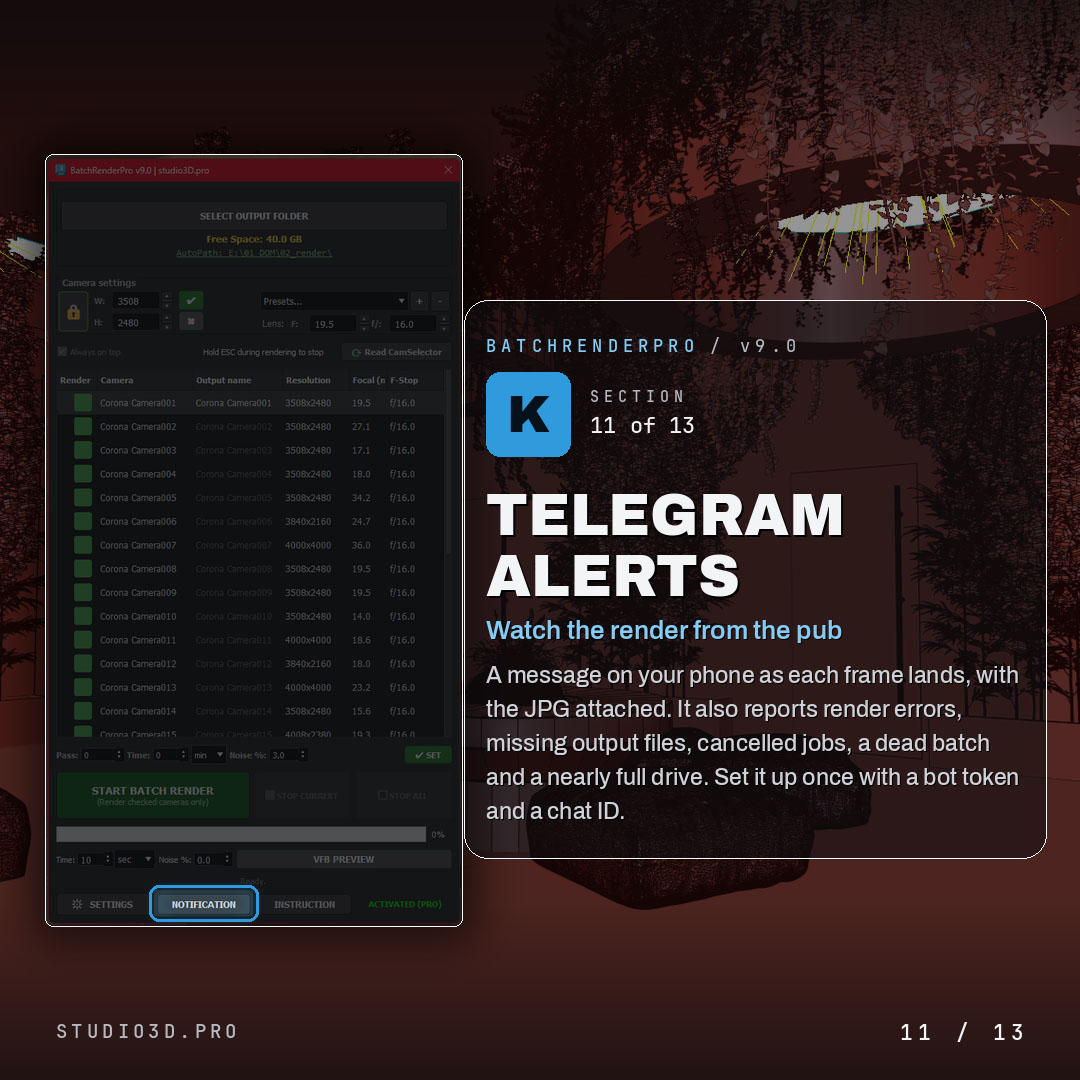
Telegram alerts
- A message on your phone as each frame lands, with the JPG attached
- Reports render errors, missing output files, cancelled jobs, a dead batch and a nearly full drive
- Set it up once with a bot token and a chat ID

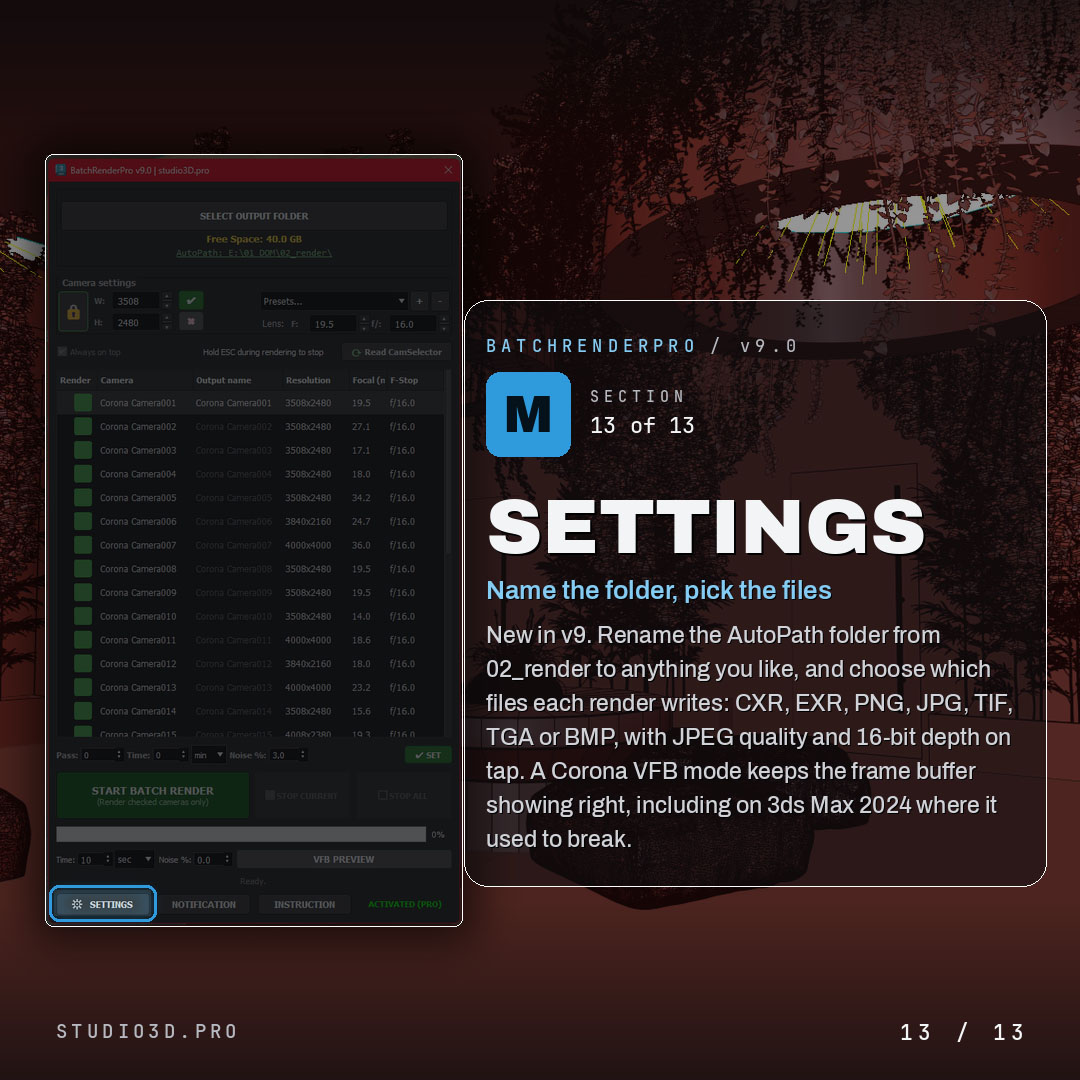
Settings
- Rename the AutoPath folder to anything you like
- Choose which files each render writes: CXR, EXR, PNG, JPG, TIF, TGA or BMP, with JPEG quality and 16-bit depth
- Corona VFB mode that keeps the frame buffer showing correctly, including on 3ds Max 2024 where it used to break
- Overwrite, skip or increment existing files, plus an after-render action

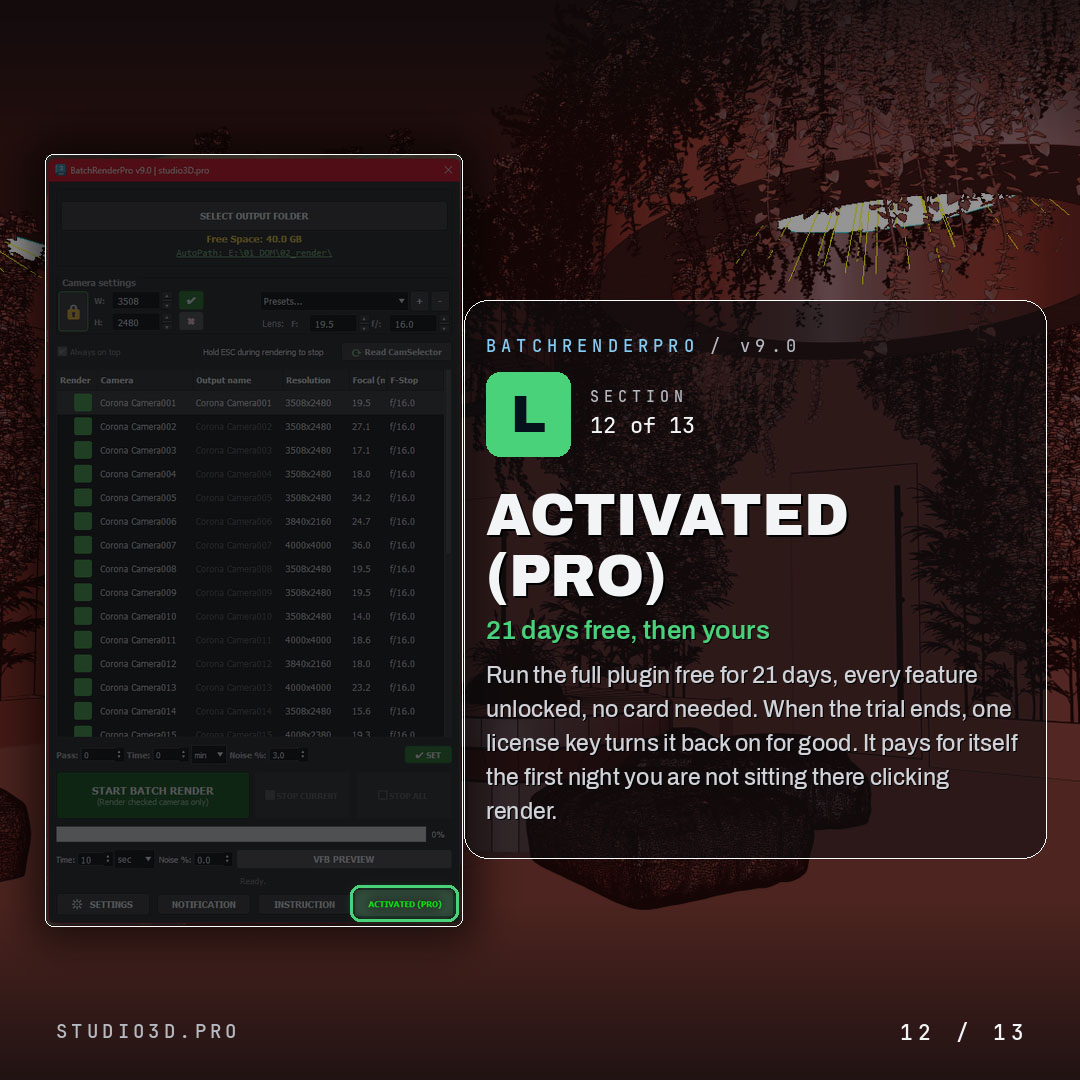
Activated (Pro)
- Run the full plugin free for 21 days, every feature unlocked, no card needed
- When the trial ends, one license key turns it back on for good

Why archviz artists choose Batch Render Pro
It turns a night of manual rendering into a queue you set once and forget. Per-camera control, the exact formats you need, a preview before you commit, and a phone alert when it is done. If you want reliable batch rendering for 3ds Max and Corona without babysitting the machine, BatchRenderPro pays for itself the first night you are not sitting there clicking render.

Frequently asked questions
Which versions of 3ds Max does Batch Render Pro support?
3ds Max 2024 through 2027. Each release is tested against the current versions, so it does not break the way older batch render scripts do.
Does it work with Corona and V-Ray?
Yes. Stop conditions for Corona (passes, time or noise level) are built in, and V-Ray scenes queue and render exactly the same way.
Can I set a different resolution for each camera?
Yes. Resolution, aspect ratio and focal length are set per camera in one table, without touching the global Render Setup dialog between shots.
What happens when the 21-day trial ends?
The plugin stops rendering new batches. Nothing is removed from your scenes and no settings are lost. Entering a licence key picks up exactly where you stopped.
Is the licence perpetual or a subscription?
Perpetual. You pay once and keep the version you bought, with updates included. There is no recurring charge.
How do the Telegram notifications work?
You connect a Telegram bot once. The plugin then sends the finished render as a JPG to your phone, warns you when free disk space runs low, and reports errors during unattended overnight sessions.

Reviews
There are no reviews yet.