
Tutorials · 3ds Max Workflow
The Complete Guide to Batch Rendering in 3ds Max (2024-2027)
By Marcin Sroka · Studio3D · 7 min read
In professional architectural visualization (ArchViz), computing time costs serious money. Manually triggering single shots and babysitting your workstation all night stopped being the industry standard a long time ago. Batch rendering lets you queue up dozens of camera views for the machine to process unattended while you sleep. This guide breaks down how to optimize your render queue using Corona Renderer and V-Ray in the latest Autodesk environments (versions 2024 through 2027).
Why the Native Batch Render Tool Falls Short
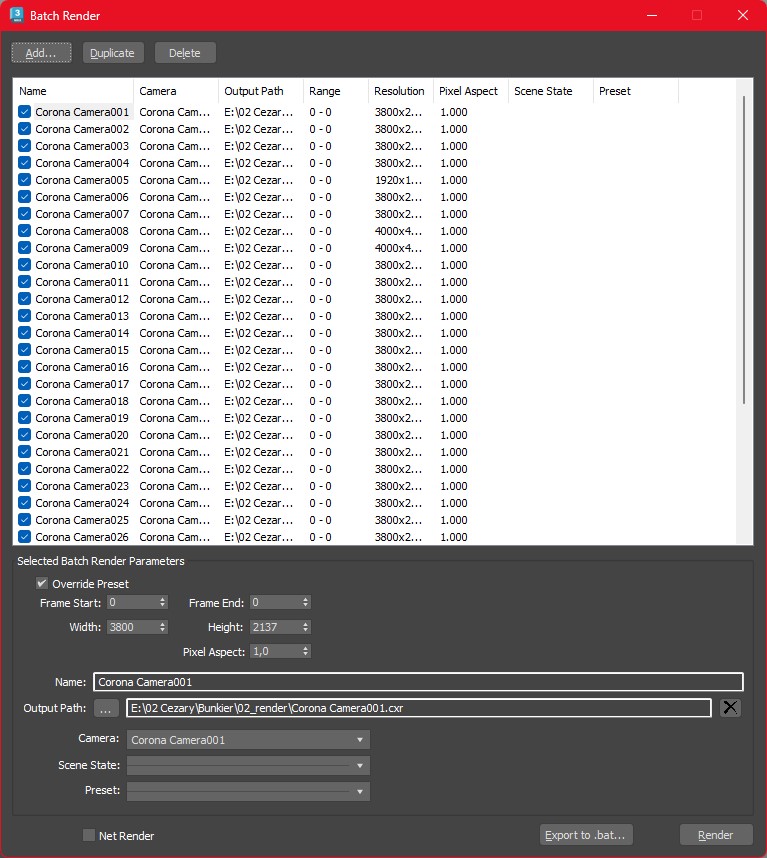
Almost every 3ds Max user eventually hits a wall with the built-in batch rendering tool. The default interface (found under Rendering > Batch Render) feels outdated and struggles to handle today’s heavy architectural scenes.
The main pain points of the native solution include:
- Manual configuration: You have to add every single camera by hand. Assigning specific output paths and engine parameters to each one requires endless clicking through menus.
- No global resolution control: The built-in tool handles custom aspect ratios terribly. If you set up a vertical shot for Instagram (like 1080×1350) for one camera and a wide 4K shot for another, the native tool often botches the output.
- Crashes and memory leaks: When working alongside the default Layer Explorer, the native tool easily freezes the software when jumping between heavy scenes packed with proxy objects.
To build a reliable workflow, professionals usually abandon this tool and switch to advanced queue-management scripts.
IMAGE / SCREENSHOT
Resolution and Camera Automation
A properly optimized batch rendering pipeline runs on smart data tables. Instead of opening dozens of floating windows, you want to manage all your cameras from a single, unified list.
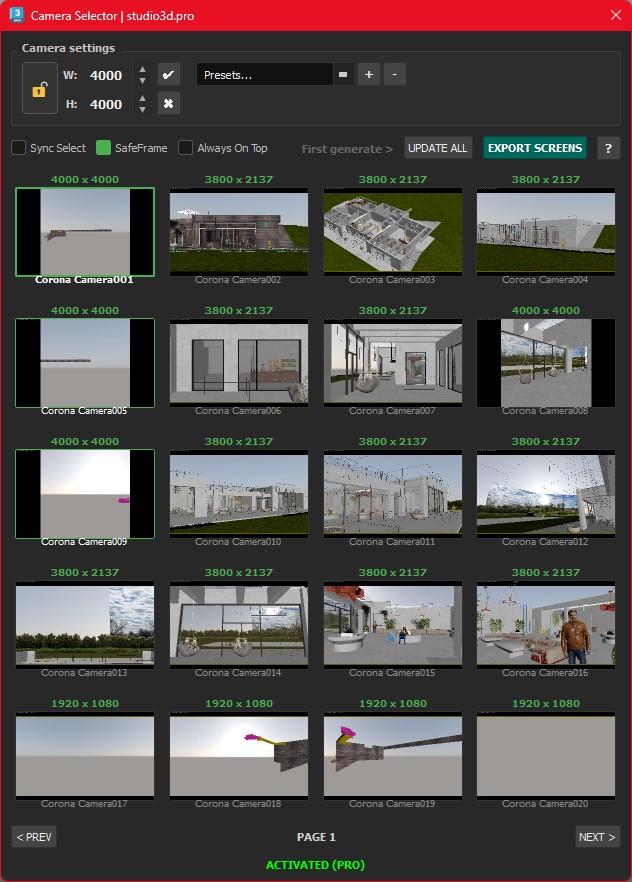
The real game-changer here is the “Auto Resolution” feature. When you use professional 3ds Max plugins, each camera in your scene can pull its own custom resolution, tying directly into the output dimensions for Corona or V-Ray. You set these values from one master list. This completely removes the risk of your vertical shot rendering with cropped edges because of some global override left unchecked in the Render Setup (F10) tab.
For a truly seamless pipeline, tools like Cam Selector let you dial in all your camera settings upfront. This acts as a ready-made setup for Batch Render Pro, allowing you to render the entire scene with just one click once your cameras are locked in. You can also manage focal length directly from these lists, a lifesaver when a client asks to “widen the shot just a bit” across twenty different living room views at the last minute.
IMAGE / SCREENSHOT
Setting Stop Conditions in Corona Renderer
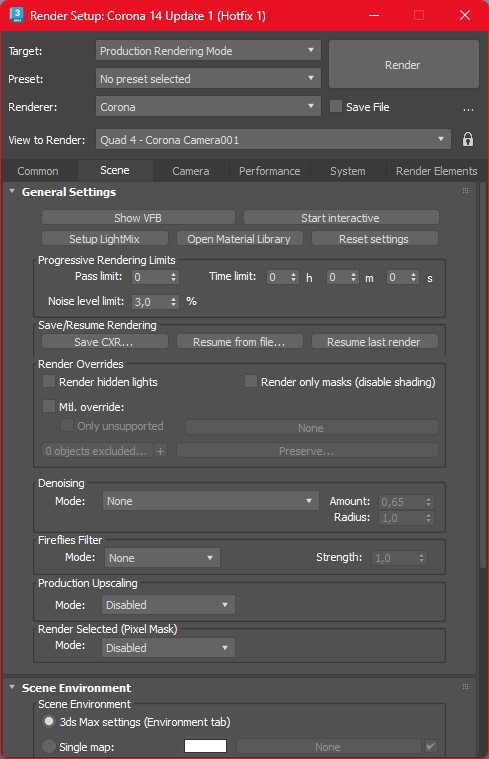
When generating multiple ArchViz shots, managing the time allocated to each frame is critical. If you leave Corona running without hard limits, a single difficult shot (like one filled with glass and heavy depth of field) can stall your entire queue for the whole night.
An automated batch process requires you to define rendering stop conditions based on one of three parameters:
- Pass Limit: The engine stops the frame after reaching a specific number of passes.
- Time Limit: You assign a hard stop, say exactly 2 hours per camera. This guarantees your four-shot queue actually finishes by morning.
- Noise Level Limit: This is the smartest approach. The engine analyzes the frame’s noise and only moves to the next camera once the image hits a specific threshold (like 3%). It doesn’t matter if it takes 40 minutes or 3 hours; it stops exactly when the quality is right.
IMAGE / SCREENSHOT
Output File Management (CXR, EXR, PNG, JPG)
A solid queue manager doesn’t just render; it organizes your files. The software should automatically generate output directories for your specific working sessions.
Modern workflows demand multi-format saving in a single go. From one rendered camera, your system needs to automatically spit out:
- CXR or EXR: Raw 32-bit data with full dynamic range and render elements (like LightMix) for heavy post-production in Photoshop.
- PNG with Alpha: For dropping in backgrounds quickly.
- JPG: A lightweight preview file to send to the client or share with your team.
All of these formats need to generate simultaneously in one pass, straight from the Frame Buffer, without forcing the scene to calculate a second time.
Telegram Notifications: Remote Render Monitoring
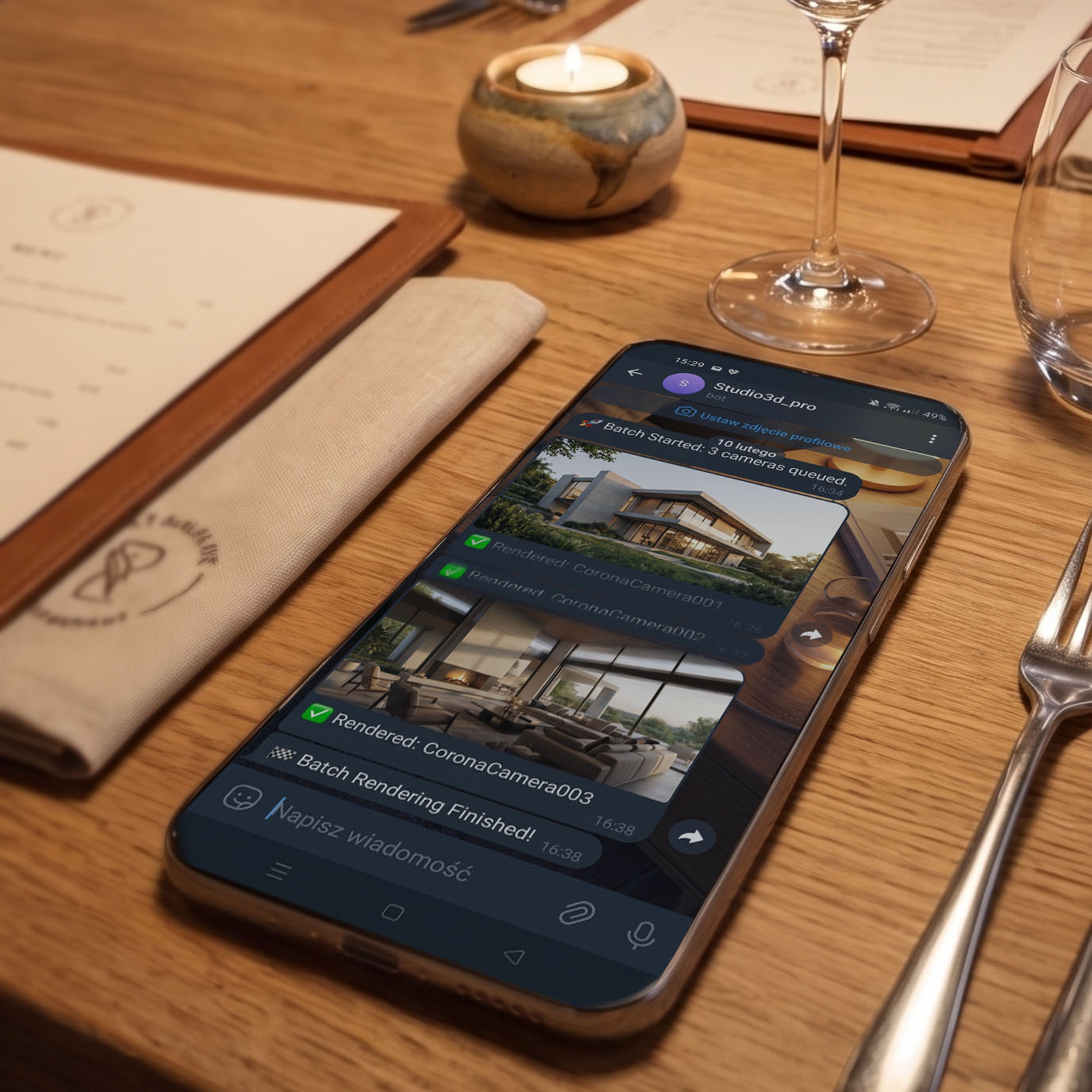
The biggest source of stress for any 3D freelancer is not knowing if the overnight render finished successfully or if 3ds Max crashed at 2:00 AM. Integrating external plugins with messaging APIs like Telegram completely changes the batch rendering game.
By hooking up your 3ds Max scene to your smartphone, the system acts as an autonomous assistant:
- Whenever a camera finishes, the plugin compresses the image into a JPG and shoots it directly to your phone.
- Built-in algorithms constantly watch your system drive space. If it drops below a critical threshold like 5 GB (which guarantees a fatal crash when saving massive CXR files with LightMix), the system pings you with a Telegram alert.
- If the engine crashes or encounters missing textures, you get an immediate error notification.
IMAGE / SCREENSHOT
Wrapping Up
Working in 3ds Max 2024-2027 offers massive computing potential, but the native operating modules still drag down production speed. Building a smart batch rendering environment that handles custom resolutions, distributes multi-format files, and pings your phone via Telegram pays for itself on the very first major project. Automating this phase lets architects focus on the actual art instead of staring at a rendering progress bar.
Tools mentioned in this guide
A queue manager that reads every camera automatically, sets per-camera resolution, controls stop conditions, saves CXR/EXR/PNG/JPG at once and pings you on Telegram, paired with a visual grid to set your cameras up first.
Tags: 3ds max · batch render · corona renderer · v-ray · archviz · render queue · stop conditions · cxr · exr · telegram notifications · 3ds max 2027 · workflow