
Why 3ds Max’s Built-In Batch Render Is Wasting Your Time — And How to Fix It
If you work in architectural visualization, you know the routine. The client wants a dozen views. You open 3ds Max’s Batch Render dialog, and the real work begins – not the creative work, but the painful, repetitive configuration work that nobody talks about.
This article is about that specific pain, why it exists, and how to permanently get rid of it.
View this post on Instagram
The Problem With 3ds Max’s Native Batch Render
3ds Max has had a Batch Render tool for years. On paper, it sounds perfect: set up multiple camera views, hit render, walk away. In practice, it’s a different story.
Here’s what actually happens when you use the native Batch Render dialog on a scene with 10–15 cameras:
You configure each camera one by one. Every single view requires you to manually add a row, assign a camera, set the output path, define the filename, specify the resolution, and confirm the render preset. There is no “select all cameras and render” button. There is no smart naming. There is no automation of any kind.
For a scene with 12 cameras, that means 12 repetitive configuration cycles – each one a small window for typos, wrong file paths, mismatched resolutions, and forgotten cameras.
Resolution changes are a headache. If the client changes the output format halfway through say, from 3840×2160 to 4096×2160 – you need to go back and update every row in the Batch Render list manually. Miss one and you’re delivering an inconsistent image set.
There is no preview workflow. Before committing to a full-quality render pass, most ArchViz artists want a quick look at composition from every camera. The native Batch Render has no mechanism for this. You either render everything at full quality or you improvise a clumsy manual workaround.
Output file naming is on you. The native tool doesn’t automatically name files after the camera they came from. Keeping track of which render came from which camera – especially across multiple iterations – becomes its own organizational task.
The result? A tool that technically exists but costs you far more time than it saves. On a typical ArchViz project with a dozen views, you can easily spend 30–45 minutes just configuring the render queue. Multiply that by revision rounds and you’re looking at hours of non-billable, non-creative work every week.
View this post on Instagram
What Batch Render Automation Should Actually Look Like
The right solution to this problem isn’t a workaround – it’s a fundamentally different approach to how 3ds Max handles multi-camera rendering.
Here’s the workflow that should exist:
- Open your scene with all cameras already placed and named
- Open the batch render tool
- See all cameras listed automatically – no manual adding
- Hit one button
- Come back to finished renders, named correctly, saved in the right folder
That’s it. No configuration per camera. No manual file naming. No resolution juggling.
This is exactly what Batch Render Pro does.
How Batch Render Pro Solves Each Problem
One-Click Rendering for All Cameras
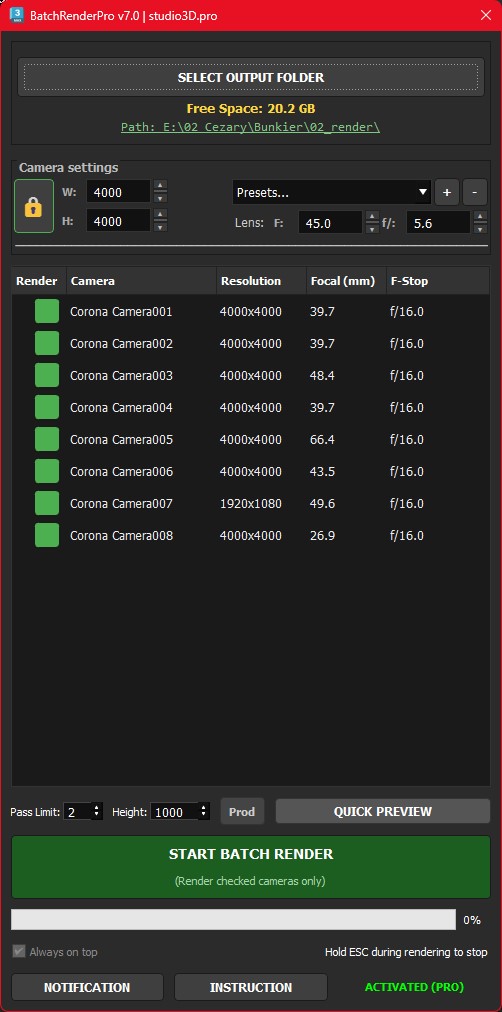
When you launch Batch Render Pro, it reads all cameras in the current scene automatically and lists them in the interface. You don’t add them manually – they’re just there. Select all, hit render, done.
For a scene with 15 cameras, the configuration time drops from 30–40 minutes to under 30 seconds.
Automatic File Naming and Folder Creation
Batch Render Pro automatically creates a 02_render subfolder inside your project directory and names each output file after the camera it came from. No manual paths, no naming conventions to remember, no mismatched filenames across renders.
Resolution Overrides That Actually Work
Need to change the output resolution for selected cameras? Batch Render Pro lets you override width, height, and aspect ratio for any selection of cameras simultaneously. Change it once, it applies to all selected – with an optional aspect ratio lock so you don’t accidentally distort anything.
You can also save your own resolution presets and switch between them with a click, which is particularly useful when one client prefers 4K stills and another needs web-optimized exports.
Built-In Preview Rendering
Before committing to a full render pass, Batch Render Pro includes a dedicated preview generator that quickly renders low-resolution thumbnails from all or selected cameras. Check your composition from every angle in minutes, not hours.
This alone eliminates an enormous amount of wasted render time on scenes where the composition isn’t quite right.
Lens Overrides on the Fly
Need to quickly compare how a space looks at 24mm versus 35mm? Batch Render Pro lets you override focal length and f-stop directly in the interface without touching the camera objects in the scene. Change, render, compare – without disrupting your camera setup.
Telegram Notifications
For long render sessions running overnight or while you’re away from your desk, Batch Render Pro sends a Telegram notification with a JPG preview after each completed render, and a final notification when the entire queue is finished. You stay informed without having to check back constantly.
Who This Plugin Is Built For
Batch Render Pro is designed specifically for ArchViz professionals – interior designers, exterior visualization artists, and anyone working with multi-camera 3ds Max scenes on a regular basis.
If you render one or two cameras per project, the native Batch Render tool is probably sufficient. But if your typical scene has five or more views, and if you’re delivering multiple revision rounds to clients, the time savings from Batch Render Pro compound quickly.
A conservative estimate: if you save 30 minutes of configuration per project, and you deliver four projects a month, that’s two hours of recovered time every month – time you can spend on creative work, on additional projects, or simply not at your desk.
Compatibility and Pricing
Batch Render Pro is fully compatible with 3ds Max 2021 – 2027. It works alongside any render engine – V-Ray, Corona, Arnold, or 3ds Max’s native scanline renderer.
The plugin is available for a one-time purchase of €39 at studio3d.pro.
If you’re new to Studio3D plugins, you can also download the ArchViz Toolkit for free to get a sense of the workflow philosophy behind all the tools here.
The Bottom Line
3ds Max’s native Batch Render tool was built for a simpler time. It solves the basic problem of queuing multiple renders, but it does almost nothing to help with the repetitive configuration work that modern ArchViz projects demand.
Batch Render Pro doesn’t change how rendering works – it eliminates the part of the process that was never worth your time to begin with.
Download Batch Render Pro – €39 →
Also from Studio3D: Cam Selector Pro – visual camera management for complex 3ds Max scenes. Works seamlessly with Batch Render Pro as part of a complete ArchViz render workflow.
Tags: 3ds max, batch render, archviz, rendering, automation, plugins, camera management, 3ds max 2024, 3ds max 2025, 3ds max 2027, workflow