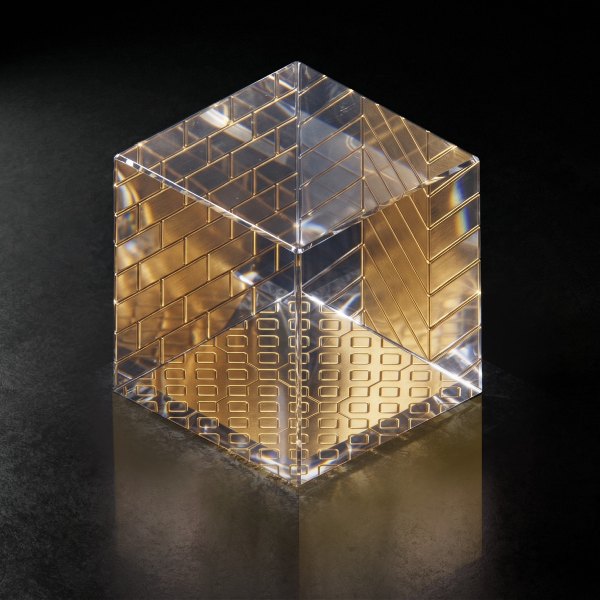
Tiler Pro
$19.00
Tiler Pro is a 3ds Max tile and floor generator plugin that covers any flat surface with real geometry tiles, wood planks and paving. Pick a floor, a wall or a terrace with one click, choose one of 16 patterns, and get beveled tiles with grout, Material IDs and per-tile texture variants ready to render in Corona, V-Ray or any renderer. Every generated floor stays editable, so you can change size, grout or pattern at any time. Works in metric and imperial units, including fractional inches. Built by a 3D artist for 3D artists.
Description
Tiler Pro: tiles, planks and pavers on any surface in 3ds Max
Tiler Pro is a 3ds Max tile and floor generator plugin that covers any flat surface with real geometry tiles, wood planks and paving in a few clicks. Pick a floor, a wall or a terrace, choose one of 16 patterns, and get beveled tiles with grout, Material IDs and texture variants ready to render. Every generated floor stays editable, so you change the size, the grout or the whole pattern later without starting over. Built by a working 3D artist for 3D artists.
What you get
Pick surfaces with a click
- Click a flat face to select it, Shift+click to add more, right-click or Esc to finish
- Floors, walls and ceilings from different objects go into one Tiler Pro object with shared tile settings
- Polygons from the same object are treated as one surface, so the pattern runs across them without breaks
16 patterns in three tabs
- Tiles: Standard, Hexagon, Basket Weave, Versailles, Hopscotch, Octagon and Dot, Diamond
- Wood: Random Length Planks, Herringbone, Chevron with adjustable angle
- Paving: Behaton wave pavers, Old Town random cobbles, I-Paver, Hex Grass, Grid Grass and Lattice grass pavers
Real geometry that renders clean
- Every tile is a solid with its own thickness and bevel, and flat shading with no smoothing artifacts
- Separate horizontal and vertical grout with a link button, row offset and pattern rotation in degrees
- Optional grout geometry just under the bevel edge, and tiles cut cleanly to the surface outline
Floors that stay editable
- The generated object remembers its parameters and outlines and rebuilds in place when you change anything
- Switch the pattern of a finished floor and your materials stay in their roles
- No more deleting and regenerating when the client asks for bigger tiles
Per-surface control
- A separate Surfaces window lists every surface in the object
- Each surface gets its own grout start offset, and Continue runs the pattern on from its neighbour
- The surface you edit is outlined in yellow in the viewport, so you always know where you are
Natural randomness with a seed
- Random Length Planks with minimum and maximum length and a minimum stagger between rows
- Versailles and Old Town layouts vary with a seed and give the same result on every rebuild
Grass pavers with hole fill
- Hex Grass, Grid Grass and Lattice slabs with real openings
- Holes are filled with a separate solid at a set depth, on its own Material ID, ready for grass or gravel
Material ID slots
- Each tile kind gets its own Material ID and the grout always comes last
- Click a slot to take the active material from the Material Editor, or fill all slots at once from a Multi/Sub-Object
- Right-click a slot to open the Material/Map Browser, pick a material from an object, or clear it
Texture variants per tile
- Drop a Multi/Sub-Object into a slot and its sub-materials become variants spread randomly across the tiles
- Variants stay on the same tiles after every rebuild and offset change
- Different textures show directly in the viewport, not only in the render
Make Material
- One click builds a renderer-native Multi/Sub material: Corona Physical, V-Ray or Physical Material, depending on your renderer
- Four colour variants per tile kind, plus fill and grout, assigned to the surface you edit
- Opens straight in the Slate or Compact Material Editor, ready for your own maps
Metric and imperial units
- Type values as 30cm, 0.5 m, 12″, 1/8″ or 1′-6 1/2″, with dot or comma
- Follows the ArchViz Toolkit unit setting and reacts live when you switch between metric and imperial
- Generated floors survive Rescale World Units and merges with rescale
Fits your workflow
- Dark interface matching ArchViz Toolkit, launched from the TILER button in the Pro Plugins section
- The window remembers its position and size, and opens with all its content visible
- Every operation is a single Undo step
Why archviz artists choose Tiler Pro
Tiling a bathroom or a terrace by hand means hours of arrays, booleans and fixing grout lines that do not meet. Tiler Pro turns it into a few clicks and keeps the result editable, so a change of tile size or pattern takes seconds instead of a rebuild. If you want real tile geometry in 3ds Max with clean bevels, proper Material IDs and texture variation that holds up in close-up renders, it pays for itself on the first bathroom.
Frequently asked questions
Can I change a floor after it is generated?
Yes. Select the Tiler Pro object and every parameter loads back into the panel. Change the size, grout, rotation, offset or pattern and the object rebuilds in place.
Does it work on walls and ceilings?
Yes. Any flat surface works, in any orientation. Floor, walls and ceiling can be tiled together in one object with shared settings.
Which renderers does it support?
The geometry and Material IDs work with any renderer. Make Material builds a native material for Corona, V-Ray or Physical Material, based on the active renderer.
Is the tile geometry heavy?
Each tile is a simple beveled solid. Large herringbone or paving areas contain many small tiles, so you can generate only the surfaces the camera sees and rebuild a single surface when you edit it.
Does it support imperial units?
Yes. Feet, inches and fractional inches are supported for input and display, and the panel follows the units you set in ArchViz Toolkit.
Which versions of 3ds Max does it support?
3ds Max 2021 through 2027.
Is the licence perpetual or a subscription?
Perpetual, with updates included.