

Tutorials · 3ds Max Workflow
How to Measure in 3ds Max: Metric and Imperial Dimensions
By Marcin Sroka · Studio3D · 8 min read
Measuring in 3ds Max sounds like it should be one button. In practice it is spread across a utility panel, a helper object, a menu command and the Units Setup dialog, and the moment a project uses feet and inches it gets slower still. This guide covers the native ways to read and set dimensions in 3ds Max, where each one helps and where it gets in the way, and how the metric and imperial units engine added in ArchViz Toolkit 5.8 lets you read and type architectural sizes without touching your scene setup.
The short version
Native 3ds Max can display feet and inches, but only by switching the whole scene to US Standard. That changes every field for everyone in the file and ties fractional precision to one global setting. For a metric scene delivered to an imperial client, flipping units back and forth is not a workflow.
The free ArchViz Toolkit is the shortest path to imperial work. It is one dockable panel with 35+ archviz tools for 3ds Max, and in 5.8 its size fields read and set object dimensions in feet and inches while the scene stays metric underneath:
- Type the way plans are dimensioned, for example 5′-6 1/2", or a bare 8 for eight feet.
- Set precision per field, fractional inches from 1/2 down to 1/64, or decimal.
- Nothing in the scene changes, so colleagues’ fields, imports and render setup stay put.
It is free, installs as a single panel and works with 3ds Max 2024-2027. Download ArchViz Toolkit 5.8.
The native ways to measure in 3ds Max
3ds Max ships with three separate tools for measuring, and each answers a different question.
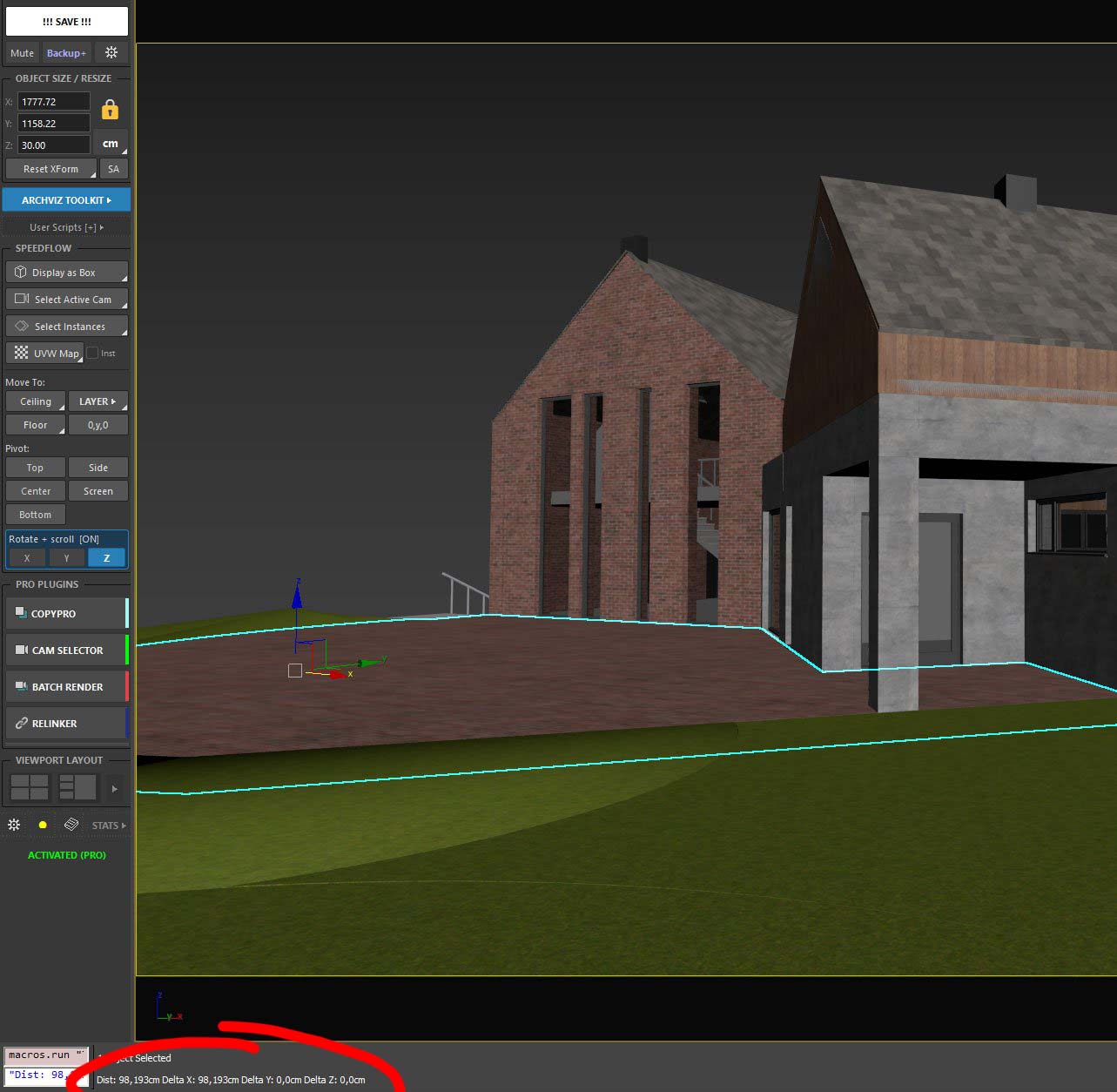
Measure Distance (Tools menu, then Measure Distance) is the quick one. You click a start point and an end point, and the distance appears in the status bar at the bottom of the viewport, for example Dist: 98,193cm. It is good for a one-off check, but it does not stay on screen and it does not snap to geometry unless snaps are already on.
Image / Screenshot
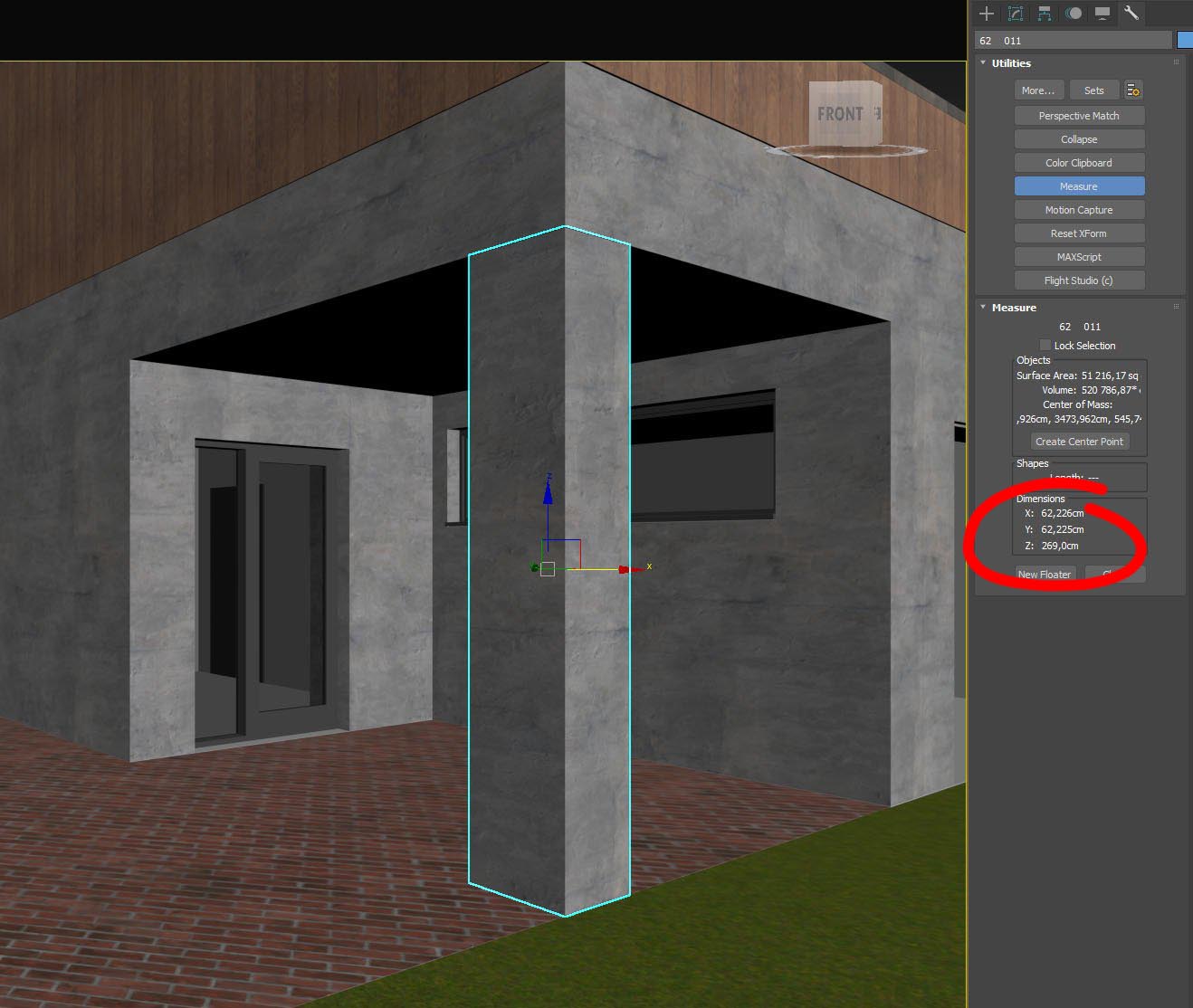
The Measure utility (Utilities panel, then More, then Measure) works on a selected object rather than two points. Select a box or an editable mesh and it reports the bounding-box dimensions, surface area, volume and center of mass. This is the closest native equivalent to asking how big is this object, but the readout lives in a side panel you have to open each time.
Image / Screenshot
The Tape helper (Create panel, Helpers, then Tape) is a measurement you can leave in the scene. You drag it between two points and it keeps showing the distance as you work. It is useful for a dimension you want to watch over time, less useful when you just want a number and move on. None of these three change how sizes are displayed elsewhere. That is controlled separately, and it is where imperial work starts to hurt.
The units problem: display scale and system scale
Open Customize, then Units Setup. There are two settings that people often confuse. Display Unit Scale changes how numbers are shown to you: Metric in centimeters or meters, or US Standard in feet and fractional inches. System Unit Setup is deeper. It defines what one generic unit means to 3ds Max internally, for example 1 unit = 1 millimeter, and changing it on an existing scene rescales everything or breaks imported geometry if you are not careful.
Image / Screenshot
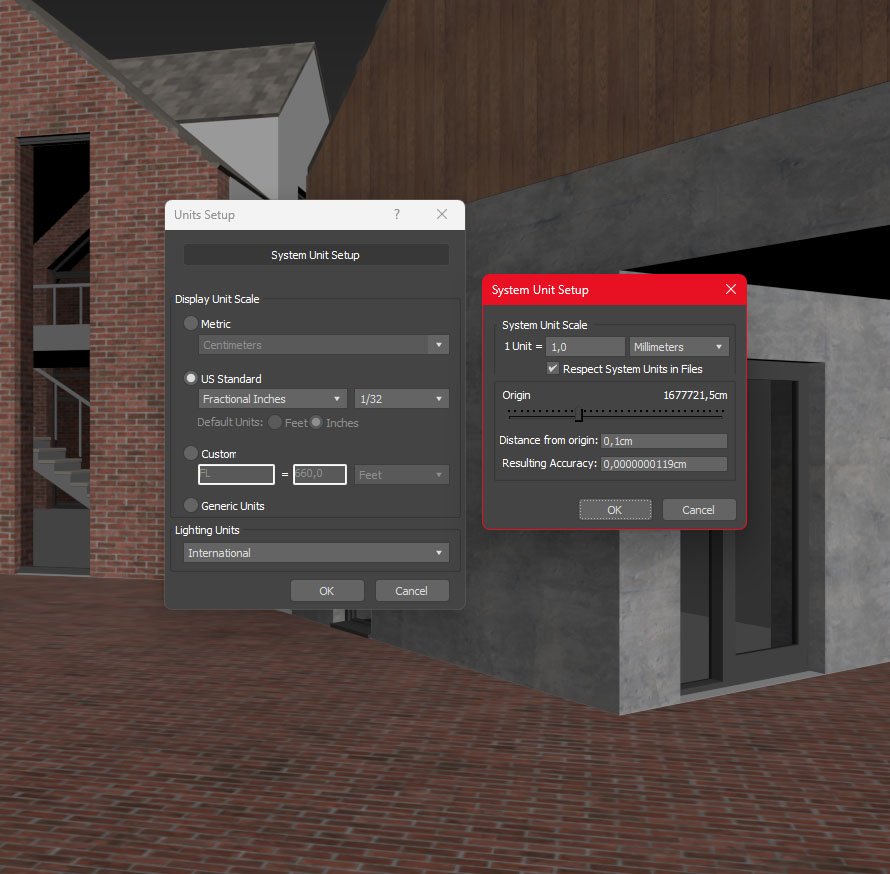
US Standard display does give you feet-inches with fractional readout, so 3ds Max can show 5′ 6" instead of 167.64 cm. The friction is practical. Switching the whole scene to imperial changes every field for everyone working in that file, the fractional precision is set globally rather than per field, and typing a clean architectural value like five feet six and a half inches into a spinner is not something the default fields were built for. For a studio whose scenes are metric but whose client wants imperial output, flipping Units Setup back and forth is not a workflow.
Reading and setting size in the ArchViz Toolkit panel
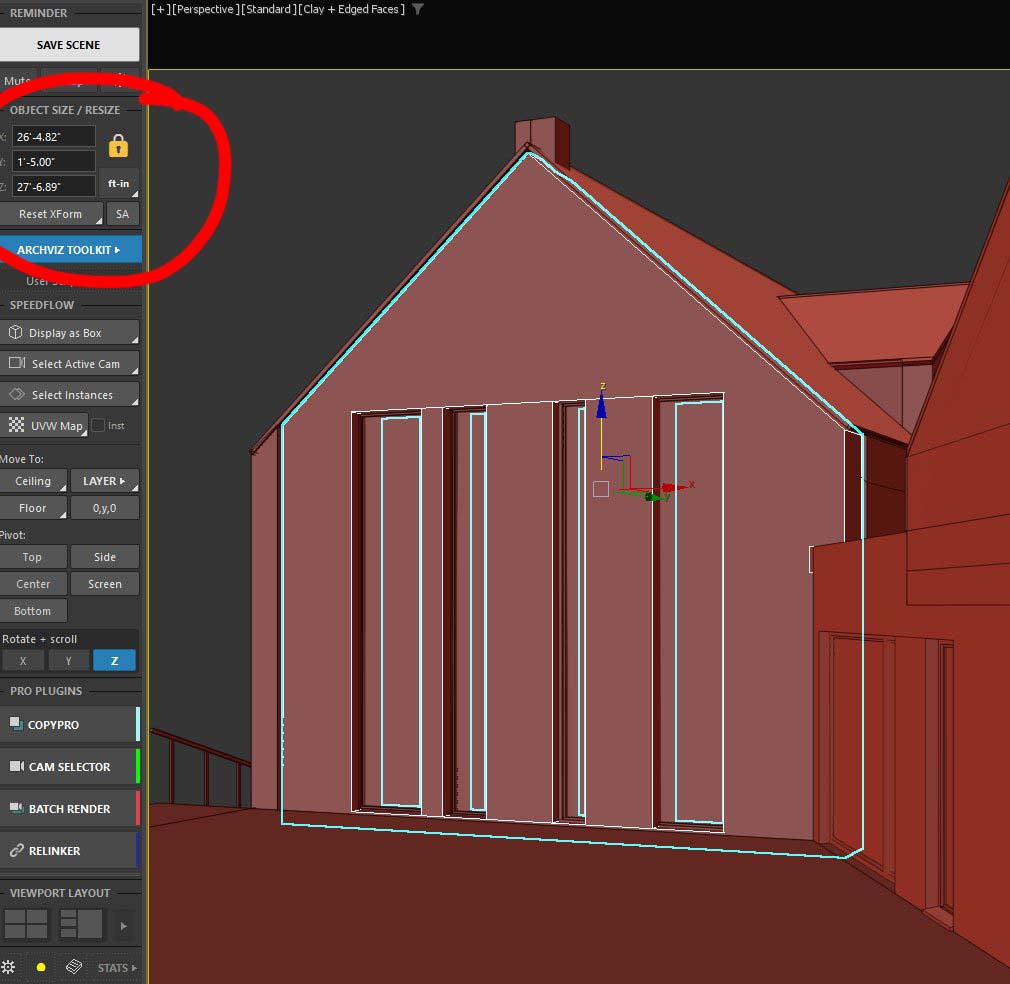
The free ArchViz Toolkit adds an OBJECT SIZE / RESIZE block to its dockable panel that reads the selected object and lets you set its dimensions by typing. Select an object and the panel shows its X, Y and Z size. Type a new number and the object resizes to match. This alone removes most trips to the Measure utility, because the numbers sit in the same panel you already keep open for layers, pivots and the rest of the daily actions.
Image / Screenshot
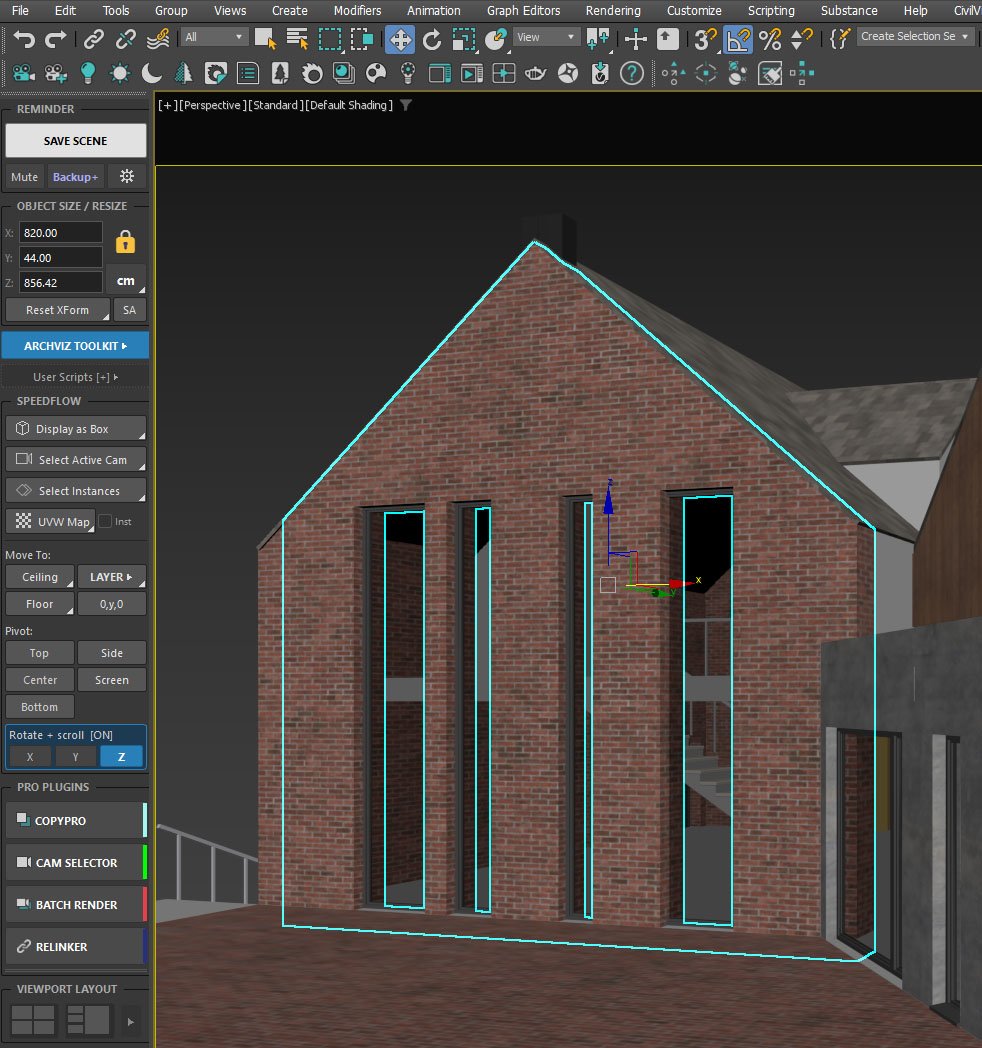
What changed in version 5.8 is that these fields now speak both unit systems on their own, independently of the scene’s System Unit Scale. The small unit button next to the fields flips the readout between cm and ft-in.
New in 5.8: the metric and imperial units engine
Version 5.8 adds a units engine to the toolkit that works regardless of how the scene itself is set up. You can read and enter architectural dimensions in feet and inches while the scene stays metric underneath, so nothing about your file, your colleagues’ fields or your render setup has to change. The parser accepts the way architects actually write sizes:
- 24" for twenty-four inches
- 2′ for two feet
- 5’6" or 5′-6 1/2" for feet, inches and a fraction
- 3 1/2" for a fractional inch on its own
In feet-and-inches mode a bare number is read as feet, which matches how plans are dimensioned, so typing 8 gives you eight feet, not eight inches. The field’s own tooltip spells the whole grammar out, including the modifier keys.
Image / Screenshot
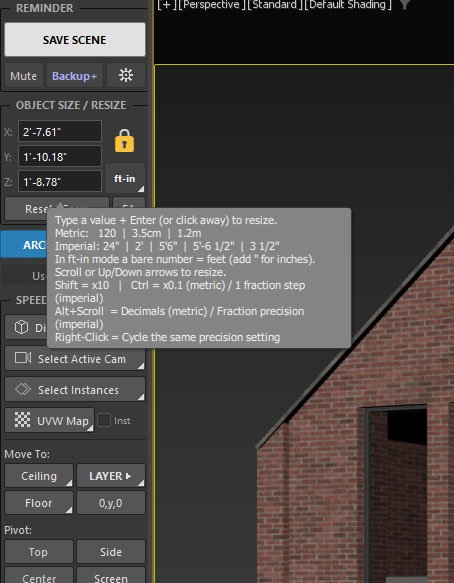
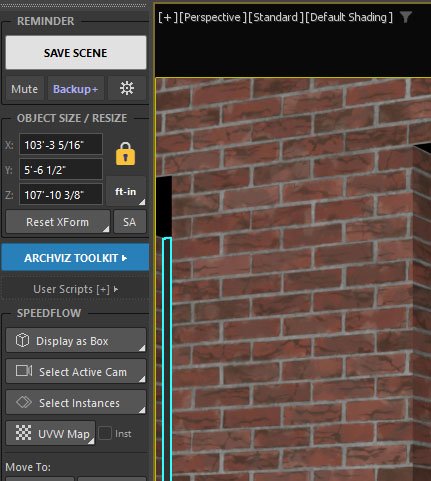
Display precision is yours to set. Fractional-inch readout runs from 1/2 down to 1/64, or you can switch to decimal. Hold Alt and scroll over a size field to change it, or right-click the field to cycle the same precision setting. That keeps rounding under your control instead of tied to a global Units Setup value. Plain scroll and the arrow keys resize by one step, Shift multiplies the step by ten, and Ctrl moves by a single fraction step in imperial.
Image / Screenshot
Set the unit mode in UI Config
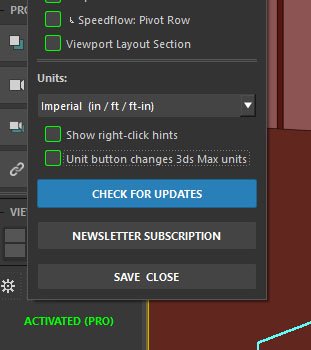
The unit mode lives in the toolkit’s UI Config. You choose Auto, Metric or Imperial, so the panel can either follow the scene or stay locked to the system you are delivering in. Two related options sit beside it. Show right-click hints turns on the corner markers that flash a button’s secondary function, and Unit button changes 3ds Max units decides what the unit button does. Left off, which is the default, the unit button is preview-only: it shows the size in the other system without rewriting your scene’s units. Turn it on only if you want that button to change the 3ds Max units for real. The safe behavior is the default, and the old behavior is one checkbox away.
Image / Screenshot
How to switch to imperial and type a dimension
Putting it together, the workflow for imperial delivery on a metric scene is short:
- Open the ArchViz Toolkit panel and go to UI Config.
- Set Units mode to Imperial, or leave it on Auto if you want it to follow the scene.
- Leave Unit button changes 3ds Max units off, so previewing never touches your file.
- Select an object. The OBJECT SIZE / RESIZE fields now read in feet and inches.
- Alt and scroll over a field to set the fraction you want, for example 1/16.
- Type an architectural value such as 5′-6 1/2" and press Enter. Scroll and arrow steps move by one inch or one foot, with Ctrl stepping by the fraction you chose.
Image / Screenshot
The rest of what 5.8 brings
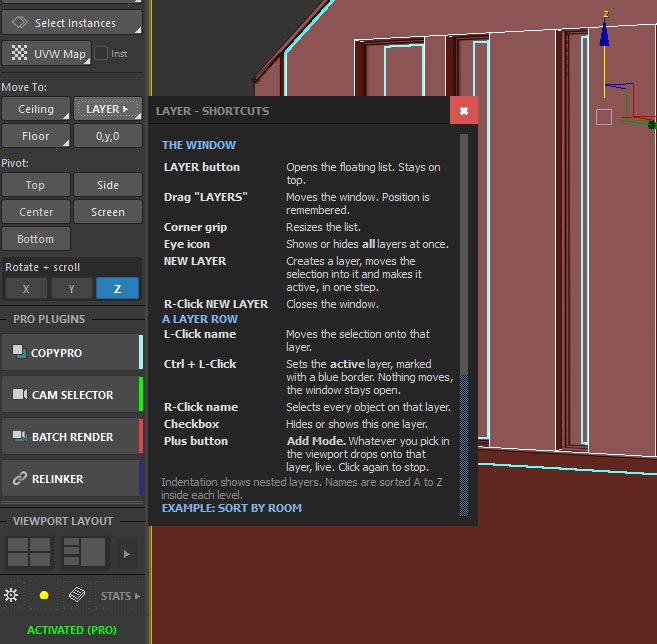
Alongside the units engine, 5.8 adds a few workflow changes worth knowing. Right-click hint markers are small corner triangles that flash a button’s secondary, right-click function, so you can see what a button does on right-click without memorizing it. Layer shortcuts help opens with a right-click on the LAYER button, a cheat-sheet you can read next to the layer list. In the UVW modifier, gizmo rotation in sub-object mode rotates the modifier gizmo rather than spinning the whole object. And the scroll and arrow step now adapts to imperial units, moving by one inch or one foot.
Image / Screenshot
Wrapping Up
Native 3ds Max can measure and it can display imperial units, but it makes you choose between a quick readout and a clean, per-object way to type architectural sizes, and it ties precision to a global setting. The 5.8 units engine keeps the reading and the input in the same panel you already work from, in feet and inches when you need them, without changing the scene underneath. Metric studios delivering to imperial clients get the part that was missing.
Get ArchViz Toolkit 5.8, free
The units engine, the architectural input parser and everything above are in the free ArchViz Toolkit. It installs as a single dockable panel and works with 3ds Max 2024-2027. If you already run the toolkit, the built-in update notice points you to the same download.
Download ArchViz Toolkit 5.8Tags: 3ds Max, ArchViz Toolkit, imperial units, feet and inches, architectural visualization, measuring, dimensions, free 3ds Max plugin